
- The account: open Settings > Code security. Its defaults apply to every repository.
- One repository: open the project, go to its Settings tab and select Code security, or click Scan settings on the project’s Code security tab.
Account settings
The account page holds the defaults for every repository: Profile, Execution and Scheduled scan. A repository can set its own on its settings page. When repositories hold their own value of a setting, the setting counts them, such as 2 repositories set their own.
There’s no account setting that turns code security on. Each repository has its own switch, and it’s off until you turn it on.
Profile
The profile sets how far a scan follows what it finds. A deeper profile reads more, takes longer and costs more.
On the account page, the profiles are a table with a column for each repository size, which gives the credits of a full scan at that size. The whole rate card opens Usage.
Execution
Execution decides whether a scan may run a repository’s code to prove what it finds.- Off: the scan reads the code and never runs it. What it finds stays a lead to validate, with no severity.
- On: the scan installs the dependencies and runs the code in its sandbox. A finding it reproduces is confirmed and gets a severity. A scan with execution costs more: the option shows by how much.
- runs install scripts and the repository’s own code, inside the sandbox only
- reaches the package registries while it installs. The code it runs has no network beyond itself
- installs Node, Python and Go at the version the repository declares. Other languages are read, not run
- is refused, free, for a checkout larger than 2 GiB. The Code security tab then says Too large to scan with execution
Scheduled scan
Scheduled scan sets how often each repository’s scheduled scan comes: Daily, Weekly, Every two weeks or Monthly. A period in which the default branch didn’t move scans nothing and costs nothing.Repository settings
A repository’s page is for that repository only. Whatever isn’t set there follows the account. Account defaults opens the account page.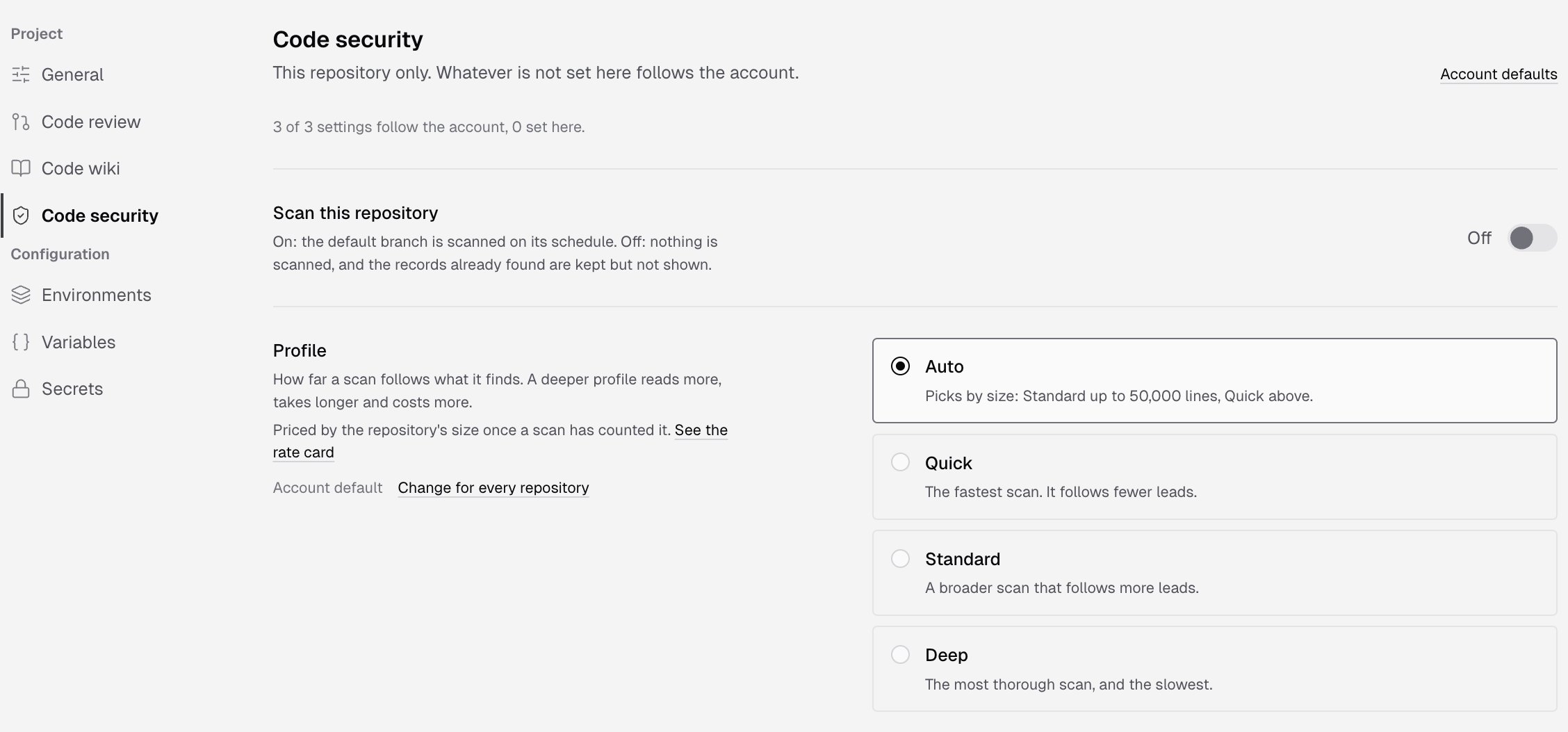
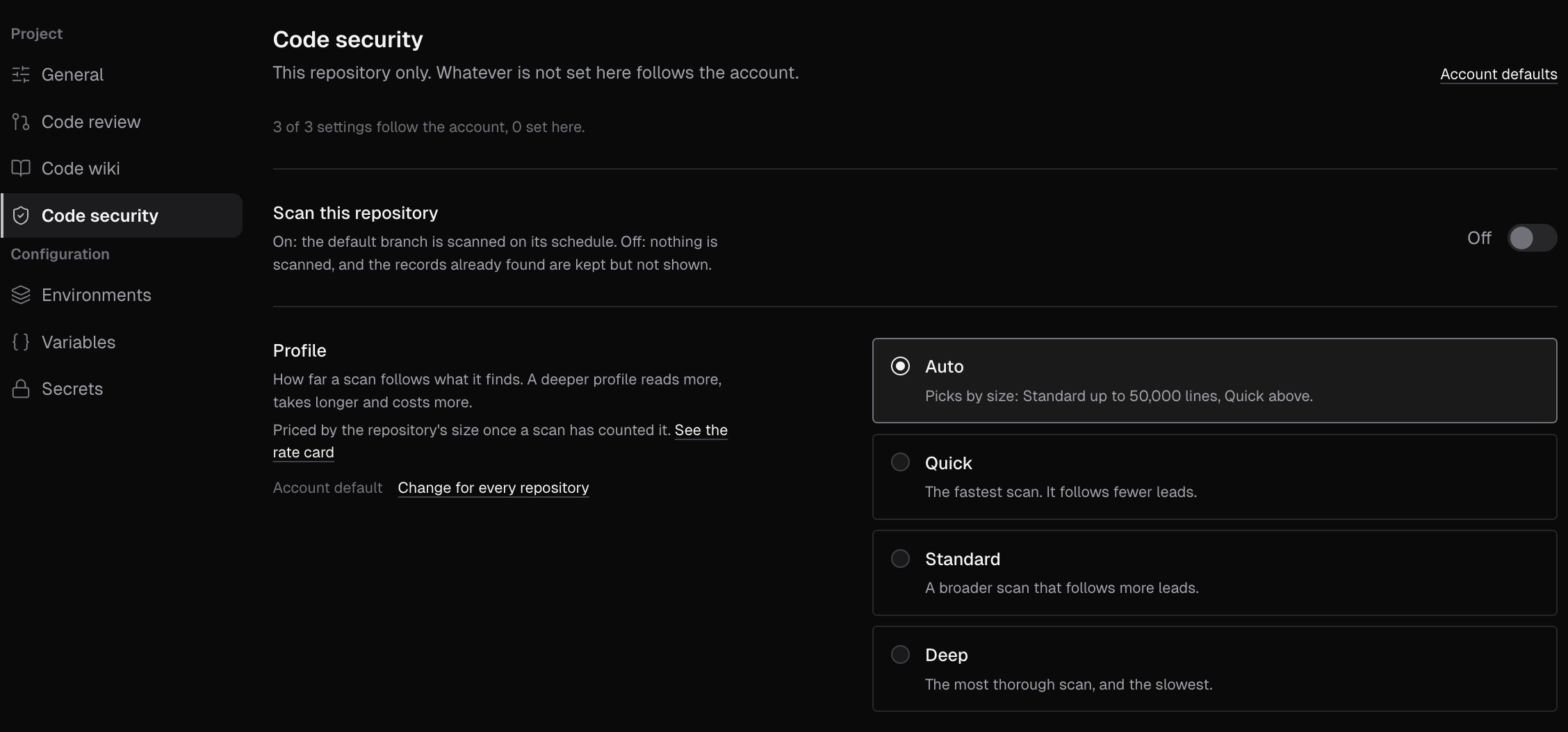
- On: the default branch is scanned on its schedule.
- Off: nothing is scanned. The records already found are kept, not shown.
- Profile, Execution and Scheduled scan, as in Account settings. A setting that follows the account reads Account default, with Change for every repository to open the account page. Change one, and it reads Set for this repository, with a link to reset it to the account default.
- Paths to ignore, which exists only on a repository’s page.
Paths to ignore
Paths to ignore are files left out of every scan and of the repository’s size, which a scan’s price is counted from. Type a pattern such asvendor/** or **/*.min.js, then press Enter or click Add a pattern.
A pattern is a glob from the repository root: * matches within one path segment and ** matches across segments. The list takes up to 100 patterns, of up to 500 characters each, with at most 10 ** in one pattern.
Changing the list makes the next scan a full scan. The page says so, with the full scan’s price when the repository’s size is known.
Save your changes
Click Save changes to save, or Discard to drop your changes. Code security settings saved confirms it. If the console refuses a value, it says Some settings were refused. A change applies at a repository’s next scan. A scan already running keeps the settings it started with.Who can change settings
Only owners and admins see code security settings, at both levels, and only they change them. A member or a billing admin who opens a settings page’s address sees Only owners and admins see the code security settings. See Roles and permissions. An archived project’s page is read-only, and says This project is archived. Unarchive it to change its code security settings. See Project settings. Code security scans GitHub, GitLab and Bitbucket repositories only. On a Vercel, Netlify or CLI project, the page says Code security scans GitHub, GitLab and Bitbucket repositories.What’s next?
Code security
What a scan does, when it runs and what it costs.
Usage
The team’s credits this month and the rate card.