
Inputs
An input is a value a run passes in, such as a product name or a search term. Add inputs in Scenario settings with Add input:
An input without a default is required: Run scenario asks for it, and every scenario that imports this one must pass it. Renaming an input updates every row that reads it.
When you run a scenario, you type each input as plain text.
Saved values
An Extract reads a value from the app and saves it under the names in its Save as field. The actions after it can read the value with@. For example, an Extract saves firstPrice from the product list, and a later Assert checks that the cart total equals it.
A value is available only to the rows after the one that writes it. If a row reads a value written later, the editor warns you, and a run that reaches that row ends in a run error.
Outputs
Outputs are the values a scenario gives back to the scenarios that import it. Add them in Scenario settings with Add output. An output is a value from an Extract in Main, or an output of an import in Main.References
In an instruction, type@ (or {{) at the start of a word. A picker lists everything the action can use, grouped as:
- Inputs
- Saved values
- Outputs of imported scenarios
- Variables
- Secrets, with their fields
- Environment properties
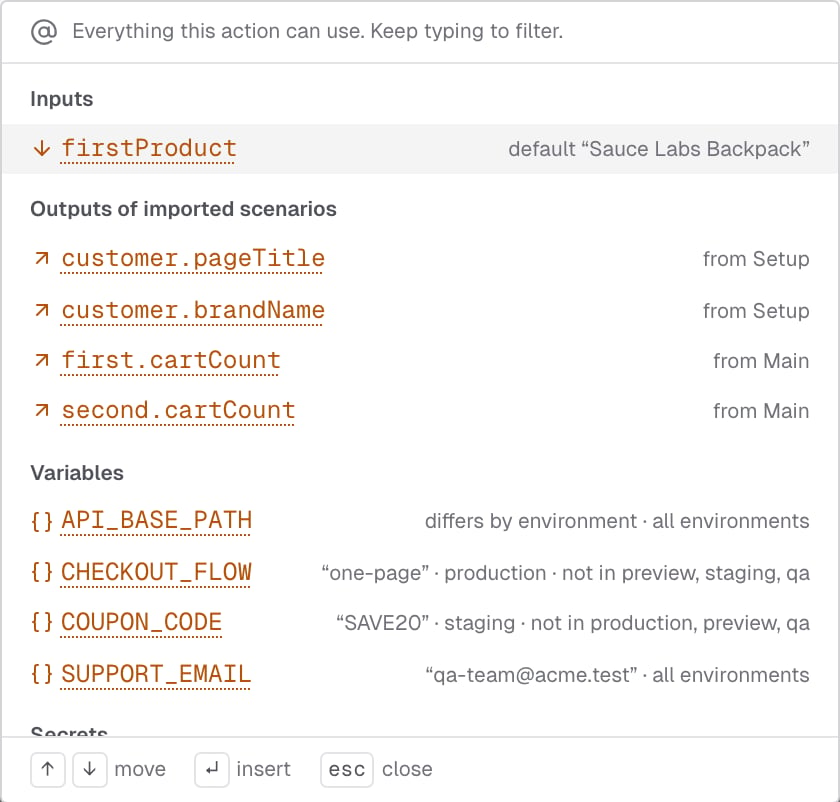
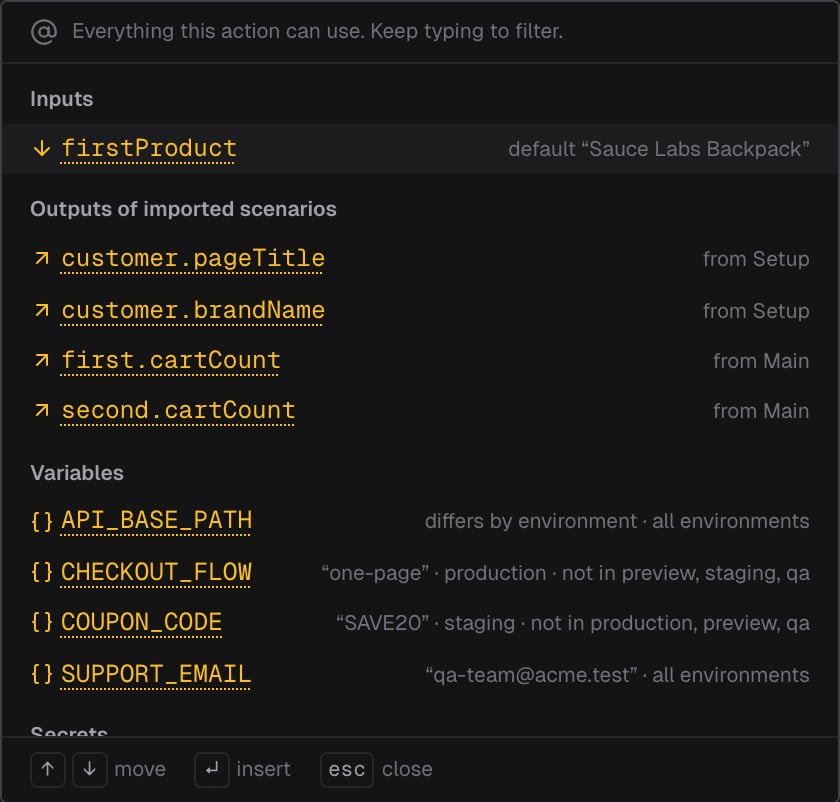
- A variable’s or property’s value is written into the action as text.
- A secret is passed as a reference. Its value is never written into the agent’s instructions. See Secrets.
- An HTTP headers secret is applied to every request automatically, so it can’t be used in an action. The picker lists it, turned off.
Imports
An Import row runs another scenario of the same project in this one. Use it to write a flow once, such as signing in or resetting the app, and reuse it in the project’s other scenarios.- Add an Import row. The Import a scenario picker lists the project’s scenarios with the inputs each one needs and the outputs it gives.
- Pick a scenario. The row’s dialog opens.
- Set Name in this scenario. You read its outputs with it, for example
@customer.pageTitle. - Fill its Inputs, each with a value or one reference: an input, a saved value, an output or a secret. Leave an optional input empty to use its default. A required one must be filled.
- Click Add.
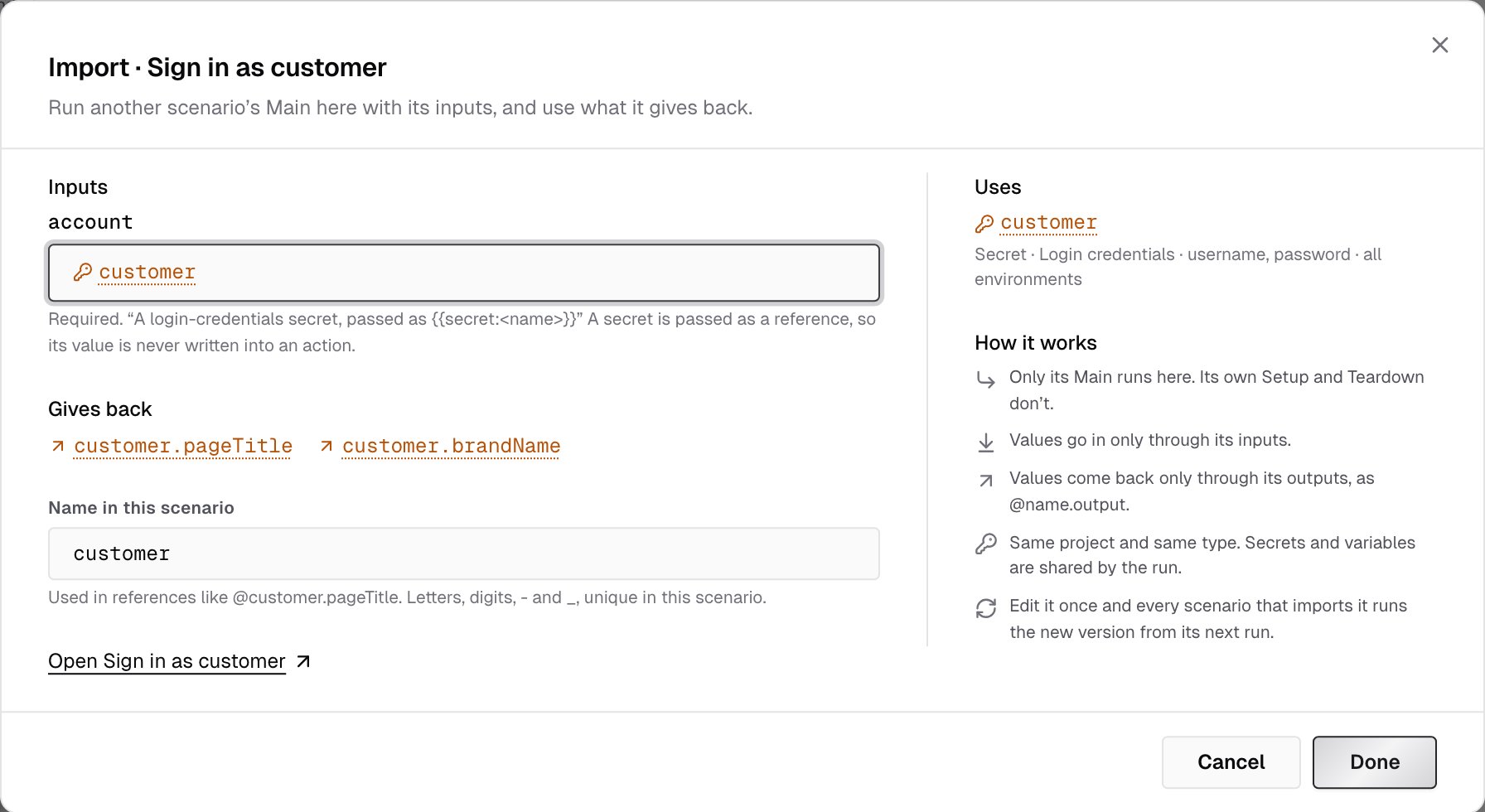
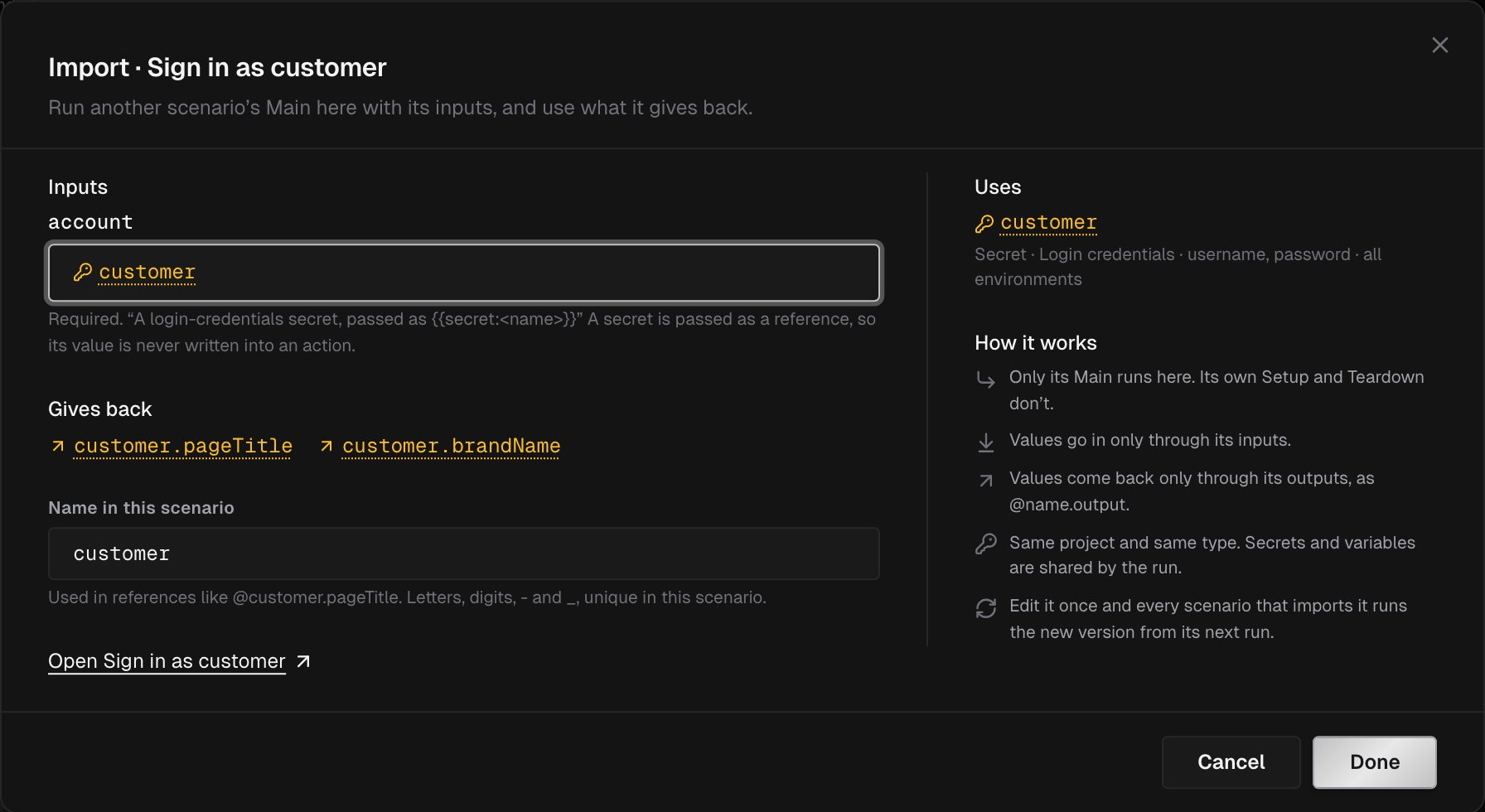
- Only its Main runs. Its own Setup and Teardown don’t.
- Values go in only through its inputs, and come back only through its outputs.
- The imported scenario is in the same project and of the same type. The run shares its secrets and variables.
- When you edit it, every scenario that imports it runs the new version from its next run.
Reusable parts
A scenario that another scenario imports is a reusable part. Its Used By count on the scenarios list, and Used by on its page, show which scenarios import it.- You can’t delete a scenario while another one imports it.
- A save that would break a scenario that imports it is refused, for example removing an output it reads. The editor names the scenario it would break.
What’s next?
Run a scenario
Pick an environment, pass inputs and read the run.
Secrets
Credentials a run can use without seeing them.