

Create a variable
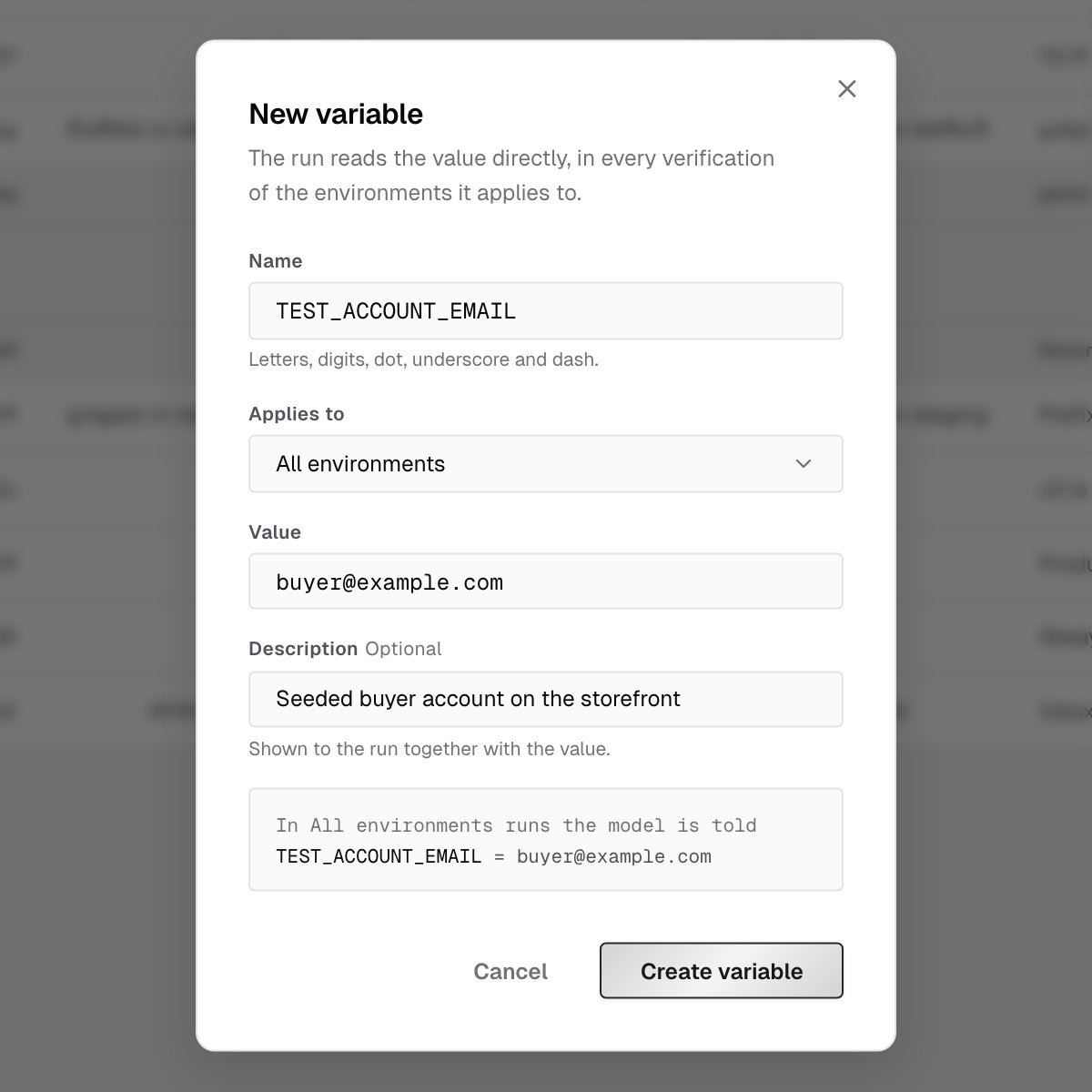
- Click New variable.
- Enter a Name. Names use letters, digits, dot, underscore and dash.
- Under Applies to, choose All environments, or one environment.
- Enter the Value and, optionally, a Description of what the value is for. The run sees both.
- Click Create variable.
Shared variables and overrides
A variable that applies to All environments is shared. To use a different value in one environment, add a row with the same name scoped to that environment. From a shared variable’s actions menu, choose Add override for…. The dialog opens with the name filled in and an environment picked. In that environment, the environment’s row wins. Everywhere else, the shared value applies.The variables list
The list shows each variable’s Name, Value, where it Applies In, its Description, and when it was Updated. An override is indented under the shared row it overrides, and the shared row says where it’s overridden.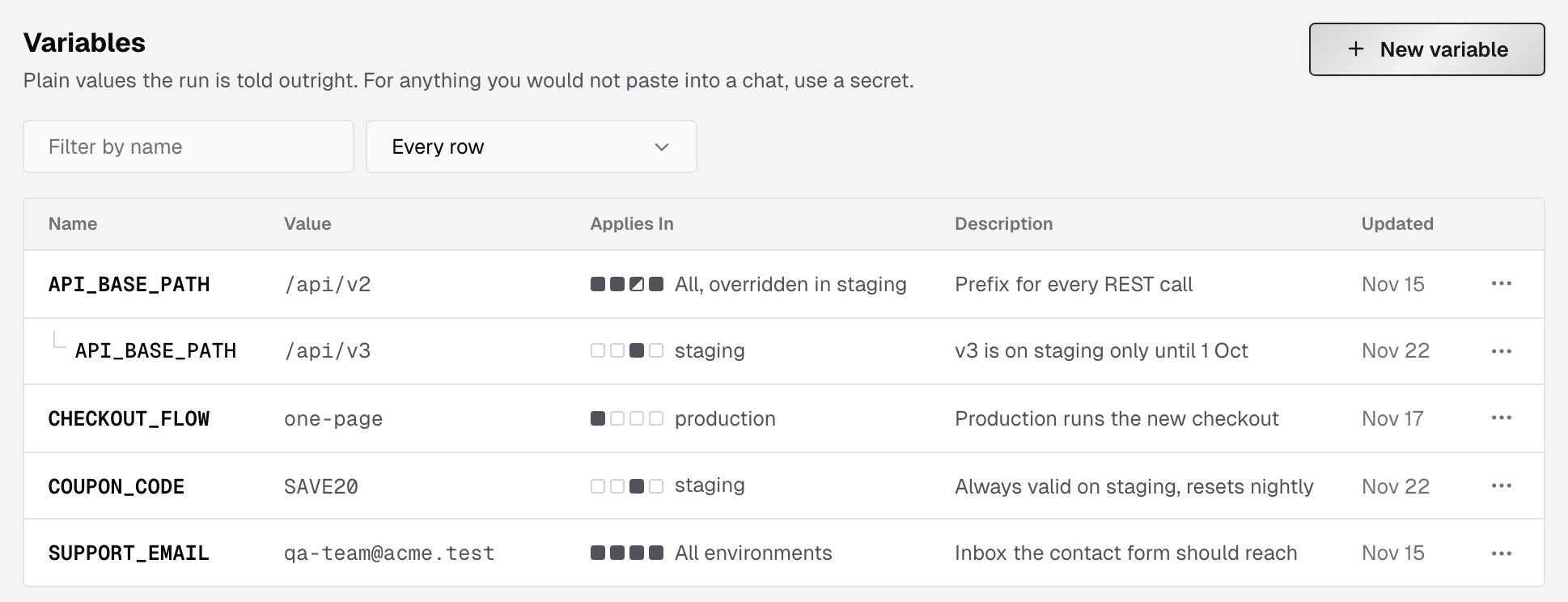
- Every row
- Shared rows only
- Effective in one environment: the values that take effect there
Who can change variables
Everyone in the account can read variables. Only owners and admins can create, edit or delete them. An archived project’s configuration is read-only until the project is unarchived.What’s next?
Secrets
Credentials a run can use without seeing them.
Environments
The deployments a project is verified against.