

Plans
The tables quote the website. In them, Jobs are verification runs, and a session is a single AI agent run that IronBee observes end to end, from the first change to the final verdict, including its timeline and telemetry.- Team costs $15 per seat per month billed monthly, or $12 per seat per month billed yearly ($144 per seat a year). The Annual switch says Save 20%.
- On Team, you pay only for the seats you purchase. Every seat adds 100 verification runs a month.
- Free needs no credit card.
- You can upgrade, downgrade or cancel at any time. Moving back to Free keeps your account within the Free plan limits.
Analyses
Security and support
On the website, Start for free and Get started open the console’s sign-up page. See Sign in and team access. For Enterprise, click Contact sales or email support@ironbee.ai to scope your setup.
Open the Pricing page
Owners and billing admins manage the plan. Open Settings, then Workspace > Pricing. Other roles don’t see the page. See Roles and permissions. The header shows the account’s name and its current plan. The page has two tabs: Pricing Plans and History.Pricing plans
The Pricing Plans tab shows:- Sessions this period: your session usage. See Session usage
- the Monthly and Annual switch, which shows Team’s price for each billing interval
- a card for each plan. Current plan marks yours. On Team, the Team card also shows your seats and billing interval, such as 15 seats · Monthly
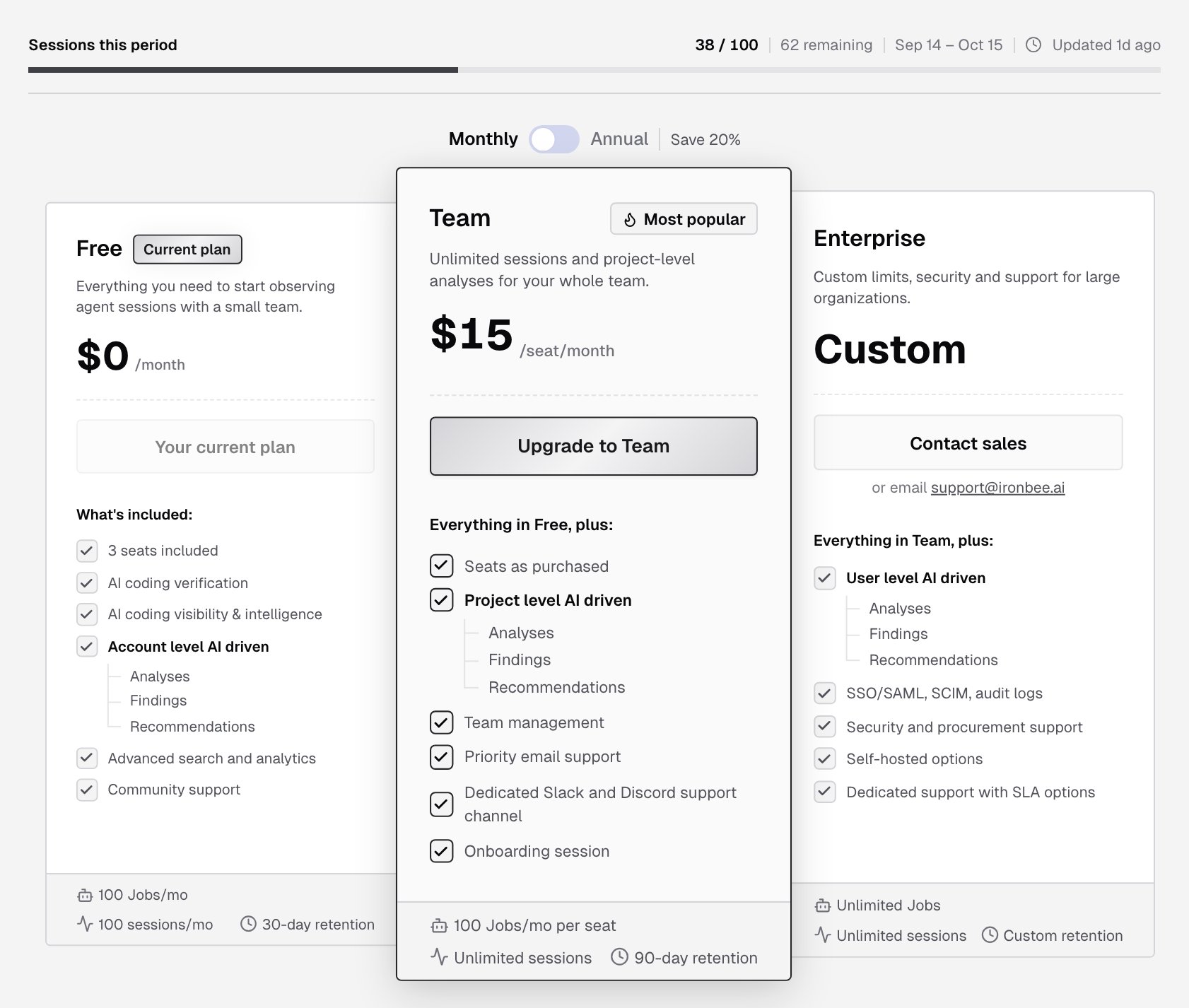
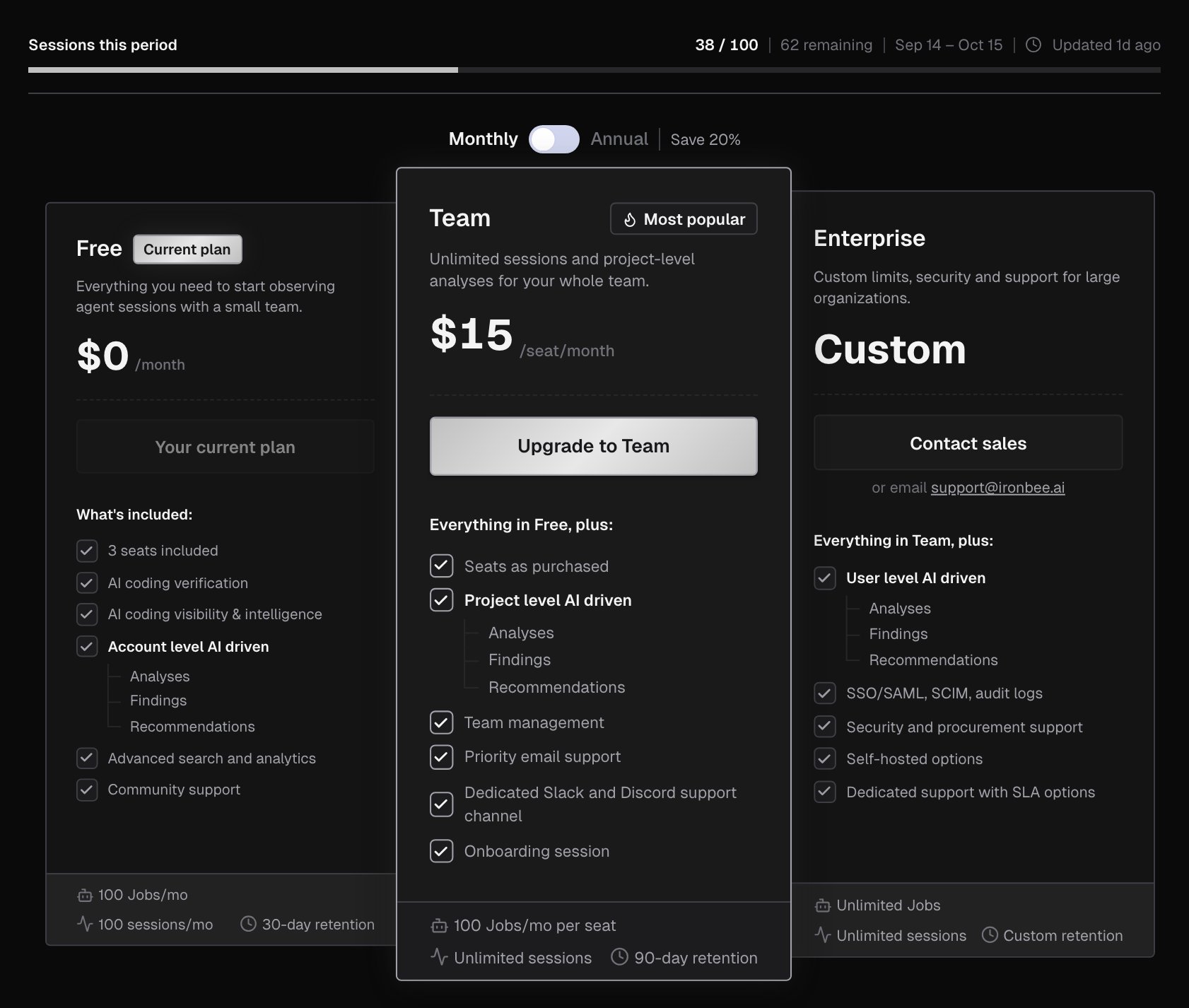
On the Enterprise card, Contact sales opens IronBee’s contact page, or you can email support@ironbee.ai.
Upgrade to Team
- Pick Monthly or Annual above the cards, and click Upgrade to Team.
- In the Upgrade to Team panel, check the Billing interval.
- Under Seats, set the number of seats with the - and + buttons. The minimum shows below them, and it’s never lower than the number of people in the account: members plus pending invitations. Owners also see those counts next to the seats.
- Check the Estimated total. For Annual, it also shows the yearly amount.
- Click Continue to payment, and pay on Stripe Checkout, which shows the final amount.
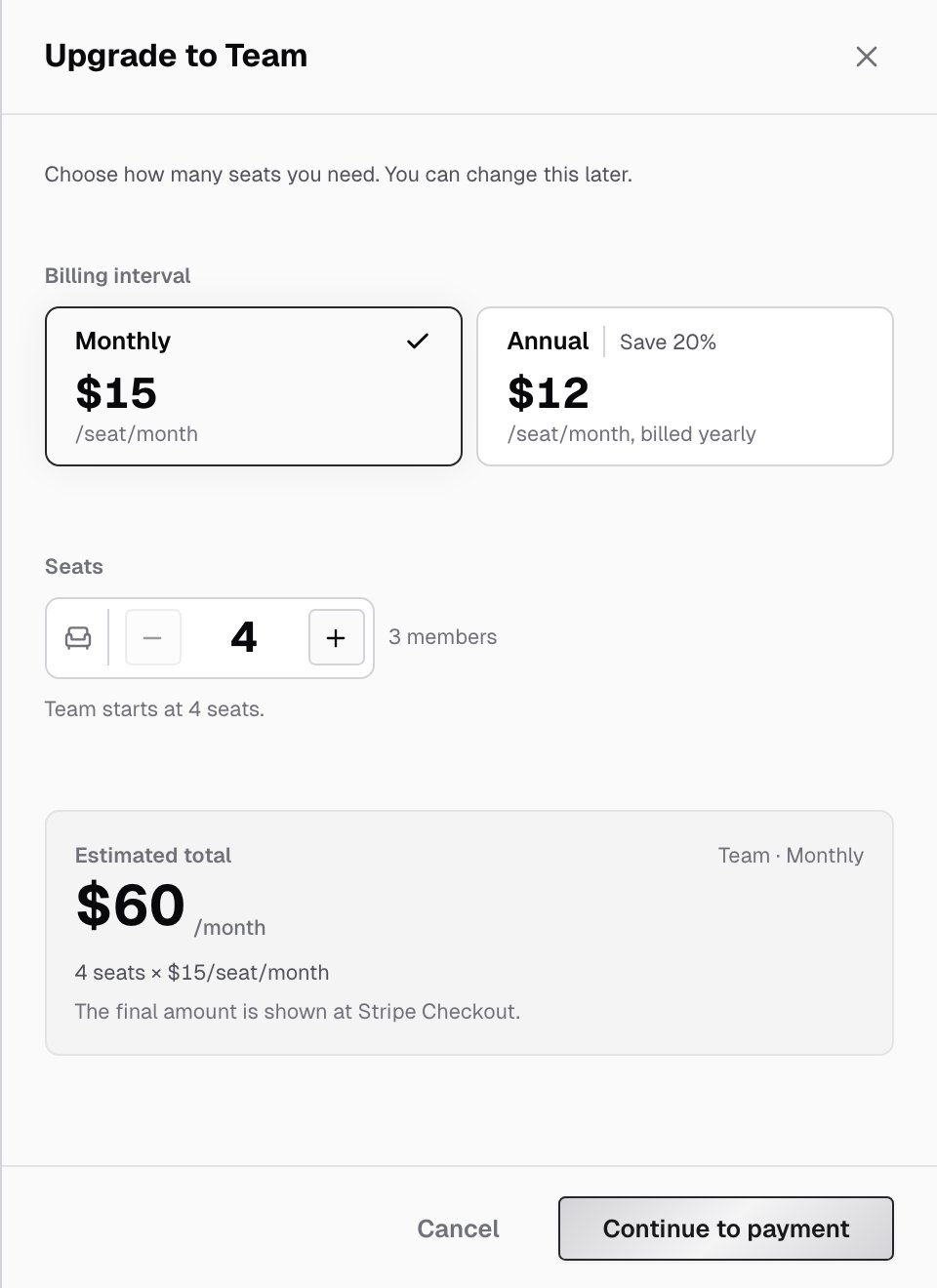
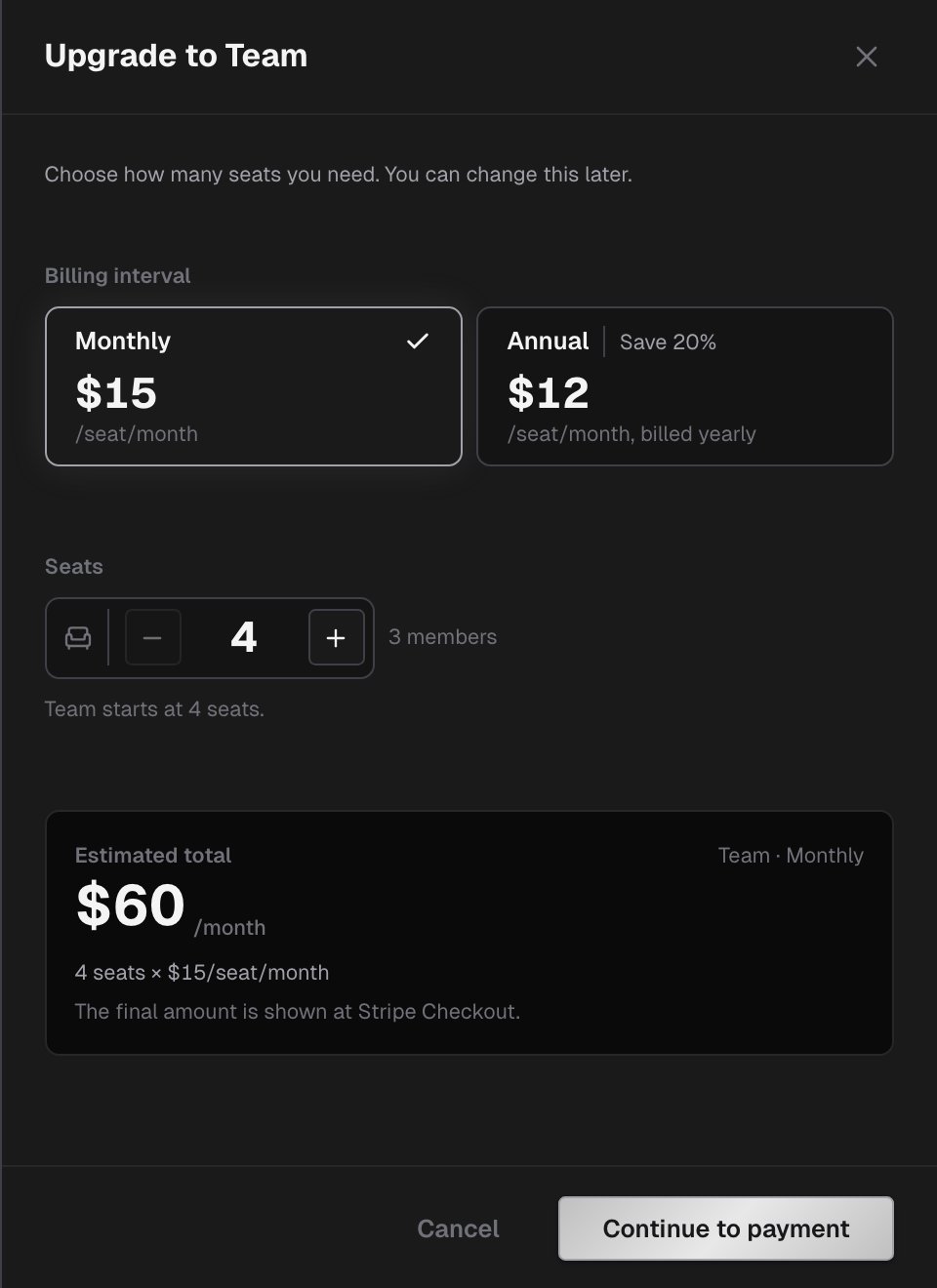
- Activating your Team plan shows while the plan switches over. This usually takes a few seconds, and Team plan is active confirms it.
- If it takes longer, Payment received asks you to refresh shortly to see your Team plan.
Change seats
Members and pending invitations each take a seat. When every seat is in use, Invite team member on the Team page says so, and shows the owner a View pricing link. To change the number of seats on Team:- Click Change seats.
- In the Change seats dialog, set the new number. Prorated charges or credits appear on your next invoice.
- Click Update seats.
Billing details and payments
Manage billing opens the Stripe billing portal. If a payment fails, the Team card shows Payment past due, and its main button becomes Update payment method, which opens the same portal.Cancel or resume Team
- Click Cancel plan on the Team card, or Downgrade to Free on the Free card.
- Cancel Team plan? tells you:
- the date the Team plan stays active until. After that, the account moves to Free, with the Free plan’s limits
- that unused time is not refunded
- how many people will lose access, when the account has more people than Free’s seats
- Click Cancel plan to confirm, or Keep plan to close the dialog.
Session usage
Sessions this period, at the top of Pricing Plans, shows:- the sessions used and your plan’s limit, with how many remain. On Team, it shows the count and Unlimited
- the dates of the current period
- when the numbers were last updated
Banners across the console
A plan problem also shows as a banner at the top of every console page, one at a time:
You can close the More people than seats banner. It comes back later while the account still has more people than seats.
History
The History tab lists the account’s invoices, one year at a time. Pick the year in the top-right corner.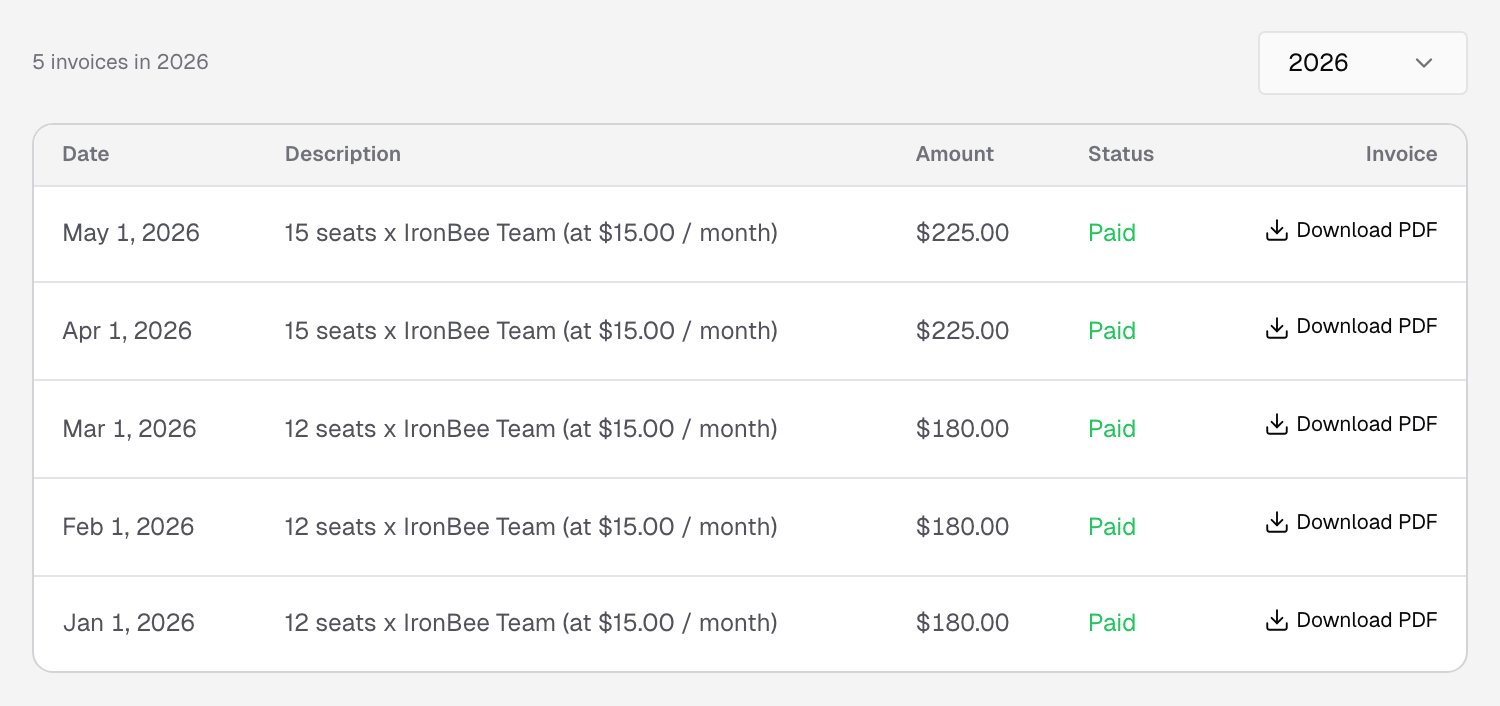
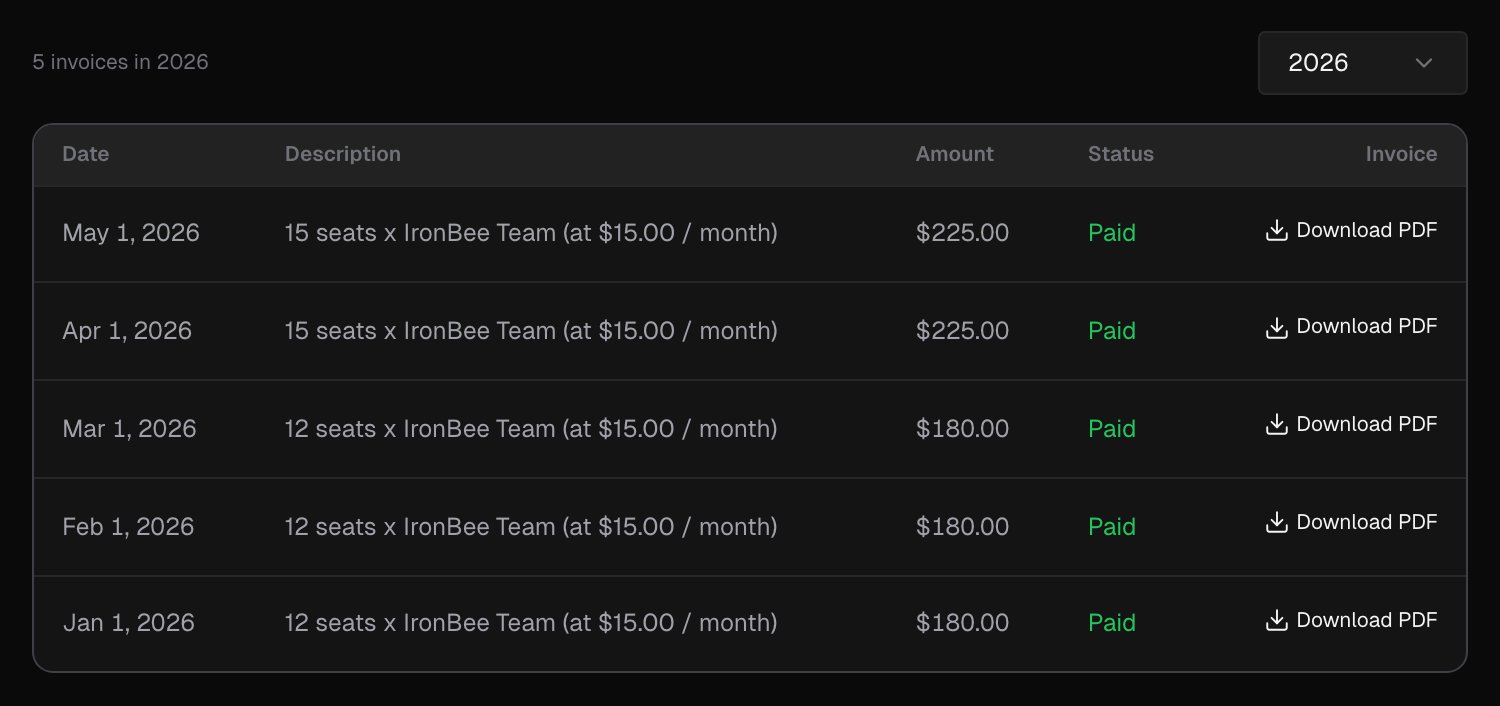
- Date, Description and Amount
- Status: Paid, Open, Failed or Void
- Invoice: Download PDF, when a PDF is available
Related pages
Team
Invite teammates and manage their roles.
Roles and permissions
What owners, admins, members and billing admins can do.