
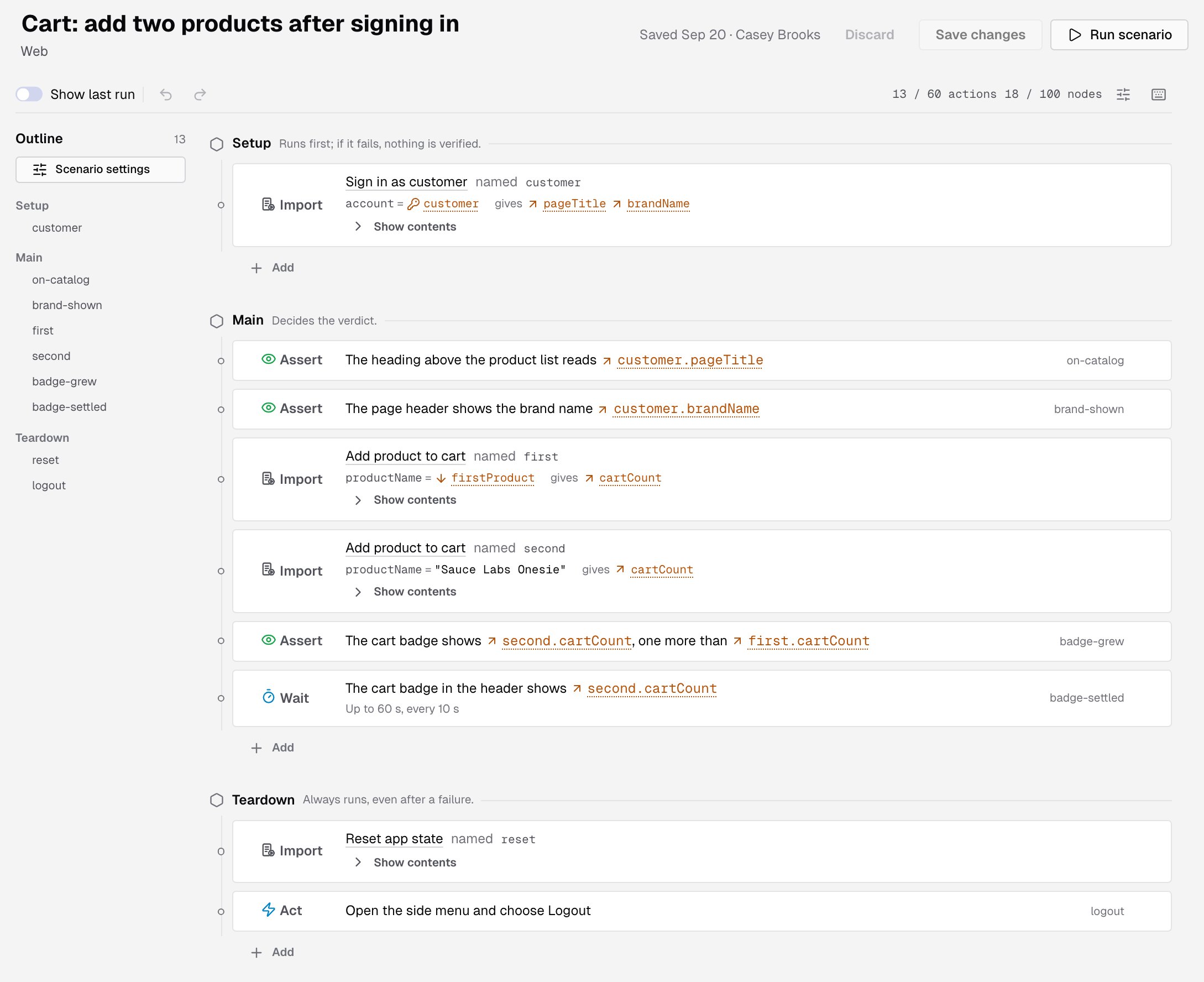
- the scenario’s name, which you can edit in place, and its type
- Discard, Save changes and Run scenario, with the save status next to them: Unsaved changes, or when and by whom the scenario was last saved
- a toolbar with Show last run, undo and redo, the action and node counters, Scenario settings and the keyboard shortcuts
- the Outline on the left, to jump to a section or a row
- the Setup, Main and Teardown sections. See How a scenario is built
Kinds of rows
Write each Instruction the way you’d tell a teammate, in up to 4,000 characters. Type
@ to use an input, a saved value, an output of an import, a variable, a secret or a property in it. See References.
Every row has a Name, shown in the outline and in run results. It follows the instruction until you change it, and it’s unique inside its section or Step.
Add and arrange rows
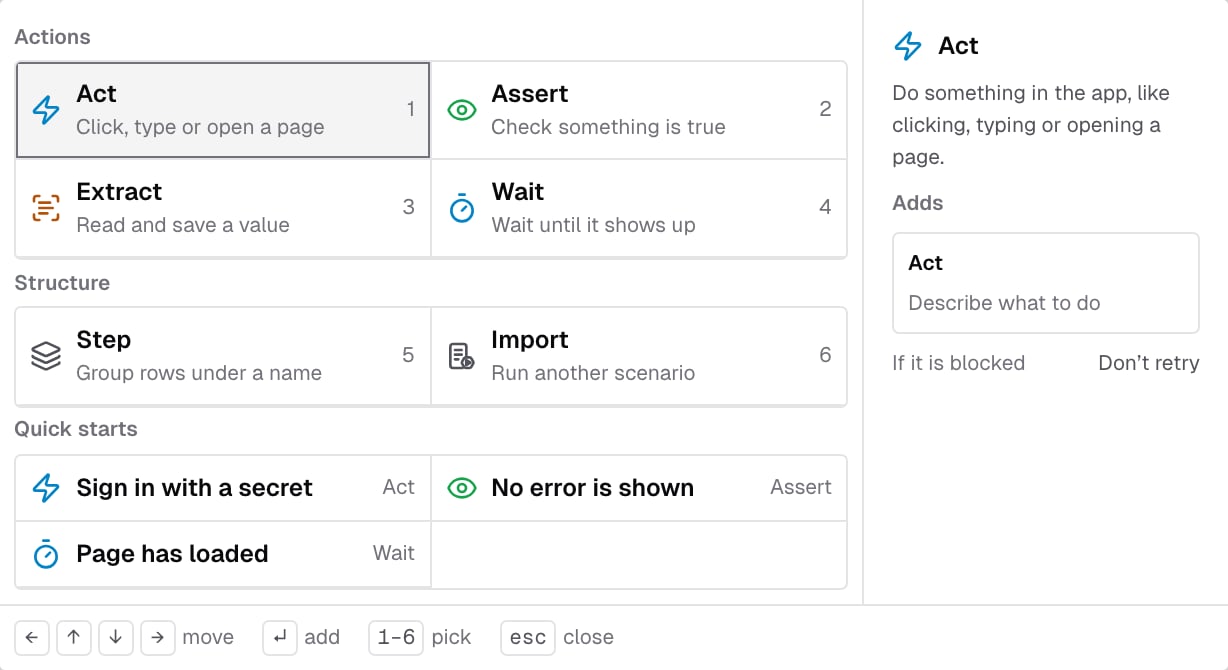
To add a row, click Add at the end of a section, Add inside under a Step, or + before a row. The Add a row menu lists:- Actions: Act, Assert, Extract and Wait
- Structure: Step and Import
- Quick starts: Sign in with a secret, No error is shown and Page has loaded
Scenario settings
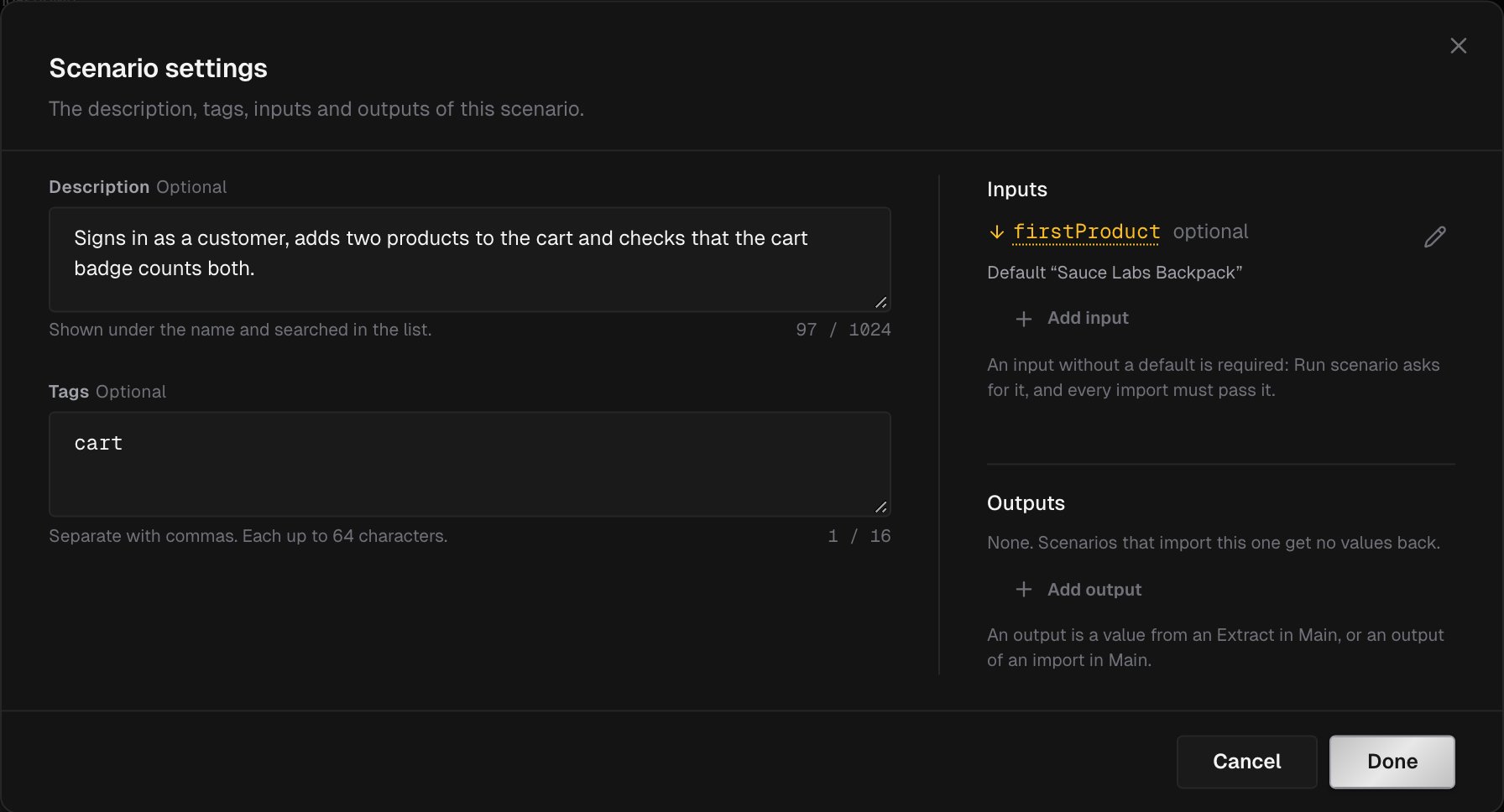
Click Scenario settings, at the top of the outline or in the toolbar: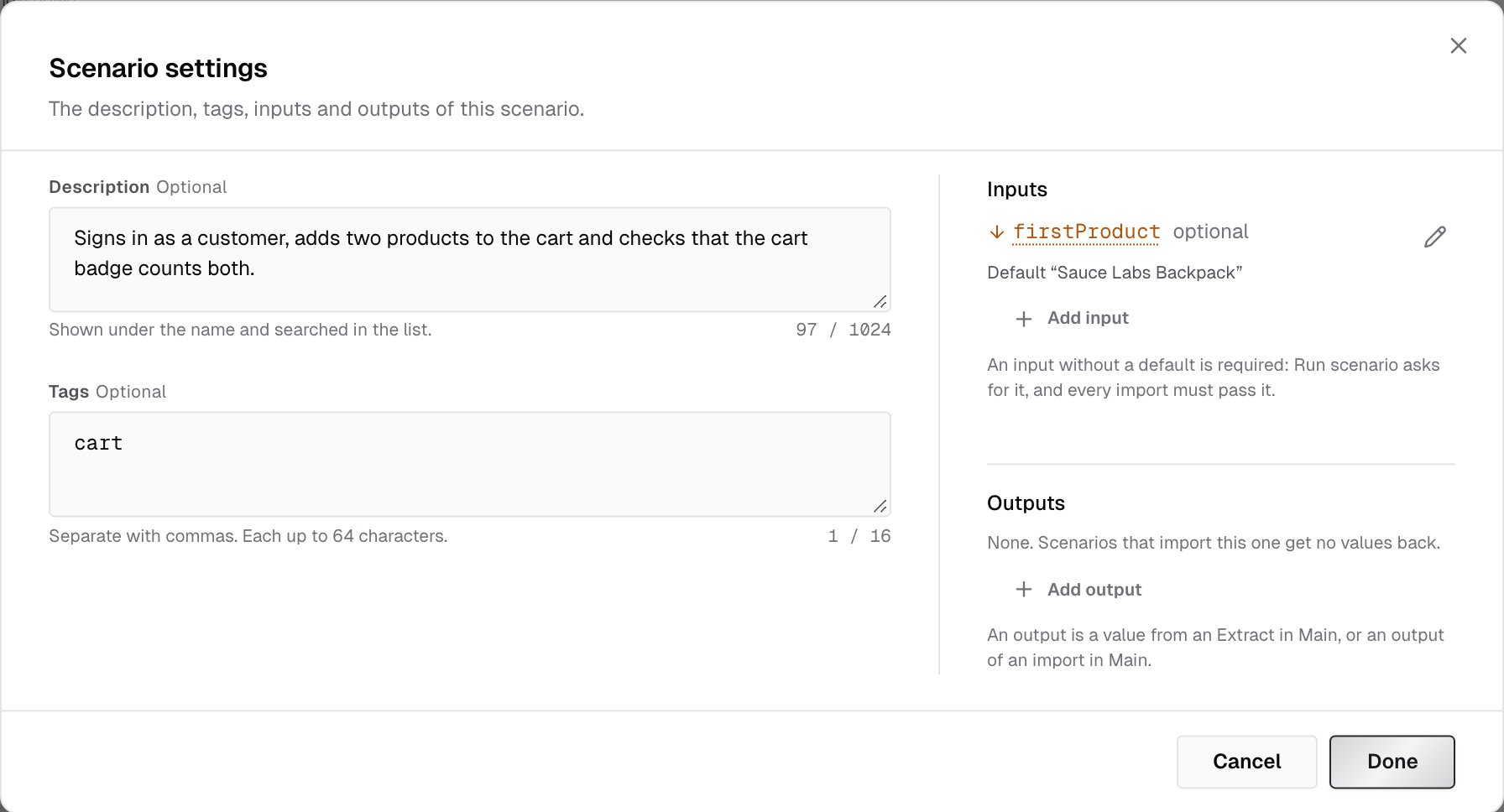
Problems and warnings
The editor checks the scenario as you type, the same way a save does. What it finds shows on the rows, in the outline and above the sections.- Errors break the scenario’s rules, and IronBee refuses to save them. For example: Main has no action, a Step is empty, the scenario has more than 60 actions, or two scenarios would import each other.
- Warnings don’t stop saving, but a run that reaches the row ends in a run error, or stops before it starts. For example:
- a row reads a value before the row that writes it
- a secret, variable or property isn’t defined in any environment, or only in some
- a reference can mean two secrets
Save your changes
Click Save changes, or press ⌘S (Ctrl+S). Discard drops the changes you haven’t saved. If you clicked it by mistake, undo it.- If someone else saved the scenario after you opened it, the editor lists Their changes and asks what to do:
- Load latest replaces your edits with their version.
- Save mine anyway replaces their changes with yours.
- Keep editing closes the dialog.
- If you try to leave with unsaved changes, a Leave without saving? dialog asks you to confirm.
- Run scenario saves your changes first, then opens the run dialog.
Keyboard shortcuts
Click the keyboard icon in the toolbar to see them in the editor. On Windows and Linux, use Ctrl for ⌘ and Alt for ⌥.Limits
The counters in the toolbar show how many actions and nodes the scenario uses. A counter appears under a field as it nears its limit.
What’s next?
Inputs, references and imports
Pass values in and out, and reuse one scenario in another.
Run a scenario
Pick an environment, pass inputs and read the run.