

preview, staging or production. Each verification run is against one environment. The run uses:
- what the environment says about the deployment: its URL, its API contract and the domains runs may point at
- the variables and secrets that apply there
Where environments come from
Most environments appear on their own. A deployment or a run that names a new environment adds it to the project:
Each card says how the environment got its name: created in the console, or named by Vercel deploys, Netlify deploys, GitHub Actions runs, API runs, Console runs or CLI runs.
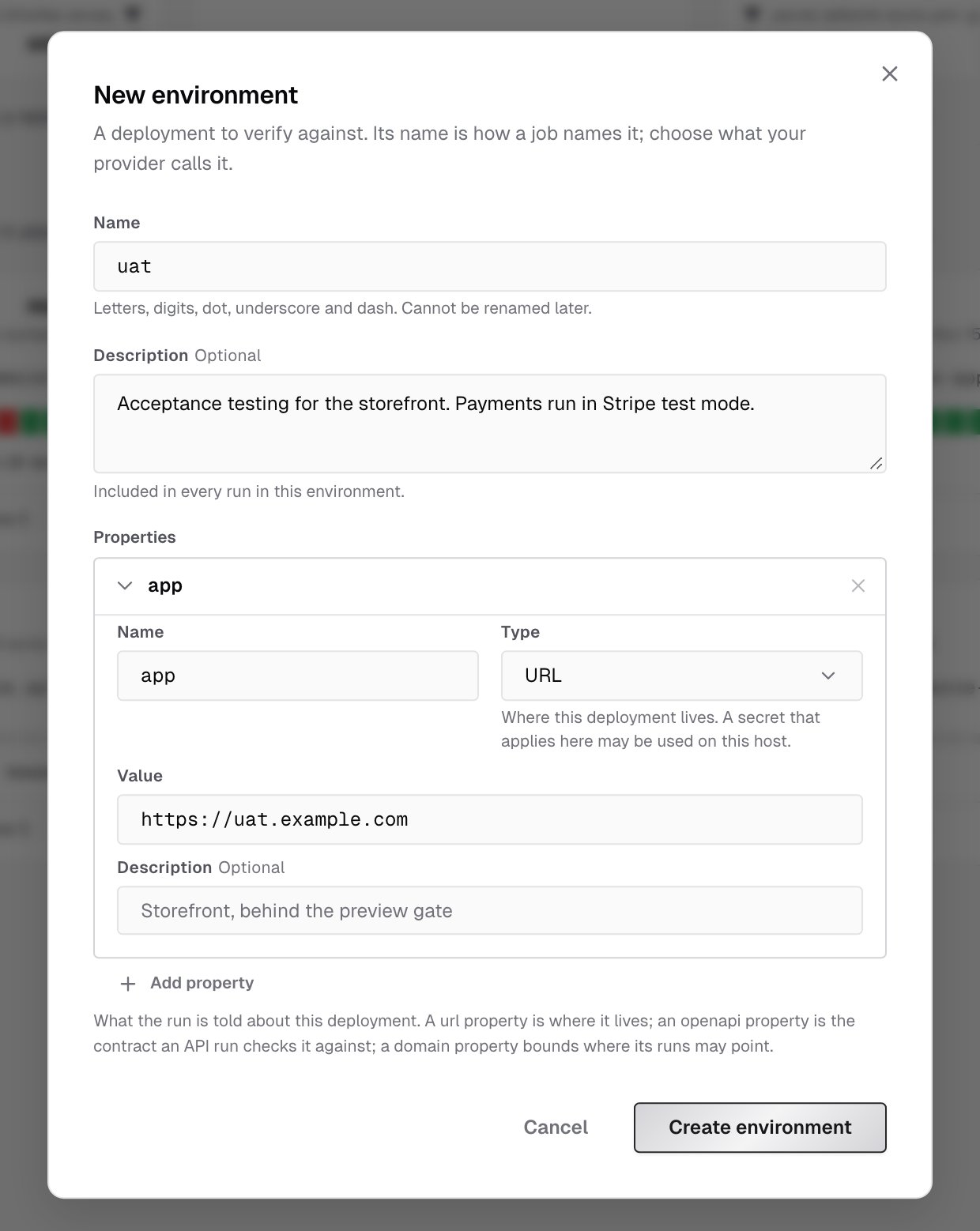
To set an environment up before its first run, click New environment:
- Name it the way your provider or job names it, such as
staging. Names use letters, digits, dot, underscore and dash. You can’t rename an environment later. - Optionally, add a Description of what changes how this deployment behaves. It’s included in every run in this environment.
- Fill in the first property,
app, with the deployment’s URL, and add more under Properties if you need them. See Properties. - Click Create environment.
The environments list
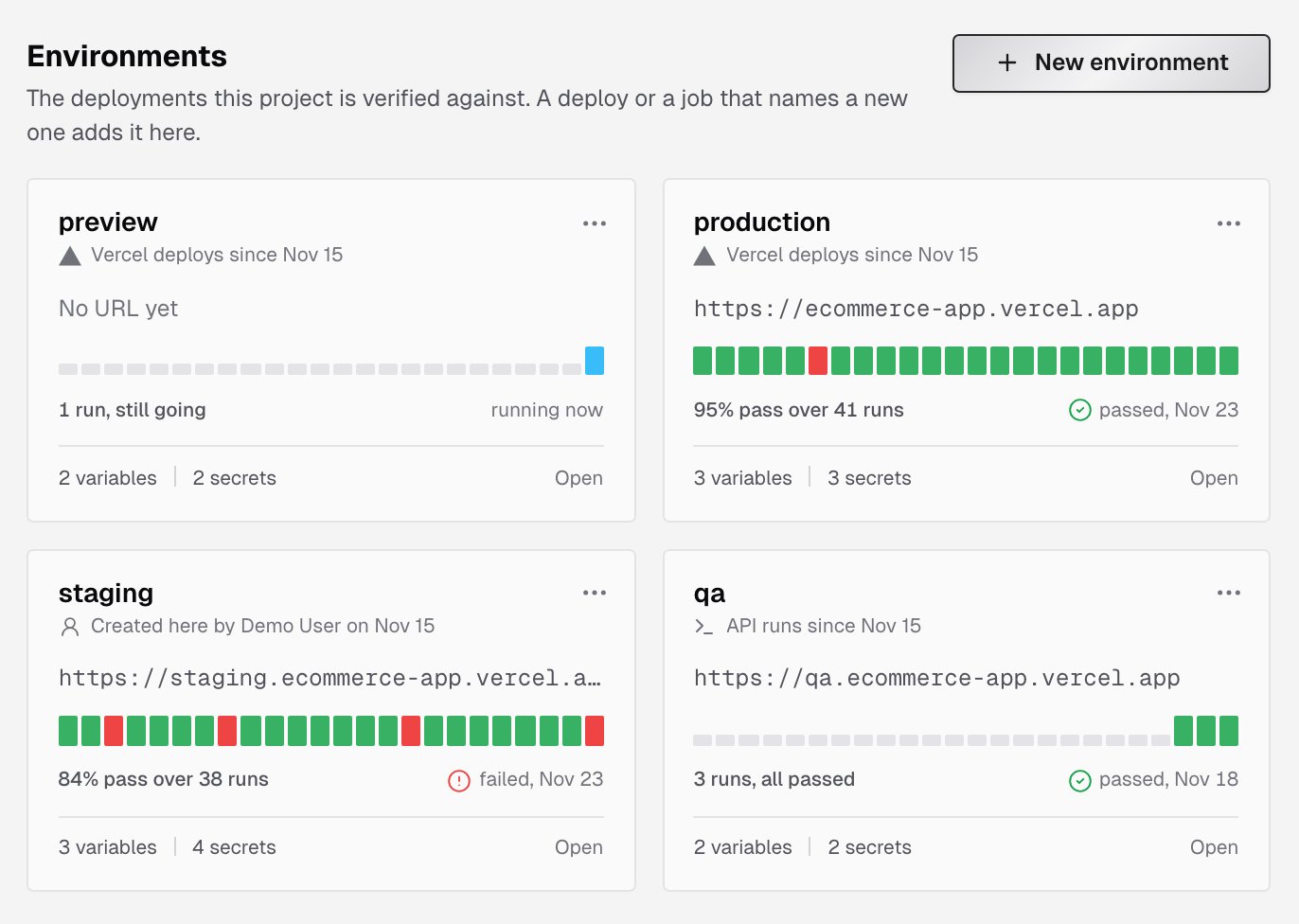
- its URL, or No URL yet
- a strip of its latest runs and their results
- how many runs it had, and when it last ran
- how many variables and secrets apply to it
Properties
Properties tell the run about the deployment. Open an environment and add them under Properties. Click a property to expand it: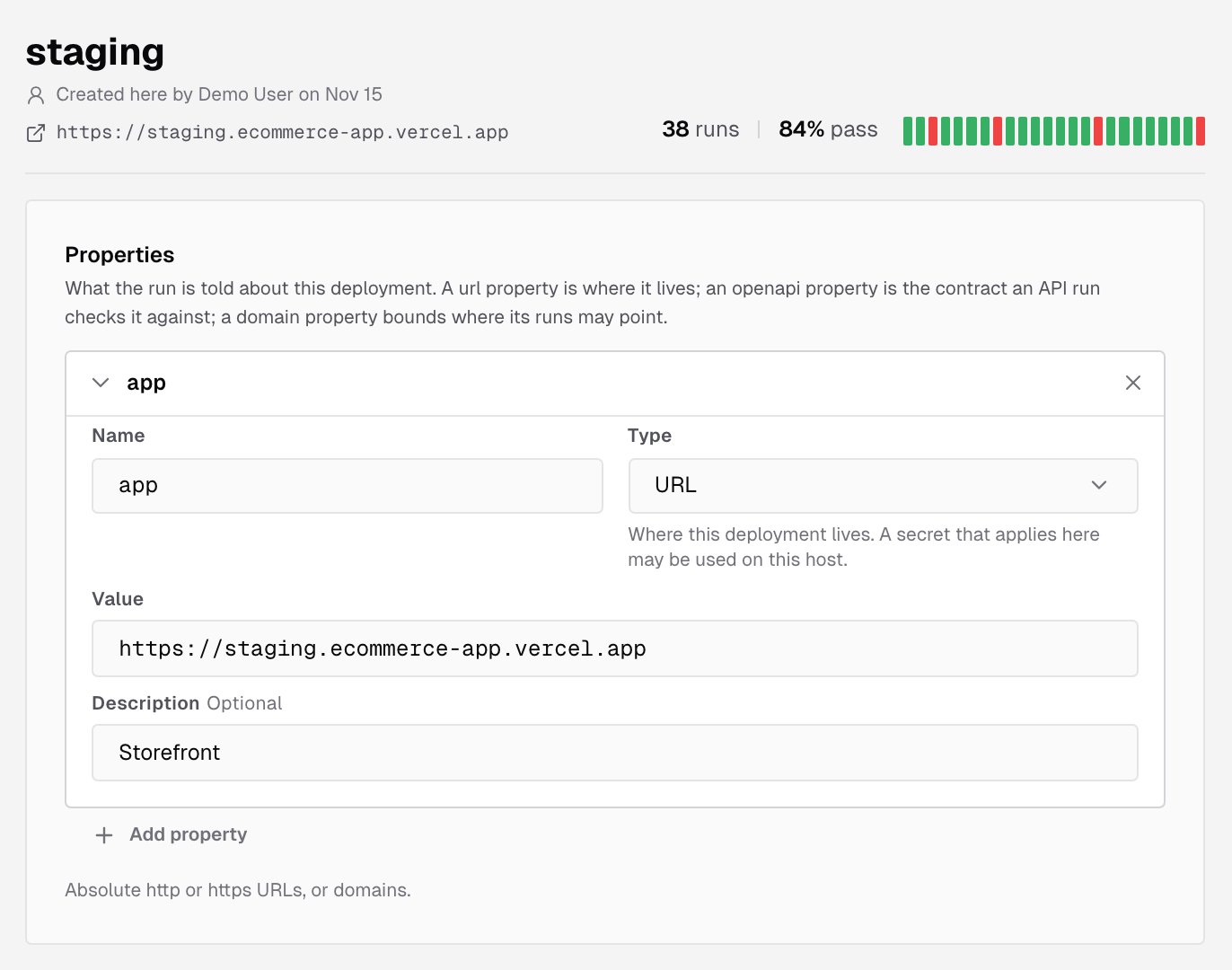
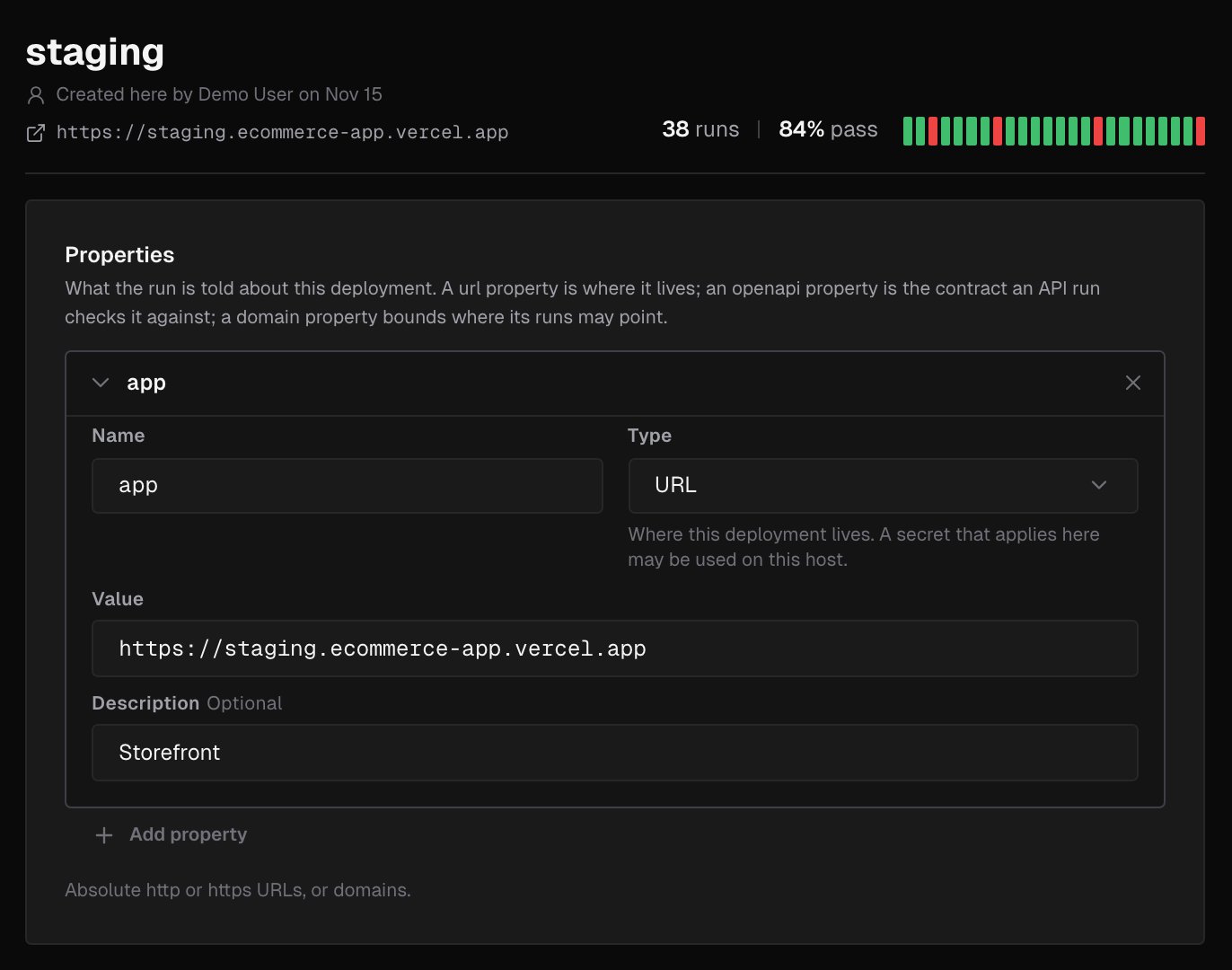
Each property has a Name, a Type, a Value and an optional Description. The first one is named
app. Values are absolute http or https URLs, or domains. Click Save changes when you’re done.
Without a URL property, a run is told only its own target. Run instant verification needs one to start from: pick an environment without one and the dialog says No URL to start from., and Run verification stays disabled. A Domain property alone isn’t enough.
Domains
A Domain property bounds the environment. Once an environment has one:- Its URL and OpenAPI values must fall inside a domain.
- A run started for it with a URL outside the domains is refused.
- A run that reaches an app through a tunnel is refused, because a tunnel has no domain.
*.vercel.app or *.netlify.app aren’t accepted.
Variables and secrets in an environment
Below its properties and description, the environment page lists the variables and secrets that apply there, such as Variables in staging and Secrets in staging for an environment namedstaging. Both lists include the shared rows and the rows scoped to the environment. A variable created here overrides the shared one with the same name, and its row shows the shared value it overrides. Click Add variable or Add secret to create a row scoped to this environment. See Variables and Secrets.
Run briefing
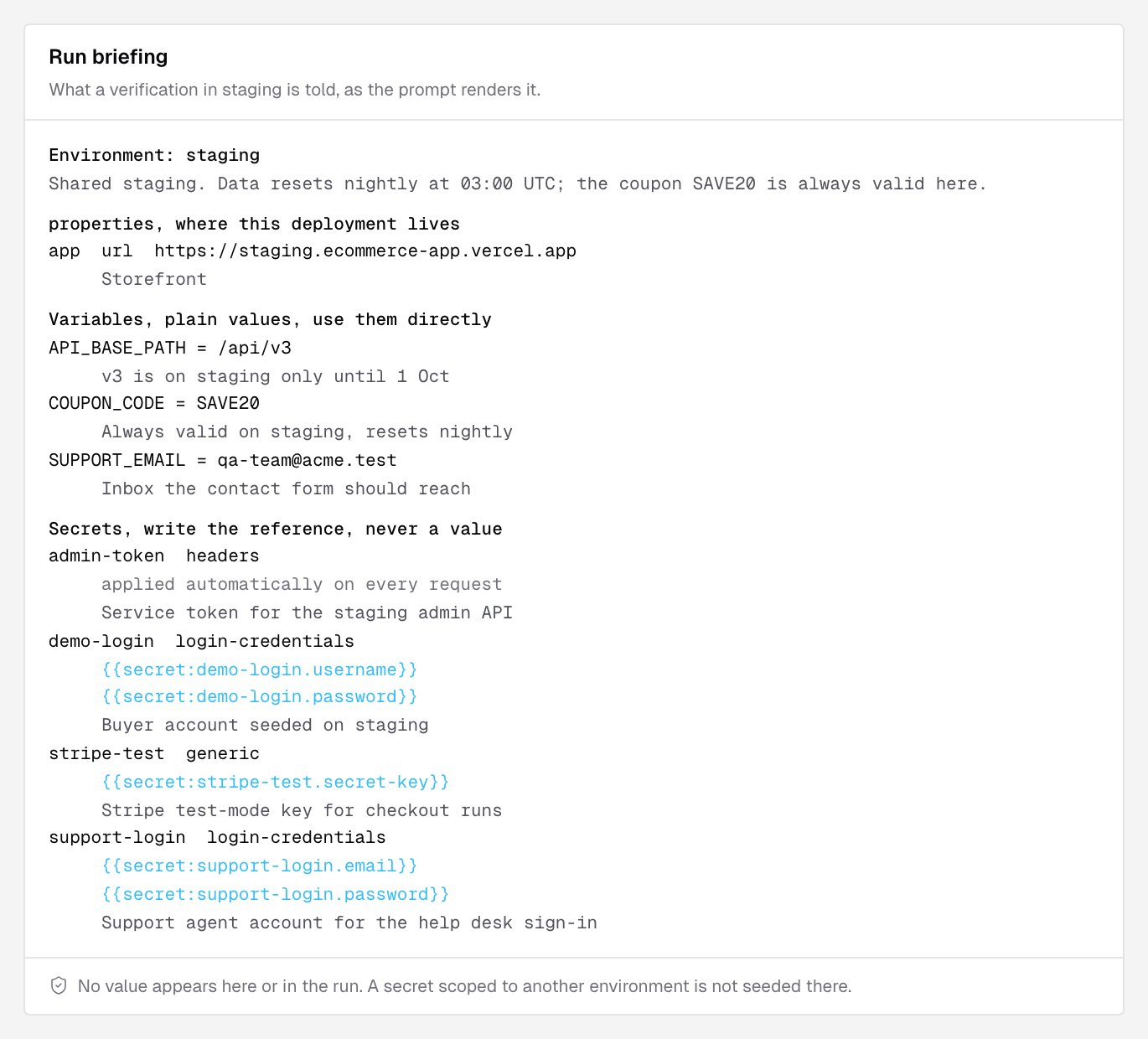
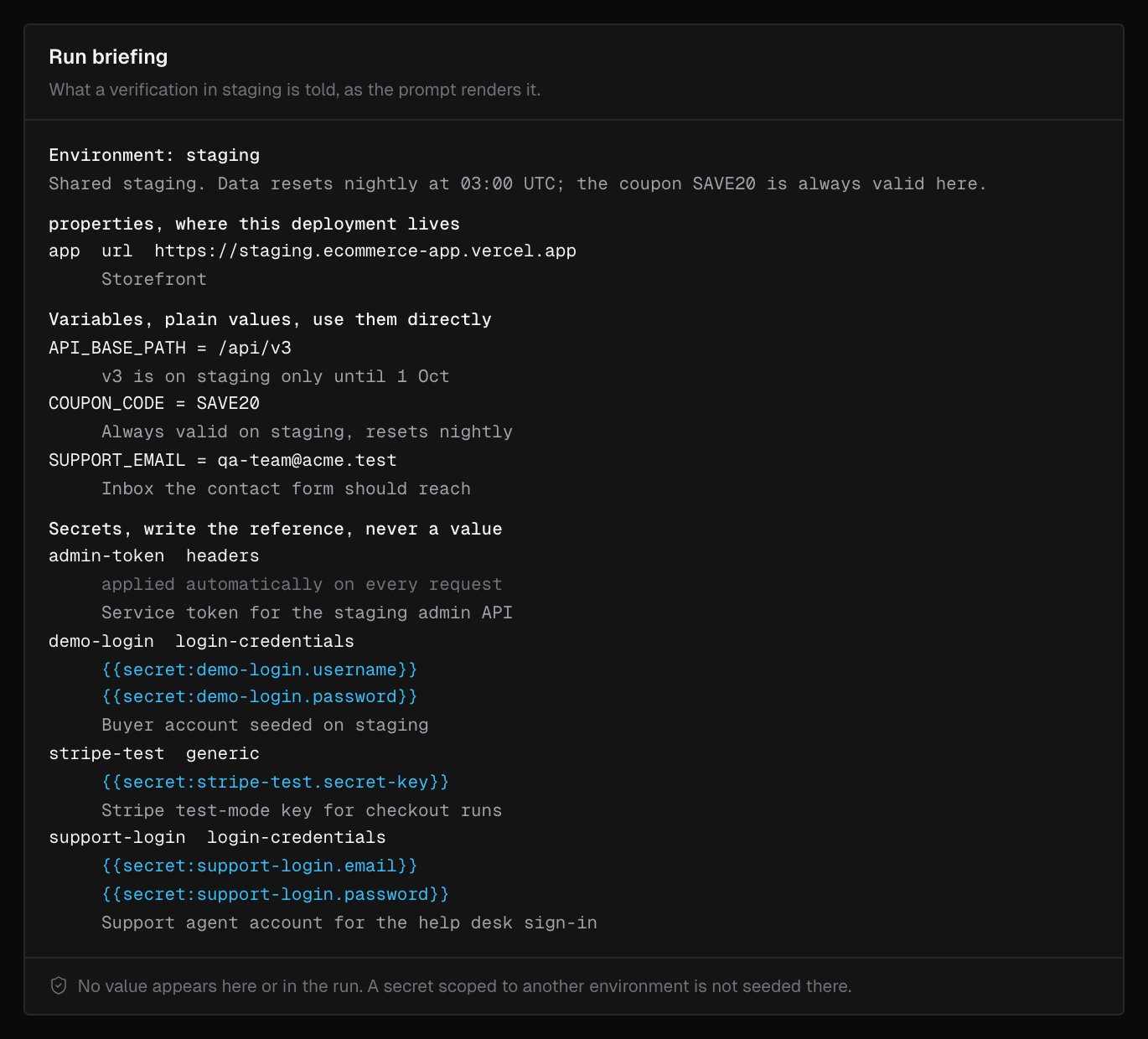
Beside the editor, or below it on a narrow screen, the environment page shows the Run briefing: exactly what a verification in this environment is told, as the run’s prompt renders it. That includes:- the environment’s description and properties
- its variables, with their values
- its secrets, as references only. An HTTP headers secret is listed as applied automatically on every request
Delete an environment
Owners and admins can delete an environment with Delete at the bottom of its page, or from the … menu on its card. Type its name to confirm and click Delete environment. Deleting isn’t reversible:- The variables scoped to it are deleted. Project-wide variables stay.
- The secrets scoped to it are deleted and their values destroyed. Runs that reference them fail until they are recreated.
- Its runs keep their results, but lose the environment label.
preview, adds it back on its next deploy, without its configuration.
What’s next?
Variables
Plain values a run is told.
Secrets
Credentials a run can use without seeing them.