
- Runs on IronBee’s infrastructure. These are started by Vercel, Netlify, the GitHub Action,
ironbee verify, or Run instant verification in the console. - Verification cycles from the IronBee CLI. These are reported by your AI coding agent while it works.
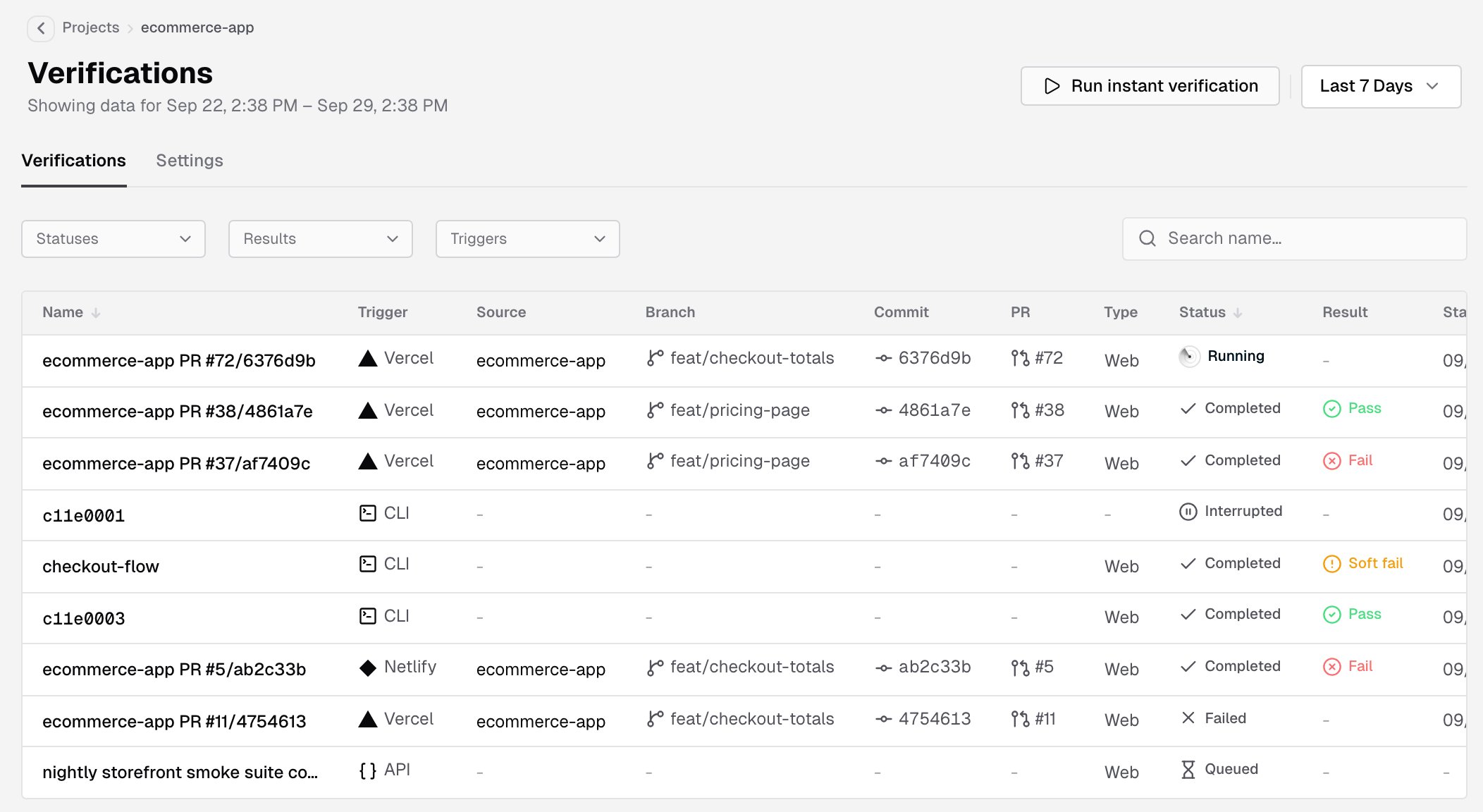
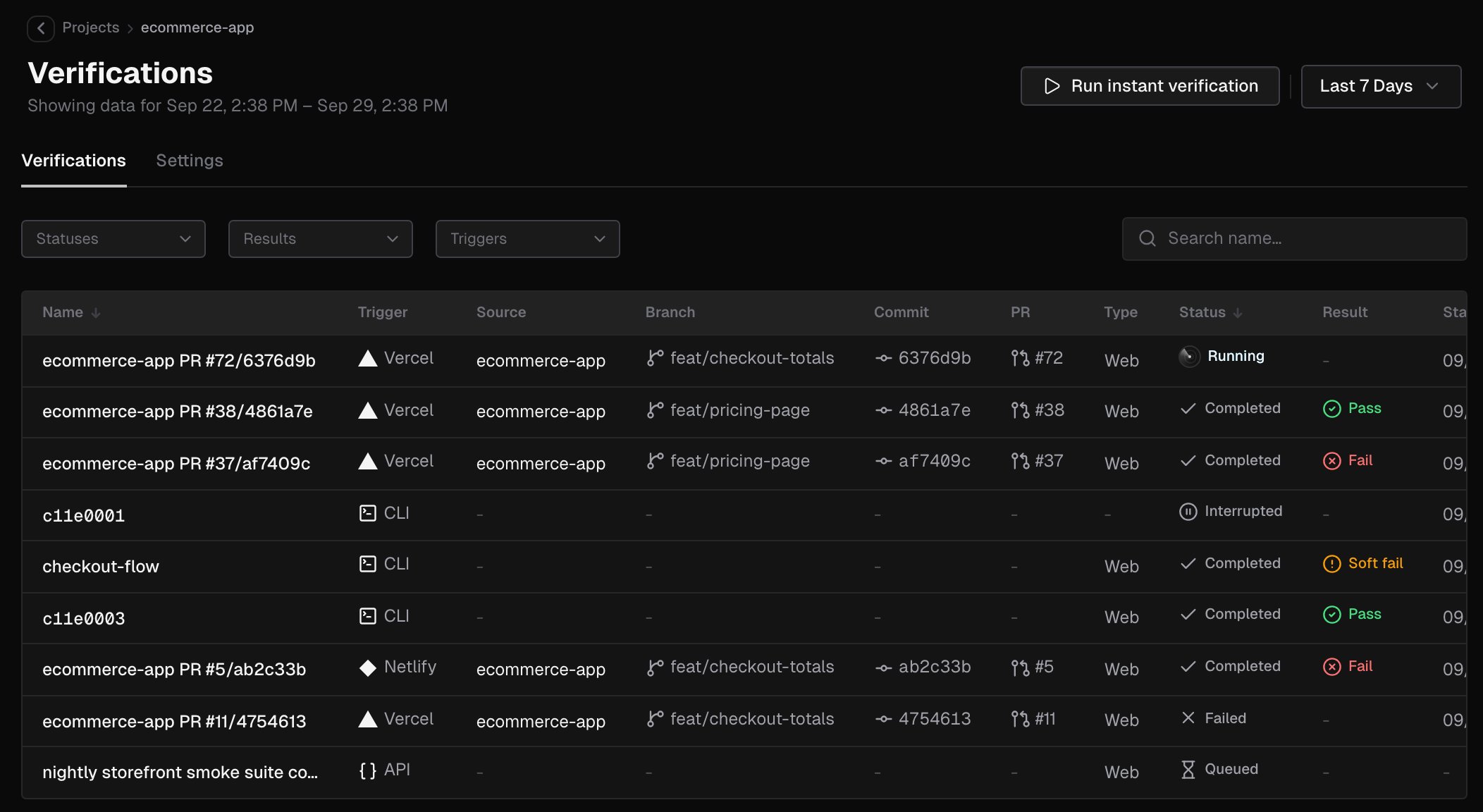
Filter and search
- The date range at the top of the page shows runs started in that window. Pick Last 24 Hours, Last 7 Days, Last 30 Days, Last 90 Days, or a Custom Range down to the hour.
- Statuses, Results and Triggers narrow the list. Search name… matches run names from 3 characters.
- Clear filters resets them.
Columns
You can sort by Name, Status and Started. The newest runs come first. Times follow the Time Format in Settings.
Status
Result
Callbacks
A run started by Vercel or Netlify reports its result back to the provider, and to GitHub when the GitHub App is installed. The Callbacks column shows one entry per destination (Vercel, GitHub or Netlify):Run instant verification
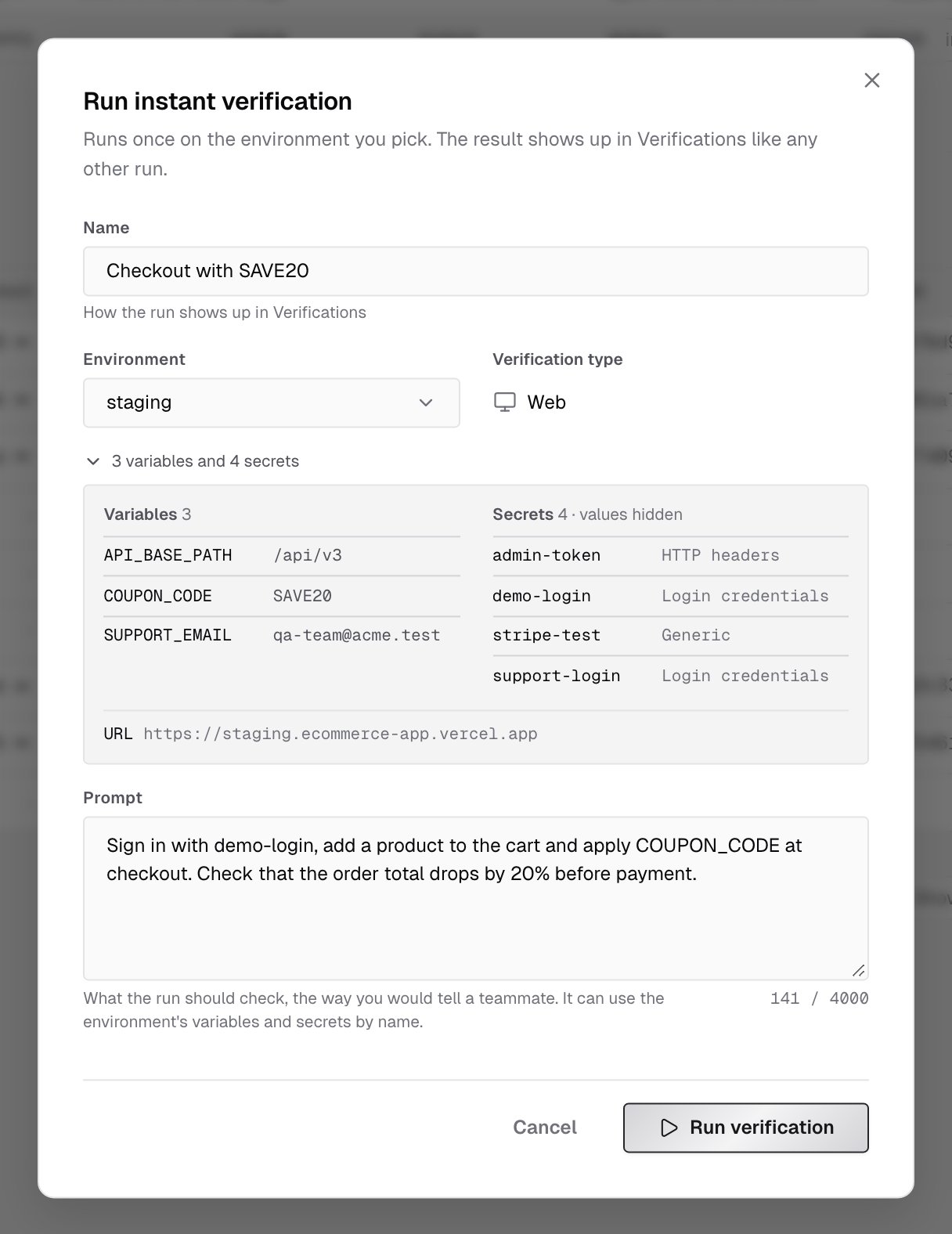
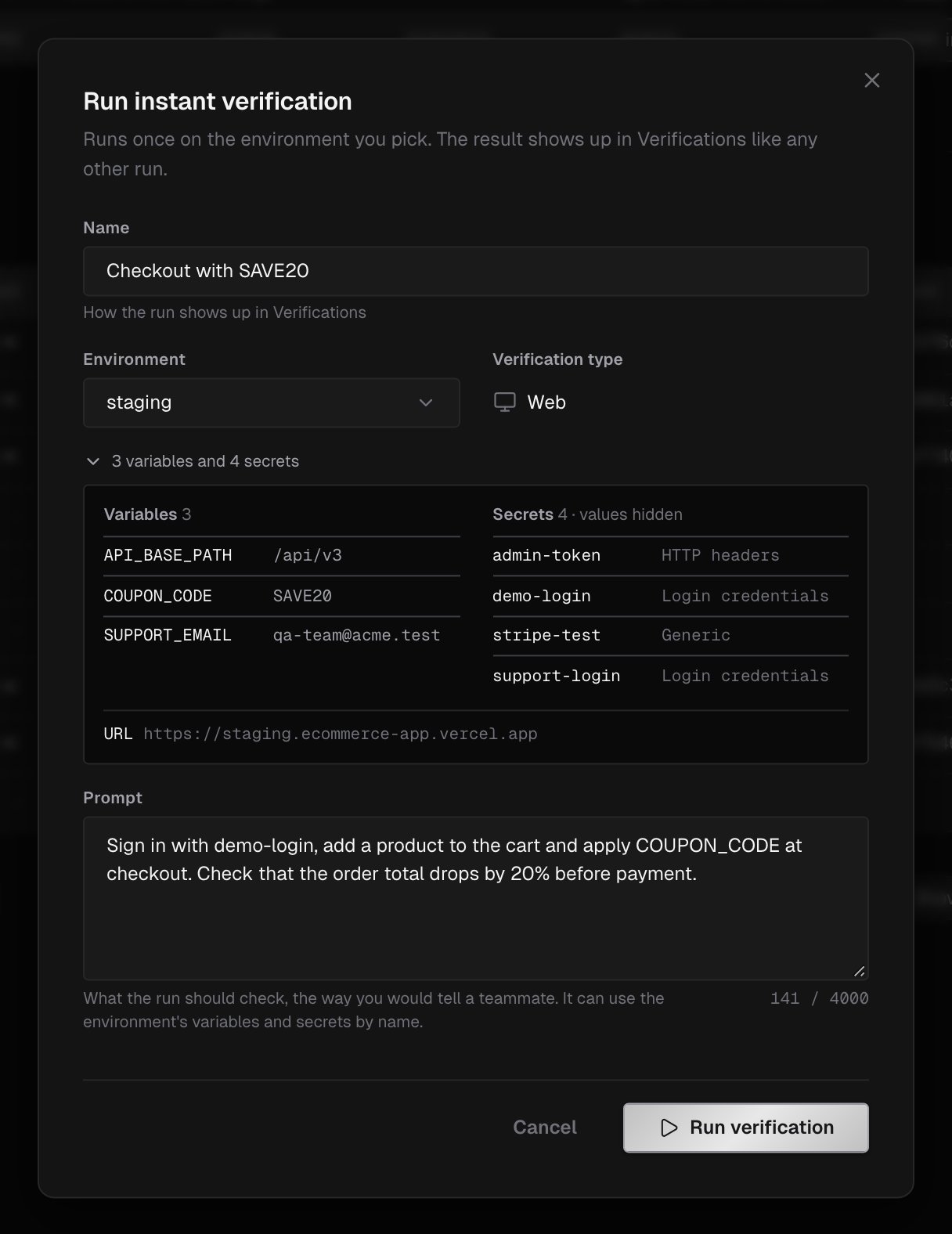
Owners, admins and members can start a one-off verification of a deployed environment from the console. Billing admins don’t see the button.- On the project’s Verifications tab, click Run instant verification.
- Type a name in the Name field, which reads Enter an instant verification name while it’s empty. This is how the run shows up in the list.
- Pick the Environment to run against. The dialog opens on the first environment, in the order of Settings > Environments, that has a URL. The run starts at the environment’s URL property.
- If the environment has no URL, the dialog says No URL to start from. with an Add one link to its settings. A Domain property alone isn’t enough.
- Below the picker, a line sums up what the run is given, for example 3 variables and 4 secrets, or No variables or secrets. These are the project-wide variables and secrets plus the environment’s own. The environment’s own one wins when both share a name.
- Click the line to expand it: Variables with their values, Secrets by name and type with the values hidden, and the environment’s URL, OpenAPI and Domains properties that are set.
- Verification type is always Web.
- Write the Prompt: what the run should check, the way you’d tell a teammate. It can use the environment’s variables and secrets by name. The counter below the prompt shows its length.
- Click Run verification. The dialog closes and the run opens on its verification detail page, where you can follow it live. If the run can’t start, the dialog stays open and says why.
- The button is disabled on an archived project, and on an API project: API verifications can’t be started from the console yet. Hover it to see the reason.
- The environment needs a URL that a cloud run can reach. A local or private address is refused.
- If the project has no environments yet, the dialog says so and links to them with Open environments. Add one with the URL to verify. See Environments.
CLI verification cycles
When your AI coding agent verifies a change with the IronBee CLI, each verification cycle appears in the list with the CLI trigger. Its detail page shows the recording, the actions and the verdict of that cycle. The recording arrives when the cycle finishes; see The recording. How the CLI verifies, the platforms it uses and the retry behavior are covered in the CLI docs.What’s next?
Verification detail
Read a run: the recording, the actions, the network and the result.
Environments
The deployments a project is verified against.