
- Code review. IronBee reviews the pull requests of the repositories you pick, comments on what it finds, keeps a summary comment and sets the IronBee review build status. See Code review on Bitbucket pull requests.
- Code wiki. IronBee writes a wiki of each repository you pick, from its default branch, and keeps it current as pull requests merge. See Code wiki of a repository.
- Repository access. A verification run checks out the commit it verifies. For a run from the Bitbucket Pipe or
ironbee verify, a private repository needs the connection for that; a public one doesn’t. A Vercel or Netlify deployment of a repository whose workspace isn’t connected is verified on its URL alone, with nothing posted on Bitbucket. So is one whose commit the repository doesn’t hold. - Results on the pull request. A verification run with a verdict posts a build status, inline comments on its findings and a summary comment on the pull request. See What appears on the pull request.
ironbee verify use the same connection to check out private repositories.
Only Bitbucket Cloud, on bitbucket.org, is supported. Bitbucket Data Center and Server aren’t supported, and neither is a personal workspace: Atlassian installs IronBee’s app on shared workspaces only. Bitbucket isn’t a way to sign in to IronBee: you connect a workspace from an IronBee account you’re signed in to.
Connect a workspace
You need:- the owner or admin role in IronBee
- to be an admin of the workspace on Bitbucket, who can install apps and open the workspace’s settings
- Integrations in the sidebar: select Bitbucket and click Install on Bitbucket, or Install on another workspace once one is connected.
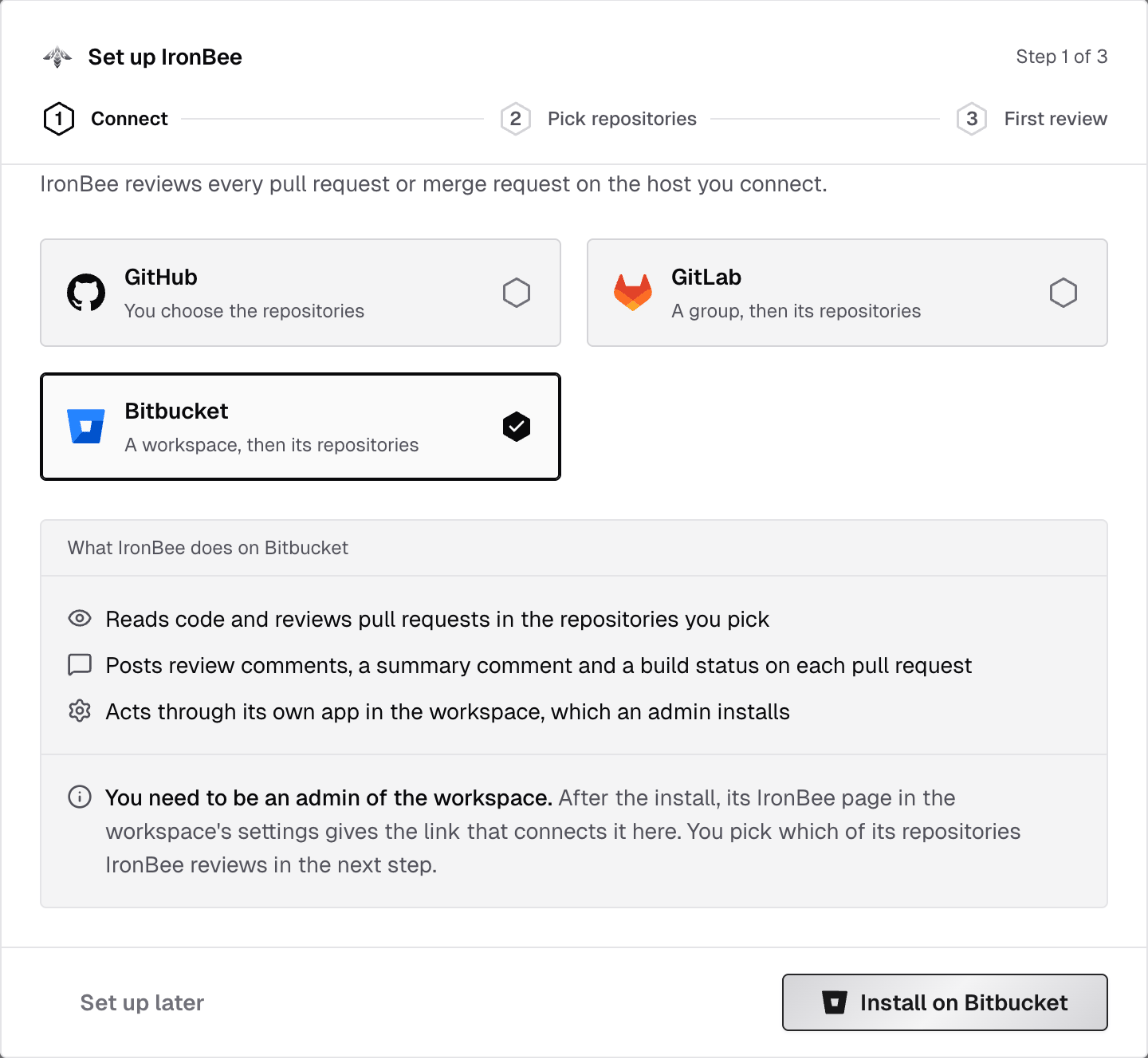
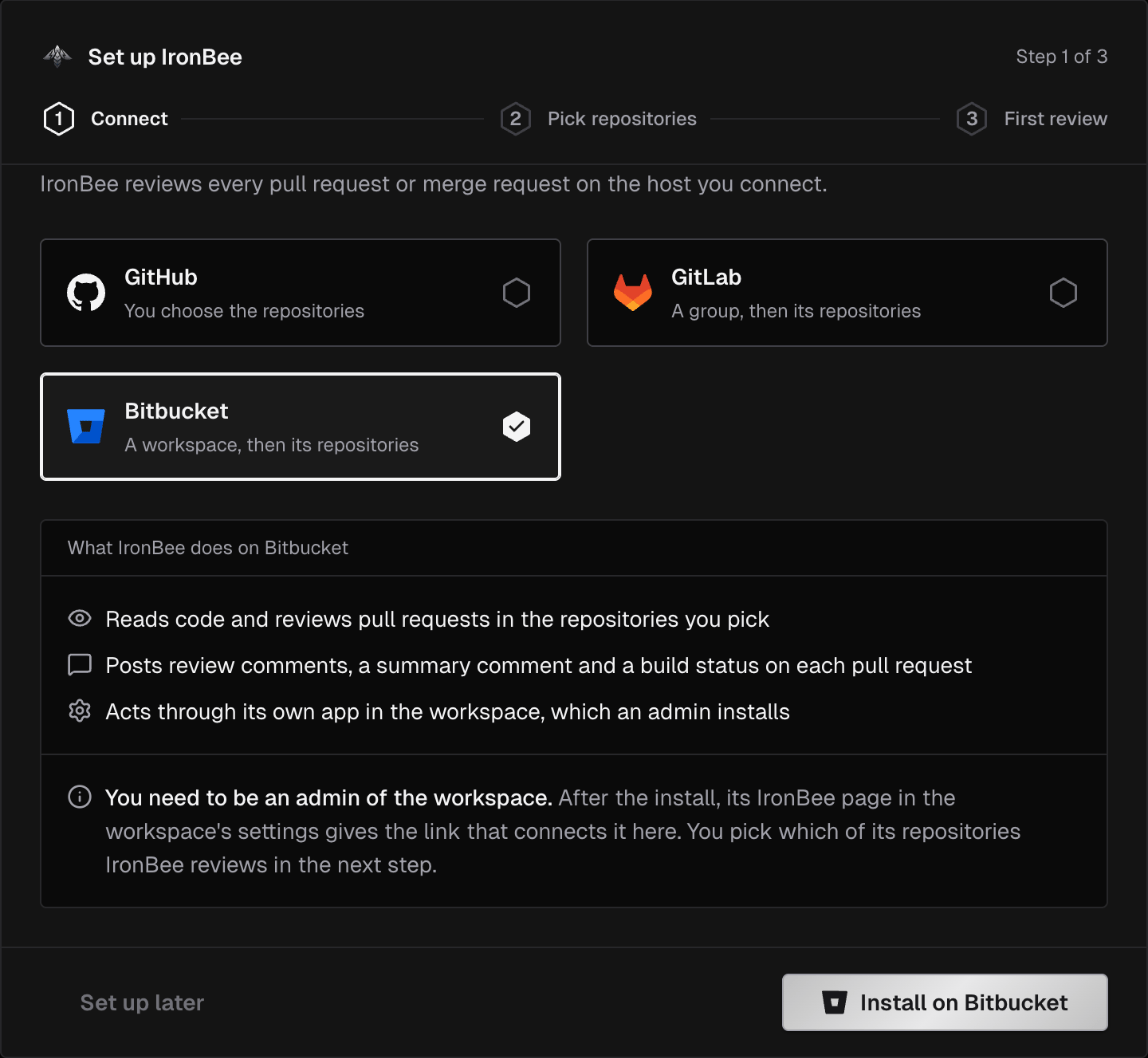
- The Set up IronBee wizard that opens on a new account: on Connect your repositories, pick the Bitbucket card and click Install on Bitbucket. See the Quickstart.
- Settings > Getting started: the Bitbucket card’s Connect Bitbucket, then Install on Bitbucket.
1
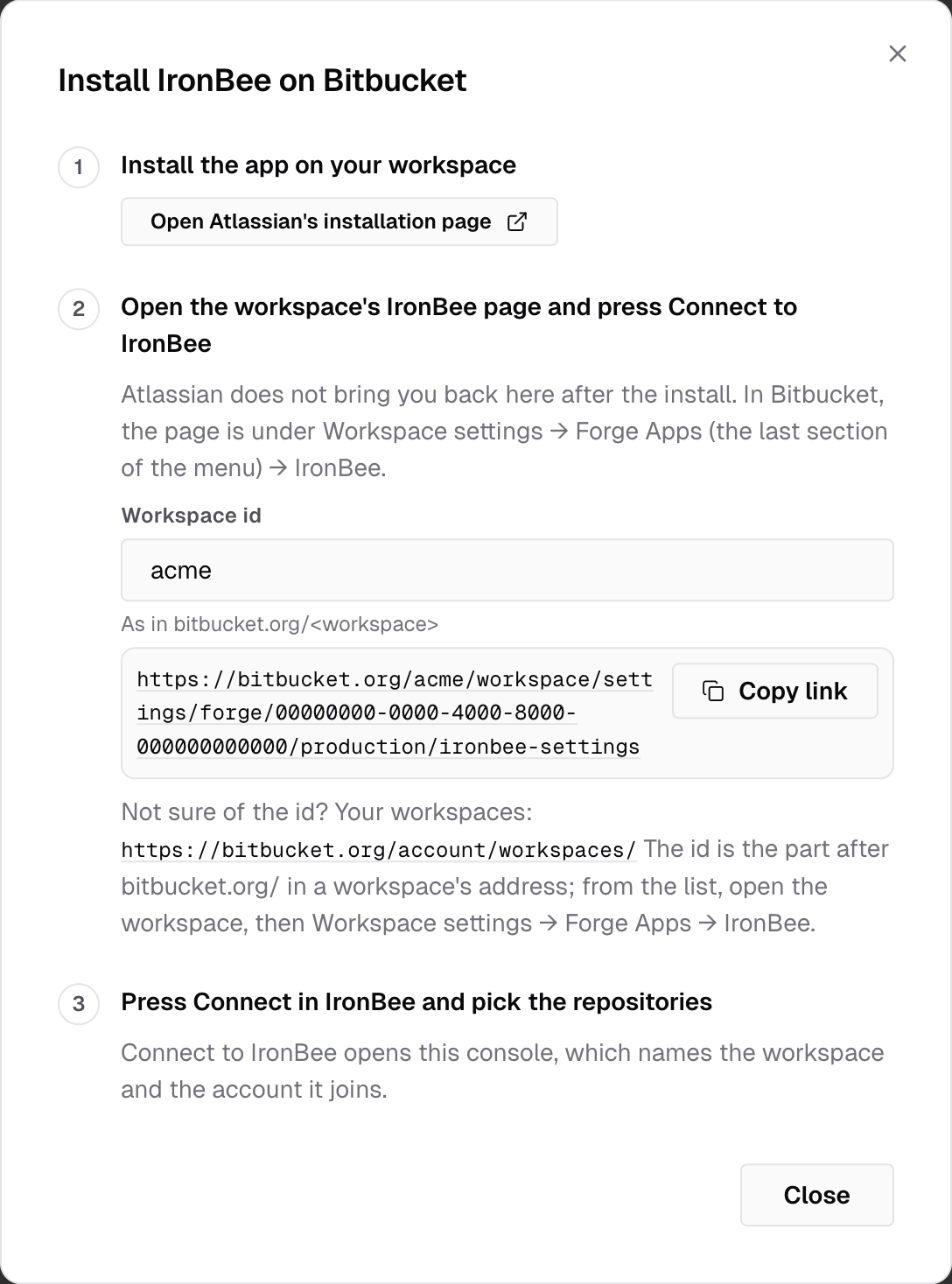
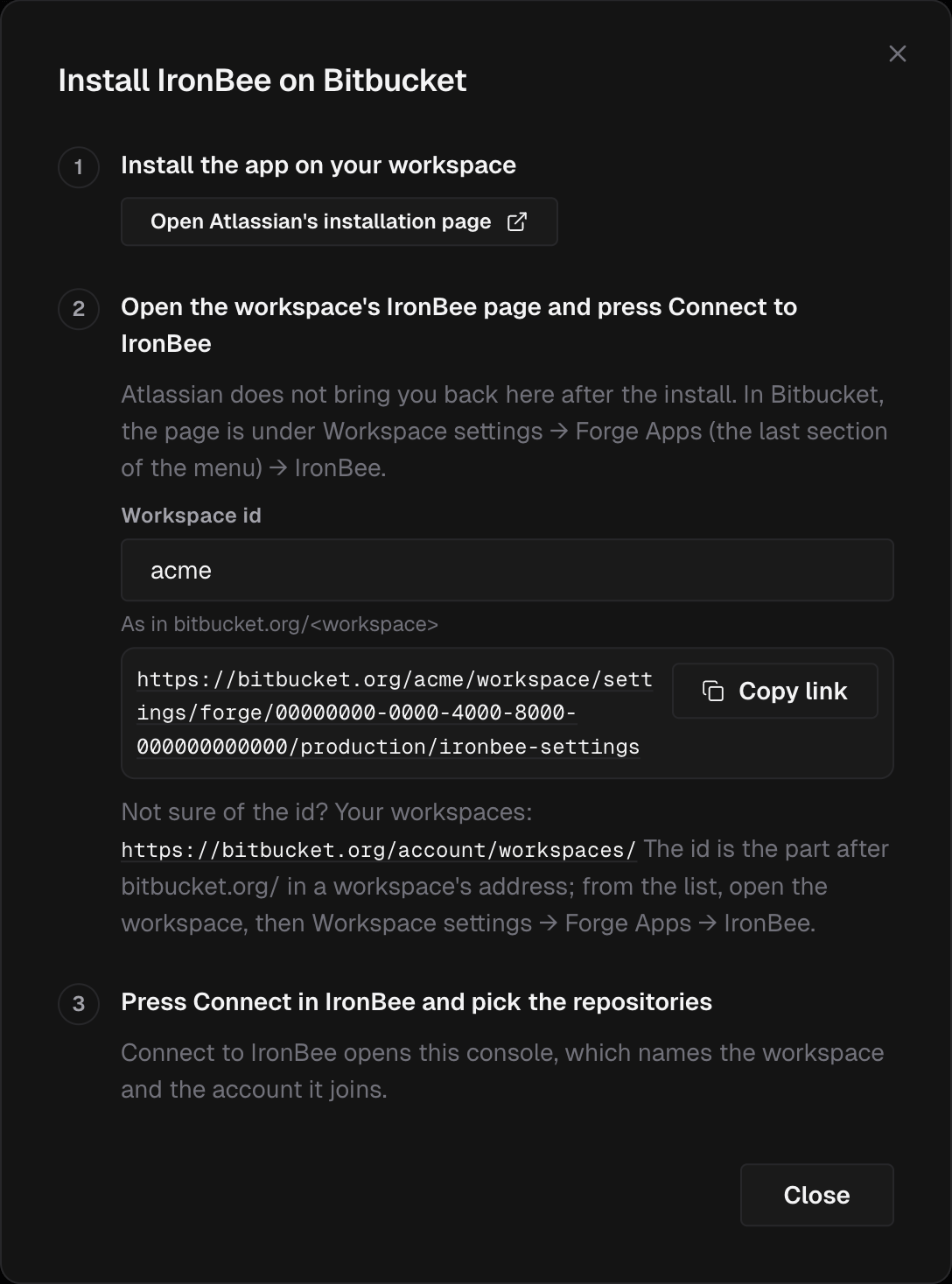
Install the app on your workspace
Click Open Atlassian’s installation page. Atlassian’s page opens in a new tab. Pick the workspace and install IronBee on it.
2
Connect to IronBee from the workspace's IronBee page
In Bitbucket, open Workspace settings, then Forge Apps, the last section of the menu, then IronBee. In the dialog, type the Workspace id, the part after
bitbucket.org/ in the workspace’s address, and Copy link gives the page’s direct address. Not sure of the id? The dialog links your list of workspaces.On the IronBee page, click Connect to IronBee, then Finish connecting in IronBee. The link works once, for ten minutes.3
Confirm in IronBee
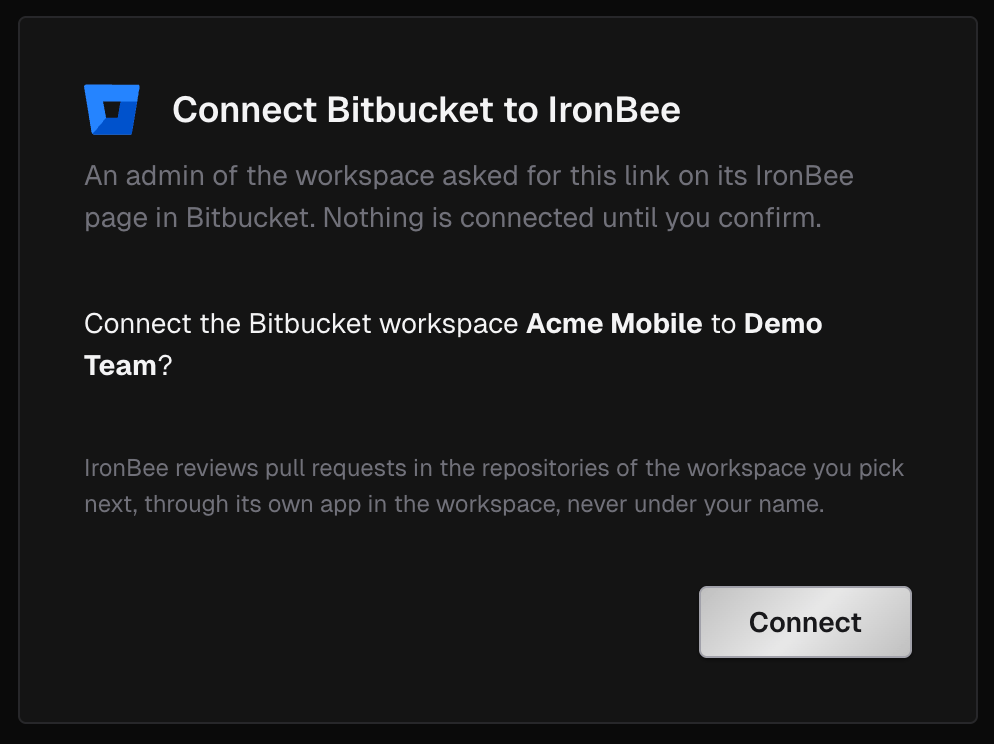
The link opens Connect Bitbucket to IronBee in the console, for the IronBee account you’re working in: “Connect the Bitbucket workspace name to account?” Click Connect. Nothing is connected until you do.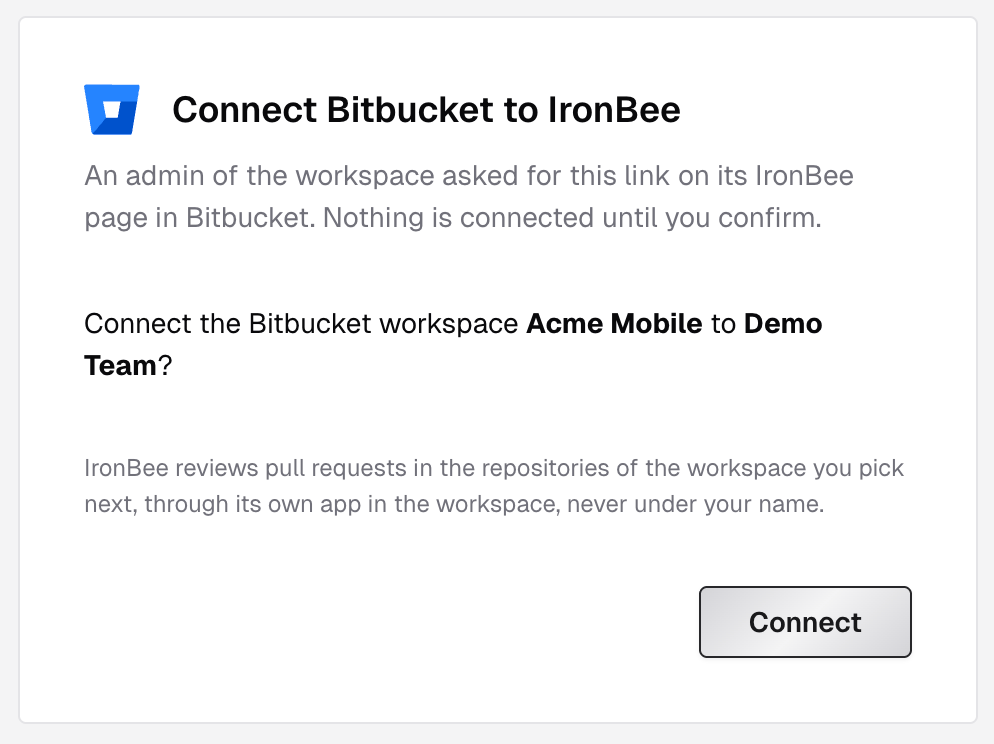
4
Pick the repositories
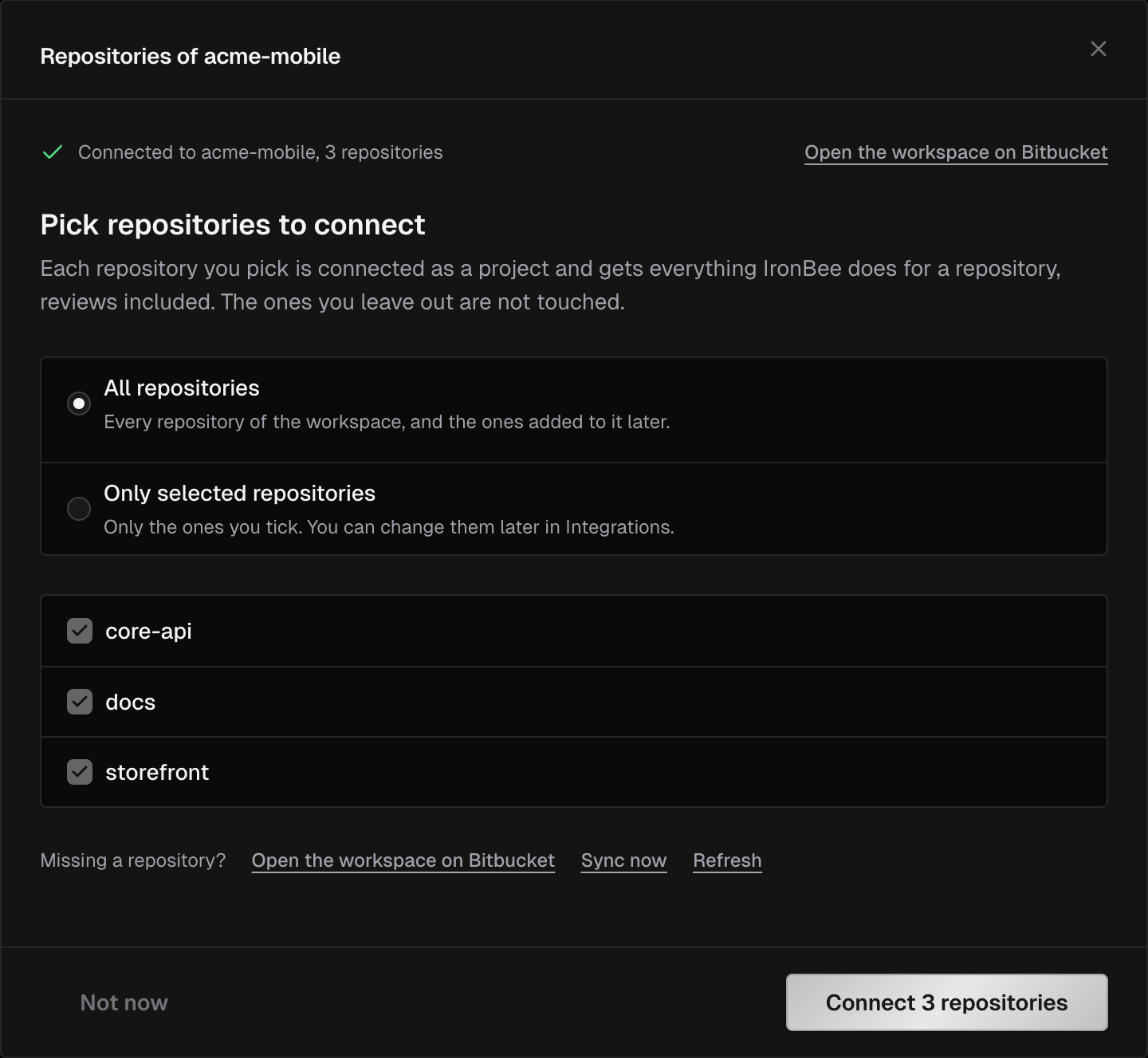
A new workspace makes no repository a project until you pick. Once the first sync has read the workspace, the console opens Repositories of your workspace. Choose All repositories or Only selected repositories, tick the ones to cover, and click Connect N repositories. Not now leaves the workspace with nothing enabled; pick later from Integrations > Bitbucket. In the setup wizard, the same choice is the Pick repositories step.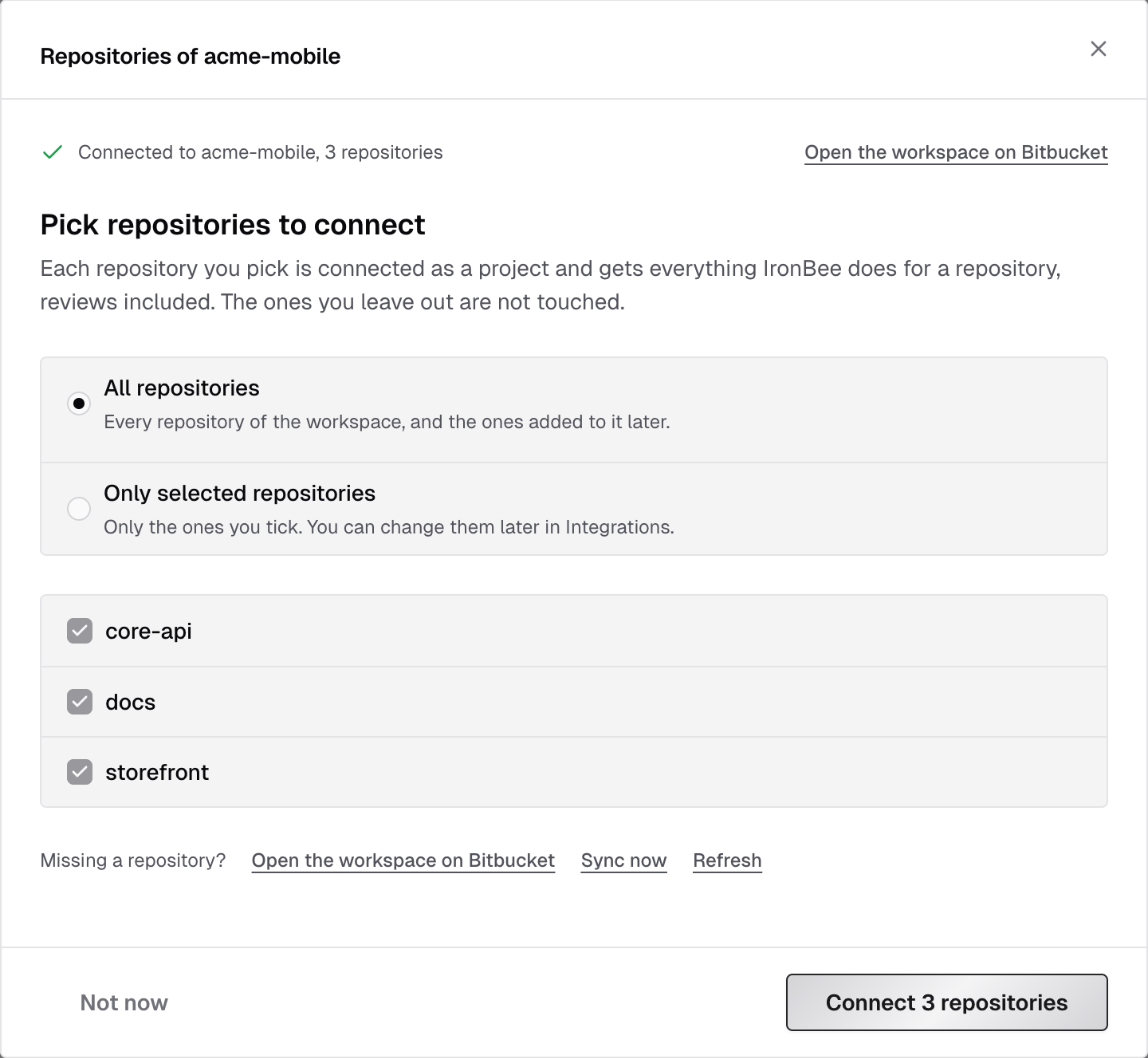
If the connect fails
Each message has Open the Bitbucket integration. On the IronBee page itself, “Connecting a workspace requires an owner of it” means you aren’t an admin of the workspace.
Repositories and projects
Integrations > Bitbucket lists each connected workspace with its Workspace, Enabled repositories, Status (Active or Suspended) and when it was Connected. Open on Bitbucket opens the workspace. Expand a workspace to see its repositories.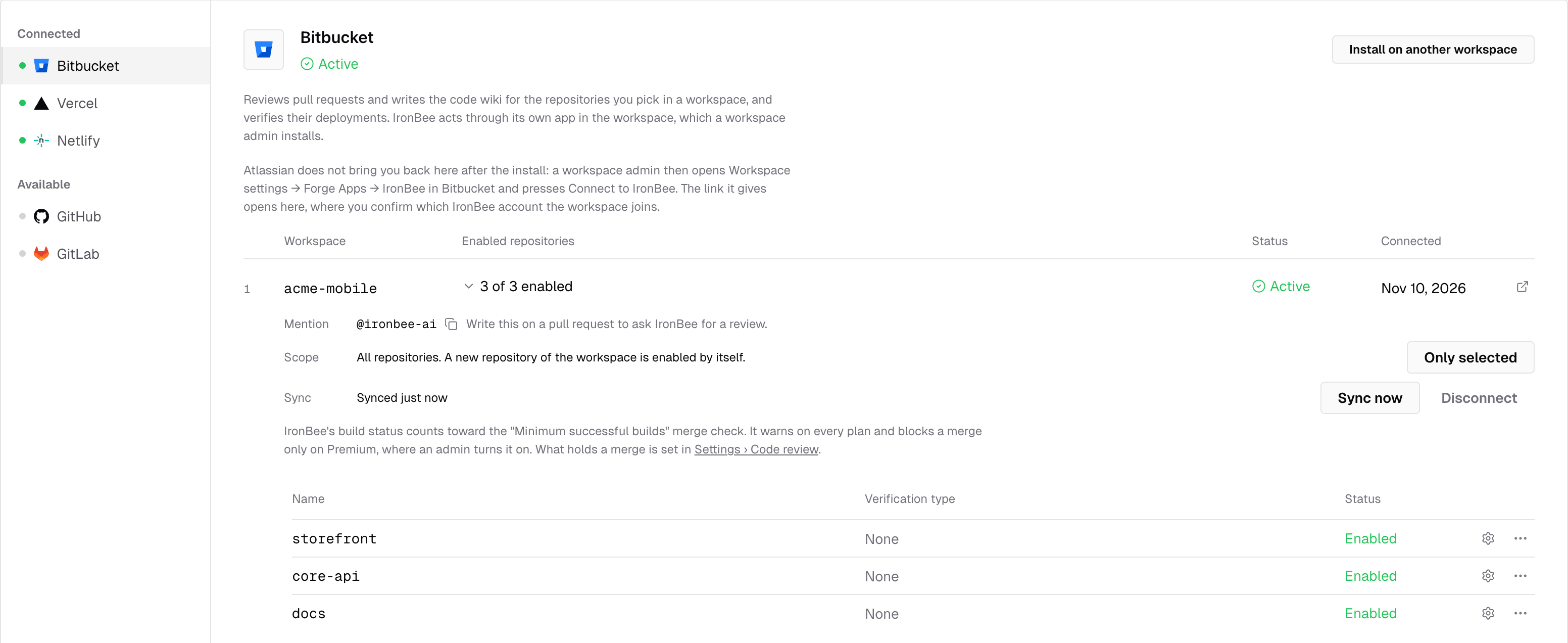
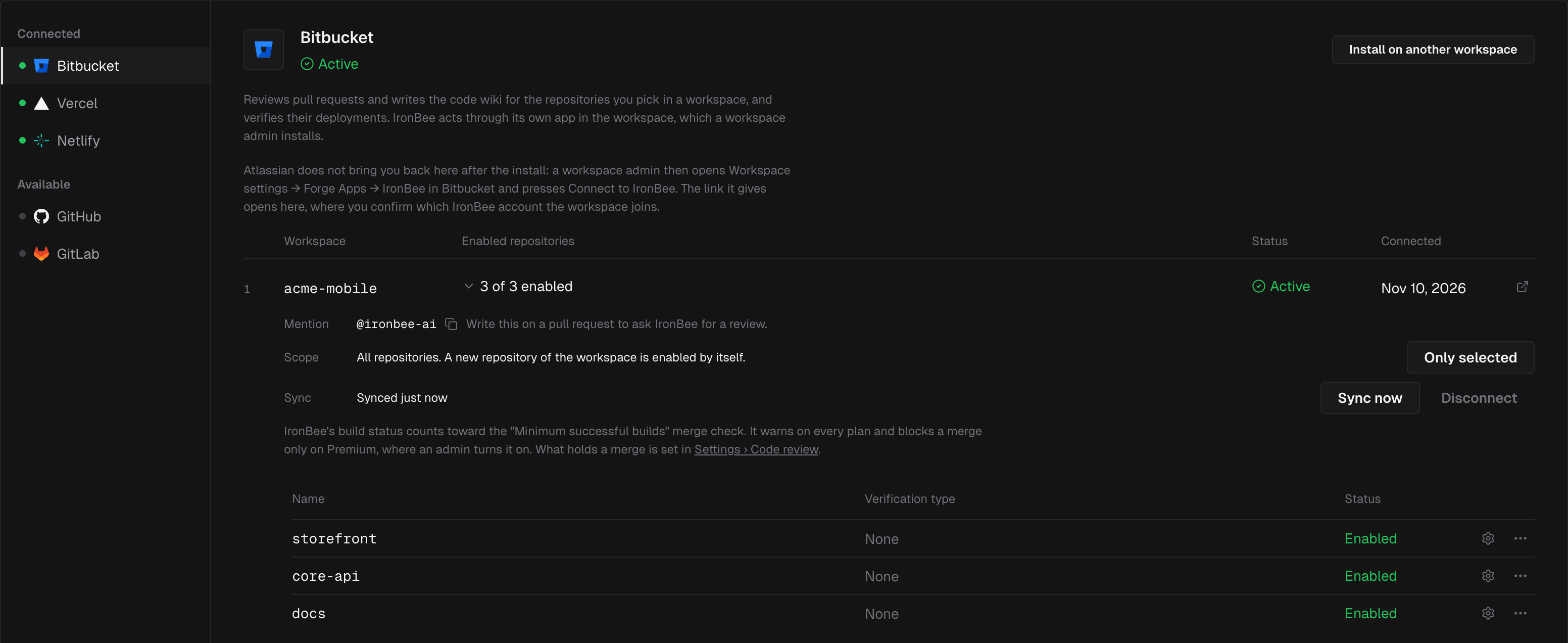
- All repositories: every repository of the workspace, and the ones added to it later. A new repository is enabled by itself within a few minutes.
- Only selected repositories: only the ones you enable. A new repository waits until you enable it.
- Code review starts, unless Review new repositories automatically is off. See Code review settings.
- The code wiki starts, unless Write a wiki for newly connected repositories is off.
- The verification type is None. Runs from the Bitbucket Pipe and from
ironbee verifyin that repository report to the project and name their own type. - Pull requests that were already open are listed in the console as Not reviewed. They’re reviewed when someone asks, or on their next push.
acme/shop is shop. A repository renamed on Bitbucket keeps its IronBee name.
A repository that can’t be added because another project of the account already has its name reads Name taken by another project in the pick step, and Not a project yet: another project of this account has this name under Integrations > Bitbucket. Rename or archive that project, then enable the repository again.
The pick decides what IronBee reviews and writes a wiki for. It doesn’t limit what IronBee can read or verify: a run from the Bitbucket Pipe or
ironbee verify in any repository of the connected workspace can check out its code and posts on its pull requests.What IronBee creates in the workspace
IronBee installs as an app in the workspace, and everything it writes on Bitbucket appears as that app’s own user. The app uses no seat, and you create no token for it. It needs no webhooks: Bitbucket sends the app the workspace’s pull request, comment, push and repository events itself. IronBee creates no tasks and no Code Insights reports. When an admin installs the app, Atlassian asks to let it read the workspace’s repositories, projects, pull requests and users, and to write on pull requests. The app gets no write access to your code: fixes are pushed by the Bitbucket Pipe, with the step’s own token.Mention IronBee
Each workspace’s row shows IronBee’s Mention,@ironbee-ai, the same mention as on GitHub, with a copy button. Write it on a pull request to ask for a review. The commands are the same as on GitHub; see Commands.
What appears on the pull request
For code review, see Code review on Bitbucket pull requests. A verification run with a verdict, from the Bitbucket Pipe on IronBee,ironbee verify or a Vercel or Netlify deployment of a repository in the workspace, posts on the pull request through the connection:
- the IronBee Verification build status, or IronBee Verification · API for an API run, on the verified commit
- an inline comment on each finding whose line is in the pull request’s diff, with a suggested fix when there is one, and a comment that counts them, such as “IronBee verification · 2 inline findings”
- one summary comment per verification type, edited in place on later runs
Merges
IronBee’s build statuses count toward Bitbucket’s merge check on successful builds for the last commit. Bitbucket warns about it on every plan, and holds the merge only on a Premium plan, where an admin turns the merge check on. IronBee always writes its statuses on Bitbucket: the Block merges code review setting is GitLab’s alone. What a review’s result does is set by Block merging when. See Merges.Managing the connection
The workspace’s row also shows when it last synced. IronBee syncs each workspace every few minutes: it finds new, renamed and removed repositories, and enables new ones under All repositories. Sync now starts a sync right away. Only owners and admins can sync, change the scope, enable or disable repositories, and disconnect. Suspended. When Bitbucket stops letting IronBee’s app into the workspace, the row reads This connection is suspended, with the reason, such as “Bitbucket has sent IronBee no token for a while, so the app may have been uninstalled.” Nothing is reviewed or verified until it’s connected again: click Open the workspace’s IronBee page, and press Connect to IronBee there. The repository pick stays as it was. Disconnect. Click Disconnect on the workspace’s row. The workspace’s repositories stop being reviewed and verified; their projects stay in IronBee with their history. The app stays installed on Bitbucket: the dialog links the workspace’s installed apps, where an admin can remove it. To connect again, open the workspace’s IronBee page and press Connect to IronBee.Troubleshooting
What’s next?
Code review on Bitbucket
What IronBee posts on a pull request, the build status and the commands.

Bitbucket Pipe
Verify every pull request and push from your own pipeline.

Vercel
Verify preview deployments as a Vercel deployment check.

Netlify
Verify deploy previews, with the result on the deploy page.