
Prerequisites
- A Vercel team that builds preview deployments from a Git repository. Personal Vercel accounts can’t install the integration.
- The owner or admin role on your IronBee account.
- The IronBee GitHub App. It’s what lets the run check out a private repository and find the pull request behind a deployment. It’s recommended for every repository and required for private ones.
Step 1: Install and connect the integration
In the console, open Integrations in the sidebar, select Vercel, and click Install the Vercel integration. During onboarding, the same step is Connect Vercel. You can also start on Vercel: open the IronBee integration on the Vercel Marketplace and click Connect Account.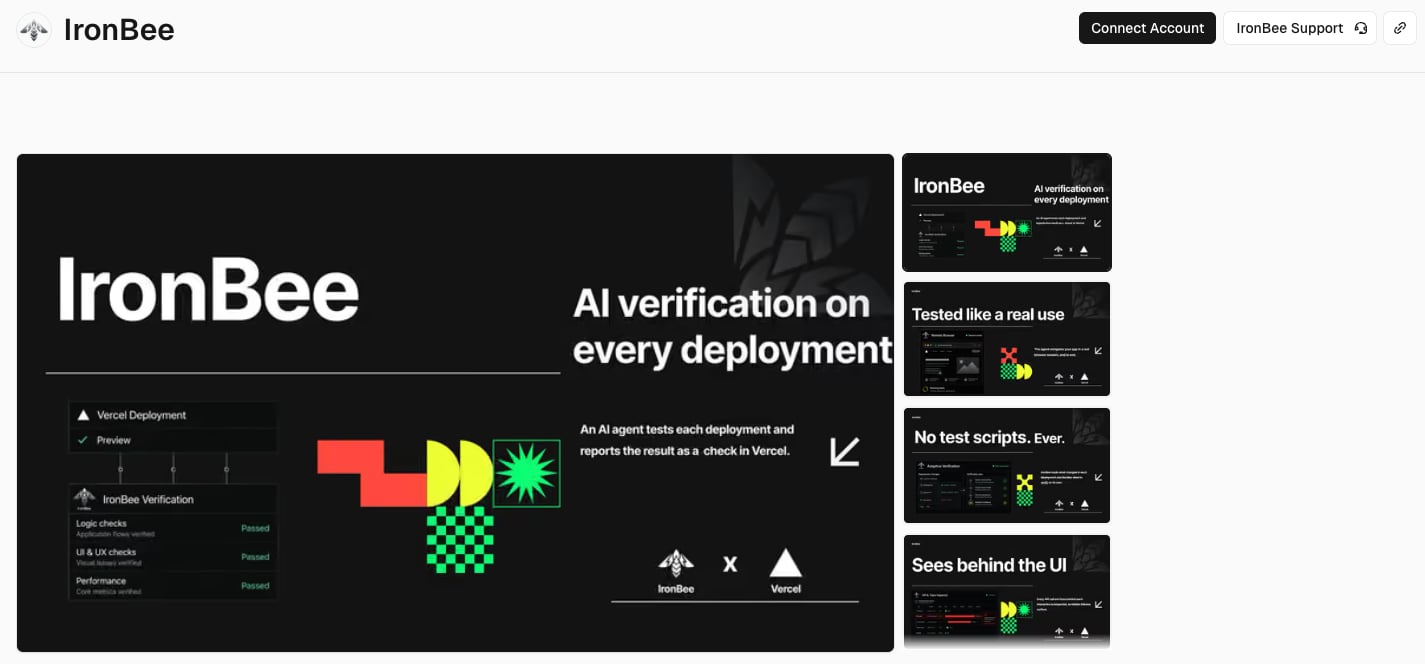
- On Vercel, choose the team and the projects the integration can see: all projects on the team, or a selected set.
- Vercel sends you back to Connect Vercel to IronBee. Check the Vercel team and Projects, pick the IronBee account, and click Connect.
- Vercel connected opens the project list so you can enable projects right away. See the next step.
- When you close the list, IronBee takes you back to Vercel to complete the installation there. If it doesn’t, click Finish on Vercel.
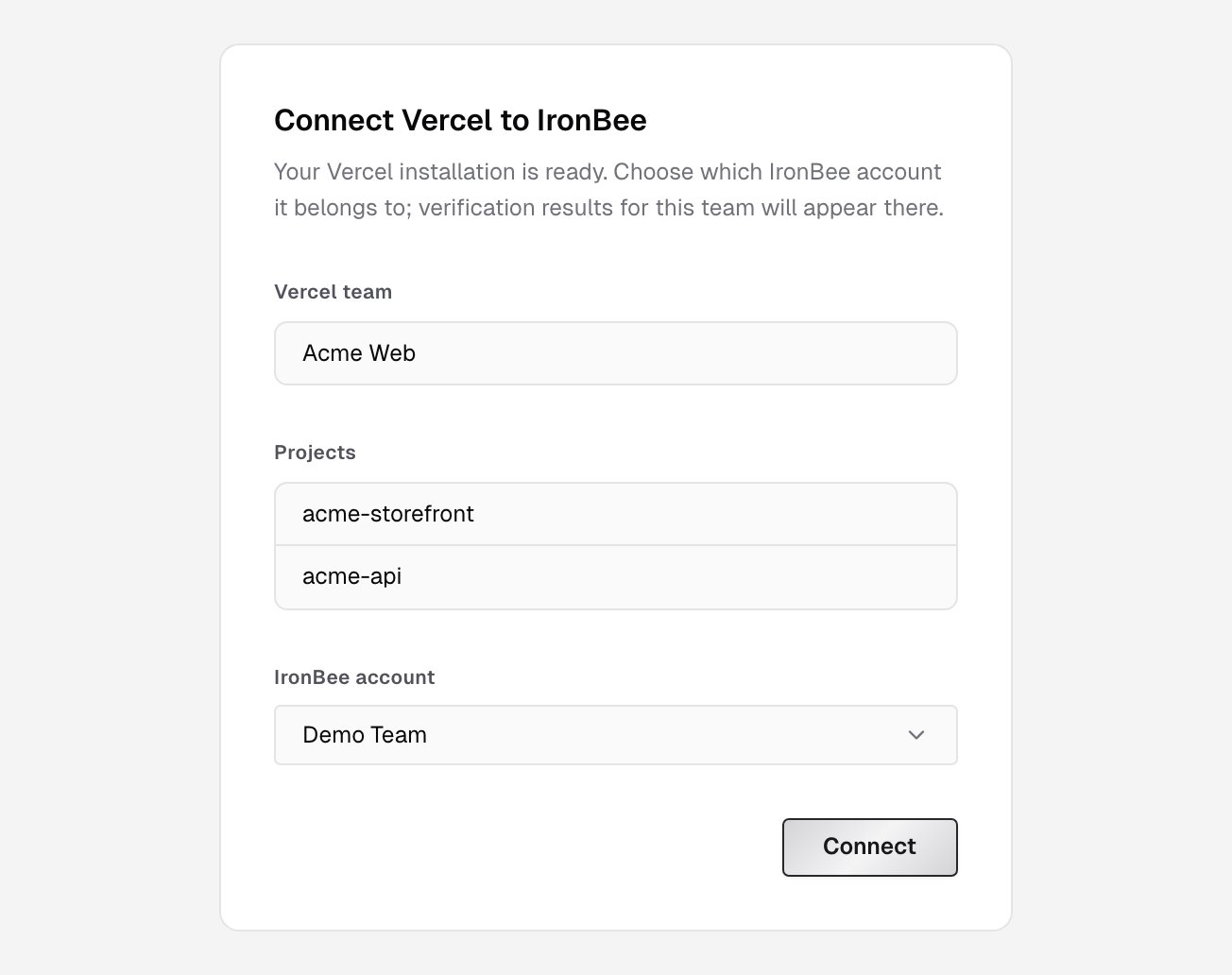
Only accounts where you hold the owner or admin role appear in the picker. If the page says the installation is no longer pending, it expired or was already completed. Open your Vercel team, go to the IronBee integration and install it again.
Step 2: Enable projects
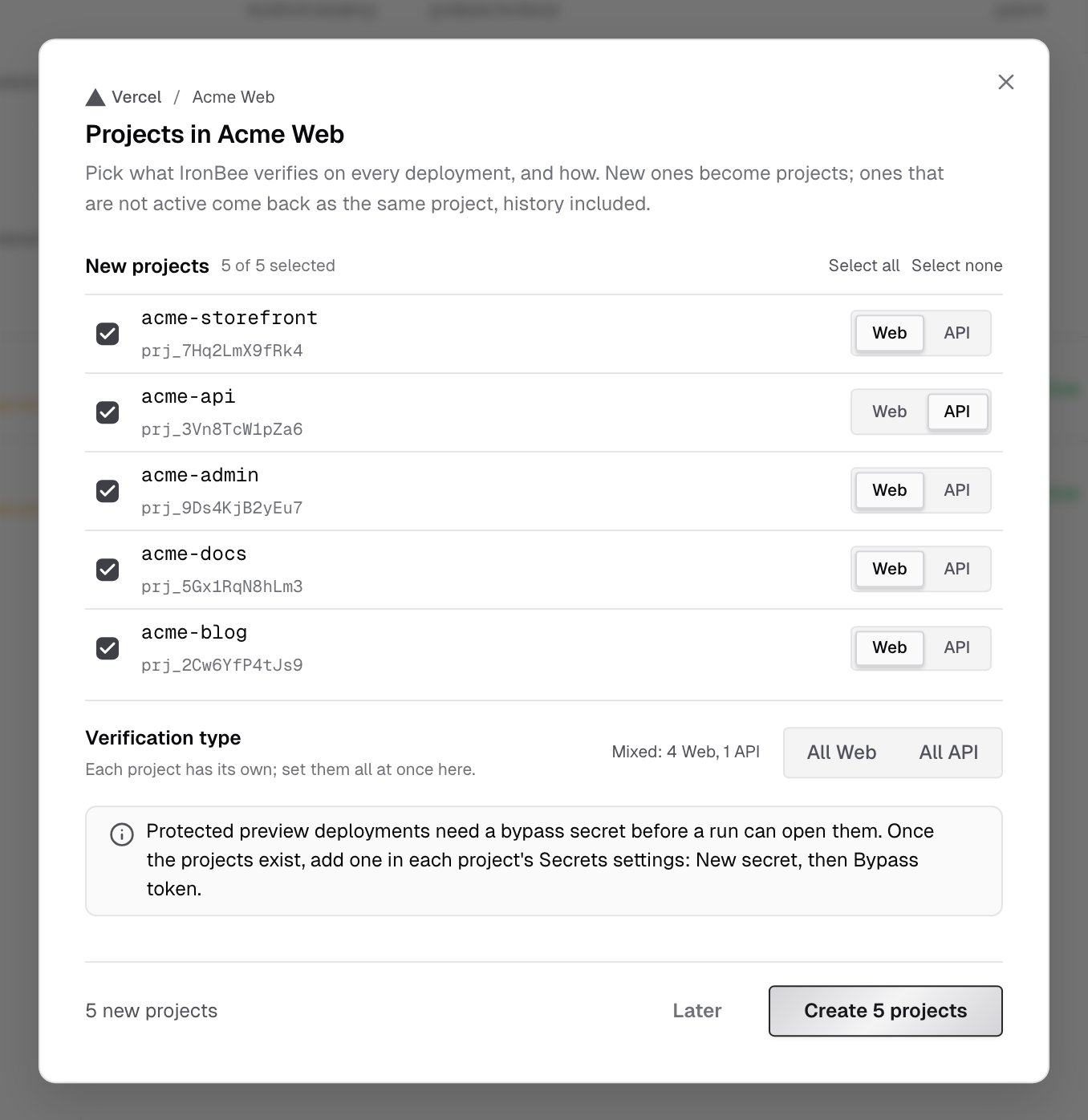
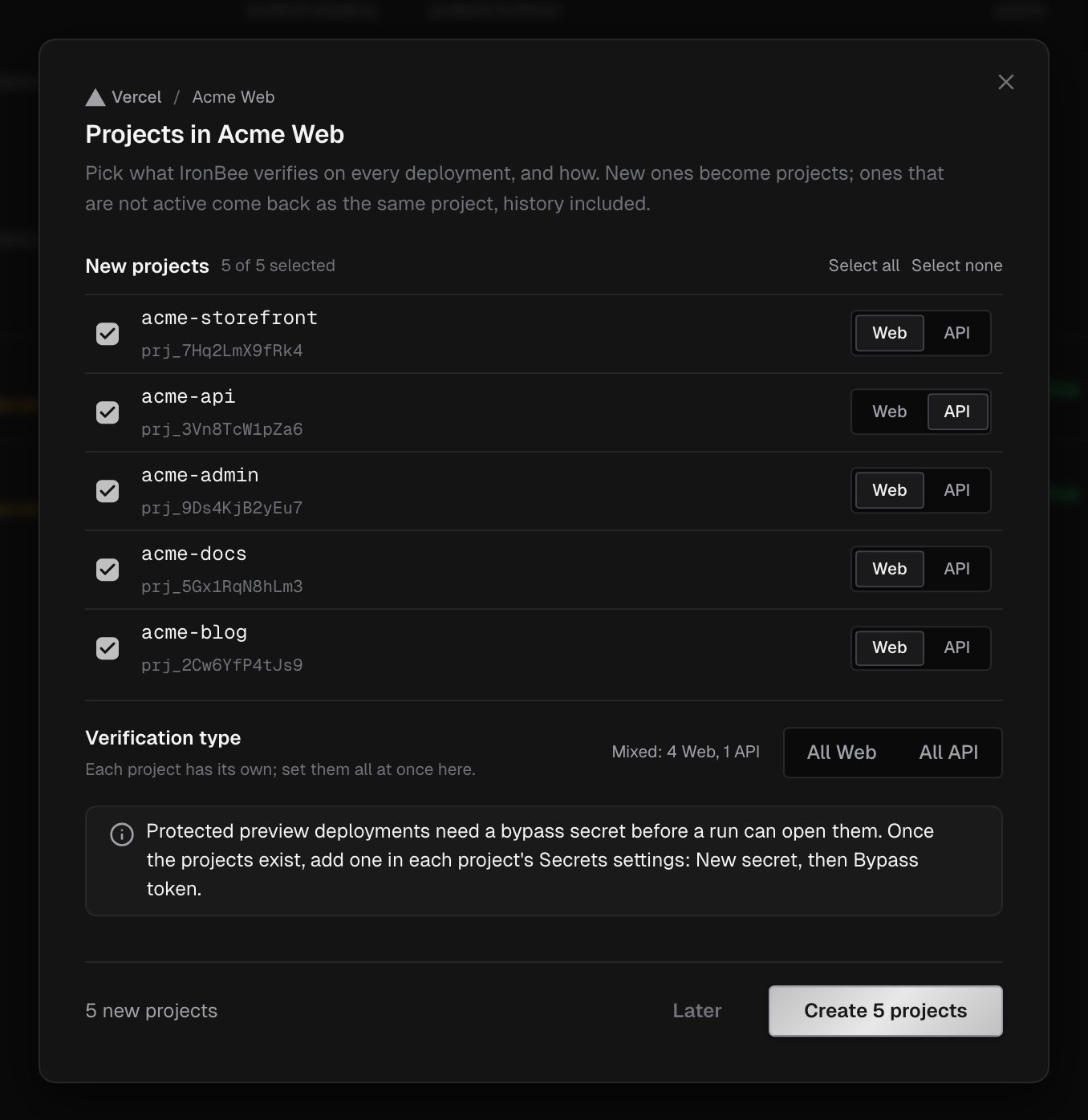
A deployment starts a run only once its project is enabled. Until then, the Integrations page shows Nothing enabled: deployments start no runs.- The list is titled Projects in and your team’s name. Every new project starts selected: clear the ones you don’t want verified, or use Select all and Select none.
- Set each one’s verification type, or set them all at once under Verification type:
- Web opens the deployment in a browser and exercises it as a user would.
- API calls the deployment over HTTP and checks the responses against its contract.
- Click Create N projects.
Step 3: Install the GitHub App
The Vercel integration knows the deployment; the GitHub App knows the code behind it. With both, the run verifies the pull request’s changes, and the result also lands on the pull request as a check and a comment. In Integrations, select GitHub and click Install the GitHub App. Then follow GitHub App.Preview access
Preview deployments are usually behind Vercel Deployment Protection, so IronBee can’t open them. Pick one of the two options below. If your previews are public, skip this step.- Bypass token
- Turn protection off
The recommended option: previews stay protected, and runs send the secret when they open them.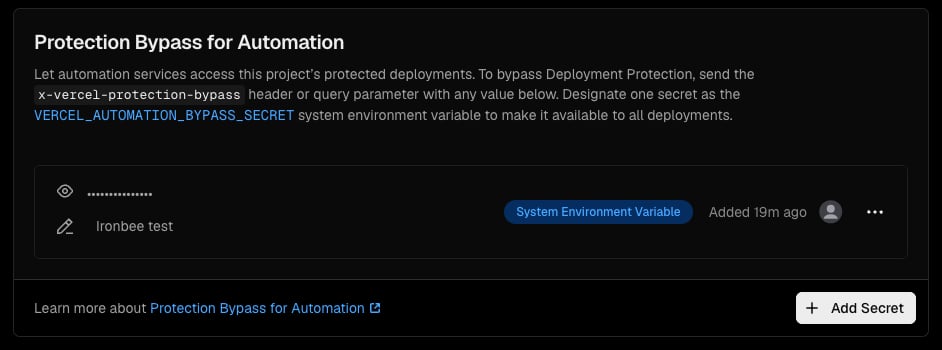
- In the Vercel project, open Settings > Deployment Protection > Protection Bypass for Automation and add a secret. Copy it.
- In the IronBee Console, open the project and go to Settings > Secrets.
- Click New secret and choose the Bypass token tab.
- Paste the secret. The name defaults to
vercel-bypass. Under Applies to, keep all environments, or choose thepreviewenvironment. - Save the secret.
x-vercel-protection-bypass header. IronBee never shows the value again. To change it, replace the secret’s value.Add a bypass token to each Vercel project that has protected previews.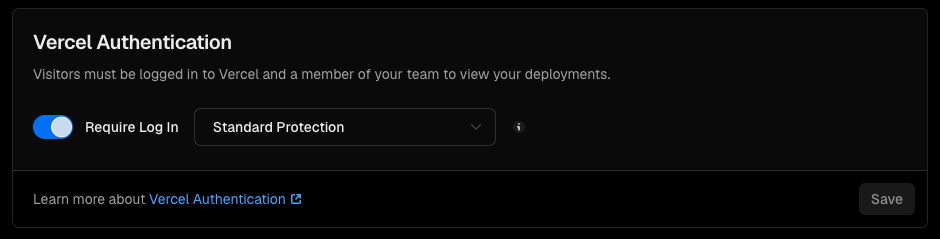
How it runs
1
The preview deploys
Vercel builds exactly as before. For every enabled project, IronBee keeps one check per verification type:
- IronBee Verification for Web, IronBee Verification · API for API
- scoped to preview deployments, non-blocking, and re-requestable
2
The check appears
IronBee Verification shows up under Deployment Checks on the deployment page, with its own status and duration.
3
The change is verified
IronBee starts a verification run with the deployment URL and its Git metadata.
- The changeset: with the GitHub App, the run finds the pull request behind the deployed commit and works from its full diff. On a push straight to a branch, it compares against the commit’s parent.
- The environment: the run is against the project’s
previewenvironment, which IronBee creates on the first deployment. Its variables and secrets apply. - Web projects: the agent exercises the changed behavior in a real browser.
- API projects: the agent calls the endpoints and checks the responses.
4
The result comes back
The verdict is written onto the check, with the summary and any issues, and a link to the run in the console. With the GitHub App installed, the same result also lands on the pull request.
What you see on the deployment
The check moves through three states on the Vercel deployment page:
The conclusion Vercel shows maps to the result like this:
When IronBee doesn’t start a run for a deployment, the check is Canceled with no output. The GitHub check, when the App is installed, gives the reason.
The check’s link opens the run in the console. While a Web run is going, you can watch it live: every action as it executes, the browser view and the network requests. Afterwards, the recording replays with the actions, network requests, traces and logs synced to it. API runs show the requests and responses, without a browser view. In the project’s Verifications list, these runs carry the Vercel trigger. See Verification detail.
Scope
- Preview deployments only. Production deployments aren’t verified.
- Enabled projects only. Deployments of projects that aren’t enabled, are archived, or are outside the installation’s scope are ignored.
- Non-blocking. The check never holds up a deployment or a promotion.
- Re-requestable. Re-request IronBee Verification from the Vercel deployment page to start a new run.
Managing the installation
Integrations > Vercel lists every connected installation with its Team, Enabled projects, Status and when it was Connected. Manage on Vercel opens Vercel’s integrations dashboard. To add or remove projects, click Manage access in Vercel and use Vercel’s Manage Access. Expand an installation to manage its projects. Each project’s actions menu (the three dots) holds:- Enable turns on verification for a project.
- Edit type changes the verification type. The change takes effect on the next deployment.
- Disable stops verification. The project keeps its history, and runs from the CLI or the API still report to it.
Troubleshooting
What’s next?

GitHub App
Repository access, the check on the commit, and the pull request comment.

Netlify
The same verification on Netlify deploy previews.
Verification detail
Read a run: the recording, the actions and the result.