

Step 1: Create your account
Go to console.ironbee.ai and sign up with Google, GitHub, or your work email. The first time you sign in, name your account, for example after your company. The console then opens the onboarding. See Sign in and team access.Step 2: Choose your path
The onboarding offers four ways in. You can connect more than one, and everything is also available later from Setup in the top bar.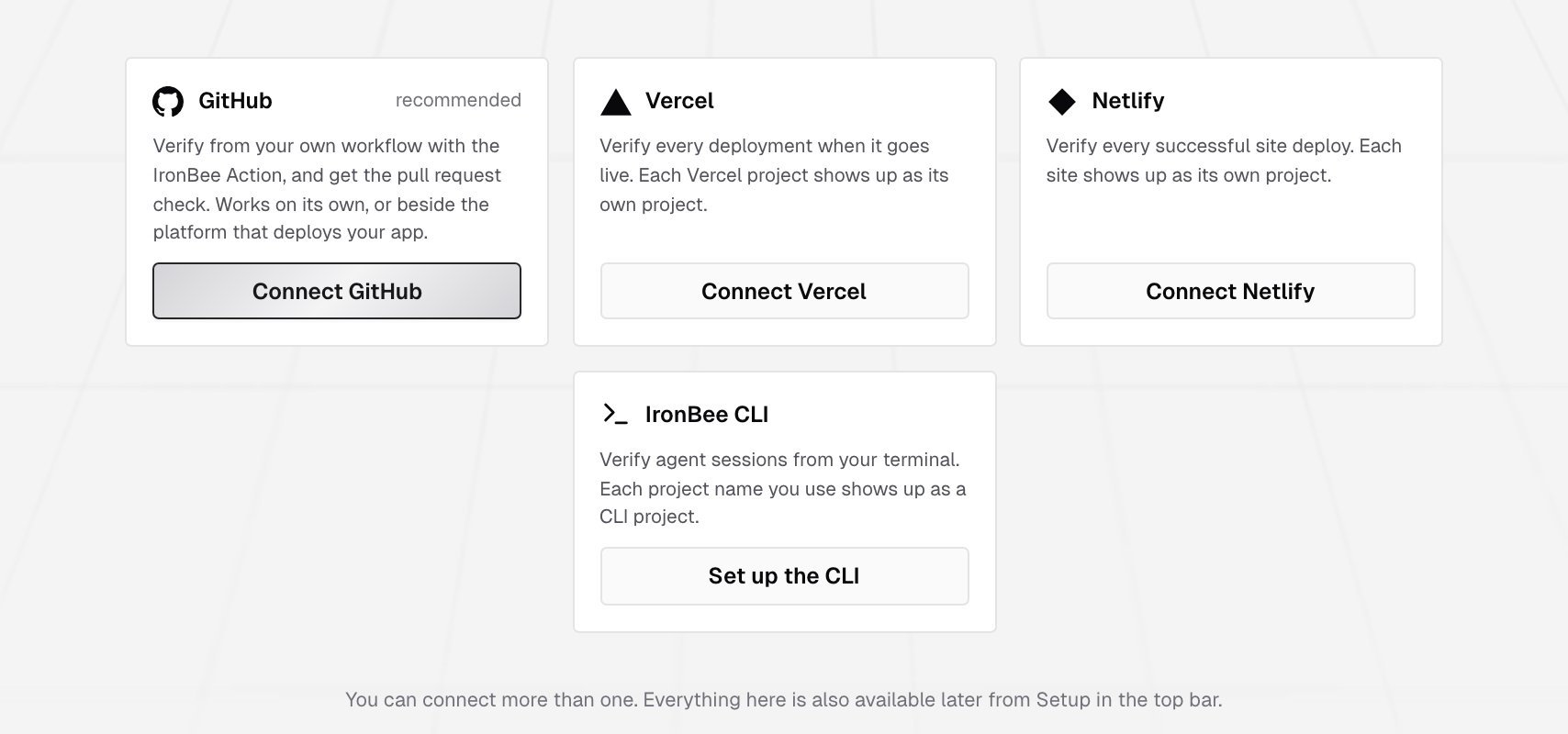
- GitHub
- Vercel
- Netlify
- CLI
Recommended. Verify every push and pull request with the IronBee Action.
- Choose Connect GitHub, and install the IronBee GitHub App on the organization you deploy from. Choose the repositories it can see.
- In the IronBee Action step, pick:
- the Repository
- Where it runs: On IronBee or On your GitHub runner
- On a finding: Report it or Fix it too
- Fill in how your app starts, and add the repository secrets the console lists:
IRONBEE_API_KEY, plusANTHROPIC_API_KEYorCLAUDE_CODE_OAUTH_TOKENwhen your answers need one. Then click Create the file on GitHub. - Committing the file is a push, and that push starts your first verification run.
Step 3: See your first result
Open Projects in the console. Your project appears when its first data arrives. Click it to open its Verifications tab:- While a run is in progress, you can watch it live.
- Afterwards, its detail page shows the recording, the actions, the network requests and the result.
Running in CI without the GitHub Action?
Running in CI without the GitHub Action?
Use the account API key instead of See Authentication for when to use each credential.
ironbee login. Owners and admins find it in the console under Settings > Account. Supply it through the environment:What’s next?
How integrations work
Projects, verification types, environments and where results land.
Key concepts
The terms used across the console and the docs.
Environments and secrets
Give runs the credentials to sign in to your app.
CLI configuration
Verify patterns, retry limits and devtools settings.