

Install IronBee in a project
Run the installer from your project root:--client (and IronBee can’t uniquely detect one), install shows a checkbox multi-select so you can set up any combination of clients in one pass - space toggles a client, a selects all, Enter confirms. With no client detected, the first client is pre-checked; with several detected, install shows the same picker with the detected clients pre-checked so you confirm (or trim) the set rather than silently installing into all of them. Confirming with nothing selected aborts. In a non-interactive shell (-y, CI, piped stdin), multiple detected clients are all installed without a prompt - the historical behavior.
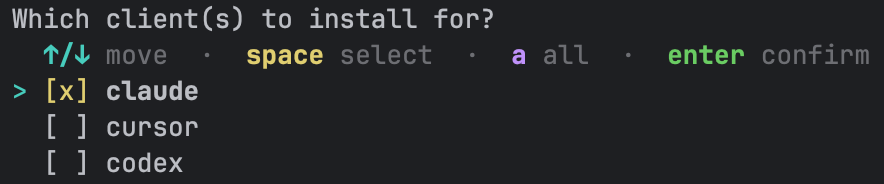
--client all does the same non-interactively - it installs for every detected client.)
The interactive flow then asks three more questions in order - mode, platforms, then checks - because choosing monitor makes the platform picker (and the checks step) moot and skips them.
Choosing the verification mode
After resolving the client, install asks which verification mode to run. In an interactive terminal it shows an arrow-key single-select, pre-selecting the project’s current mode (so re-installing keeps your choice; a fresh project defaults toassist):
--mode:
enforce opens two follow-up pickers: strictness (non-strict / strict) and then fix enforcement (fix-enforce / report-only). Skip them with --strict (its absence keeps the existing or default non-strict choice) and --fix / --no-fix - all enforce-only; a non-interactive --mode enforce skips both pickers regardless.
The choice is written explicitly to the committed project config (verification.enable / verification.auto), so it’s equivalent to the ironbee verification toggles. For assist and enforce, install also records verification.strict and verification.fix at their defaults (a choice you already made is kept). Any existing verification.model is preserved. The picker default reads the project’s own committed/local config (the machine-global config is ignored), so a fresh project defaults to assist even on a machine running monitoring-only globally. In a non-interactive shell with no --mode flag, the verification config is left untouched.
Choosing which platforms to verify
Unless you pickedmonitor, install then asks which verification platforms (cycles) to enable. In an interactive terminal it shows an arrow-key multi-select, pre-checked from the project’s current config (so re-installing keeps your choices; a fresh project defaults to browser-only):
s “suggest” key. Press it to have IronBee analyze your project with a headless prompt and replace the current selection with a recommended set of cycles; you can still adjust it before pressing Enter. All three clients can run the analysis - Claude Code, Codex, and Cursor - and when several are selected it uses the highest-priority one (claude > codex > cursor). It’s opt-in (nothing runs until you press s), and if the analysis is cancelled (Esc), times out, or fails, your current selection is kept.


--platforms (a comma-separated subset of browser,node,python,backend,android,terminal):
ironbee browser / node / python / backend / android / terminal toggles. Install records the full platform state explicitly - an enable flag for every cycle (browser, node, python, backend, android, terminal) - so the committed config.json plainly shows what’s on and what’s off. In a non-interactive shell with no --platforms flag (or in monitoring-only mode, including a just-chosen --mode monitor), the platform config is left untouched.
In a git repository, install warns you when an enabled platform matches no tracked file, so a cycle that would never run doesn’t go unnoticed. With the browser off, Node, Python and Backend without their own patterns watch every code file of their language. See Configuration.
Choosing your project checks
Beta - the suggested commands are a starting point to review, not a finished config.
ironbee checks suggest command, which you can re-run anytime; re-suggesting is additive, so it never clobbers checks you’ve hand-tuned.
DevTools prefetch (warming the first MCP start)
The devtools MCP server is launched vianpx against a pinned version, so the very first start on a machine downloads the package and the Playwright browser binaries - cold enough to blow past some MCP hosts’ startup timeout. To avoid that, ironbee install finishes by prefetching the pinned devtools into the npx cache (with live download progress), matched to the browsers your rendered setup actually needs. A prefetch failure never fails the install - the first MCP start just installs lazily instead.
It runs automatically on an interactive install (skipped under --json, in a non-interactive shell, or when installing from the TUI, which tips you to run it standalone) and is controlled with a tri-state flag:
IRONBEE_NO_PREFETCH env var as a global kill-switch. On the install path, monitoring-only projects (no devtools artifacts) and custom ironbeeDevTools.mcp entries are skipped automatically. An interactive ironbee browser enable also prefetches (it’s the moment a browser-less warm cache would need browser binaries). And you can warm the cache standalone, anytime:
chromium plan anyway; pass --browsers none for a package-only warm. Exit codes: 0 completed (including already-warm), 1 failed, 2 skipped (npx unavailable or the kill-switch set). When a CLI upgrade triggers the auto re-render, that pass re-runs the prefetch across your registered projects too; a patch that changes nothing structural doesn’t, so after a pin-only bump run ironbee devtools prefetch yourself.
Unattended installs
For scripts and CI,install can run with zero prompts:
Restart your AI coding client after installing so it picks up the new hooks and tools.
Install everywhere at once
IronBee keeps an inventory of every project you’ve installed it into (see The project inventory below). To re-run install across all of them (handy after changing a global setting):--json, the --all form emits a roll-up envelope instead of the single-project one: { ok, all: true, total, failures, prefetch }.
Remove IronBee from a project
.ironbee/ directory, and drops the project from the inventory.
The project inventory
IronBee tracks the projects it’s installed in at~/.ironbee/projects.json. This inventory is what install --all and global config changes use to know which projects to update.
You normally don’t manage it by hand; ironbee install adds a project automatically, and ironbee uninstall removes it. Two commands let you adjust the inventory without touching any installed files:
register- retrofit a project that was set up manually (or before the inventory existed) so it shows up forinstall --alland global-config notices. No artifacts are written.unregister- drop an entry without uninstalling anything. Works even if the project directory has already been deleted.
-p, --project <dir> to target a directory other than the current one.
Update the CLI
Check for a newer release and update in place:PATH. You can always update manually instead:
Restart your AI coding client after updating to use the new version.
Auto re-rendering after an upgrade
Occasionally a new release changes the structure of the files install writes into a project - hook configs, the skill/rule/agent files, MCP entries, the verifier sub-agent. When that happens, IronBee re-renders every registered project so they all pick up the new structure, without you runninginstall --all by hand.
- It triggers right after the upgrade (the npm
postinstall, including viaironbee update) and, as a fallback, on your next interactiveironbeecommand. - It’s non-destructive: re-rendering preserves your config - mode, platforms, the verifier model, and any custom verify patterns are kept.
- In an interactive terminal you get a one-key “Press Enter to update them now…” acknowledgement before it runs. In any non-interactive context (pipes, CI, agent-fired hooks) it defers rather than re-rendering silently, so the next interactive run picks it up.
- Routine patches that don’t change the file structure re-render nothing.
IRONBEE_NO_AUTO_RERENDER - or rely on CI being set, which also short-circuits it.
The devtools pin
Each CLI release drives one exact, pinned version of the@ironbee-ai/devtools package - the pin is baked into every rendered MCP server entry (npx -y @ironbee-ai/devtools@<version>), so a given CLI build always runs one immutable devtools build. The pin is a build-time constant, deliberately not a config key (point ironbeeDevTools.mcp at your own entry if you need a different build). Read it programmatically:
V=$(ironbee devtools version) is safe in scripts - it’s the contract for downstream tooling that bundles or pre-fetches devtools at its own build time.
What’s next?
Verification
Choose which platforms get verified and switch between enforcement and monitoring-only.
Interactive mode (TUI)
Manage projects, platforms, and sessions from a full-screen terminal UI.