

ironbee tui opens a full-screen interactive terminal UI, a single place to browse your projects, toggle platforms, edit config, and inspect sessions without remembering individual commands.
It mirrors the CLI: anything you do in the TUI runs the same underlying logic as the matching command.
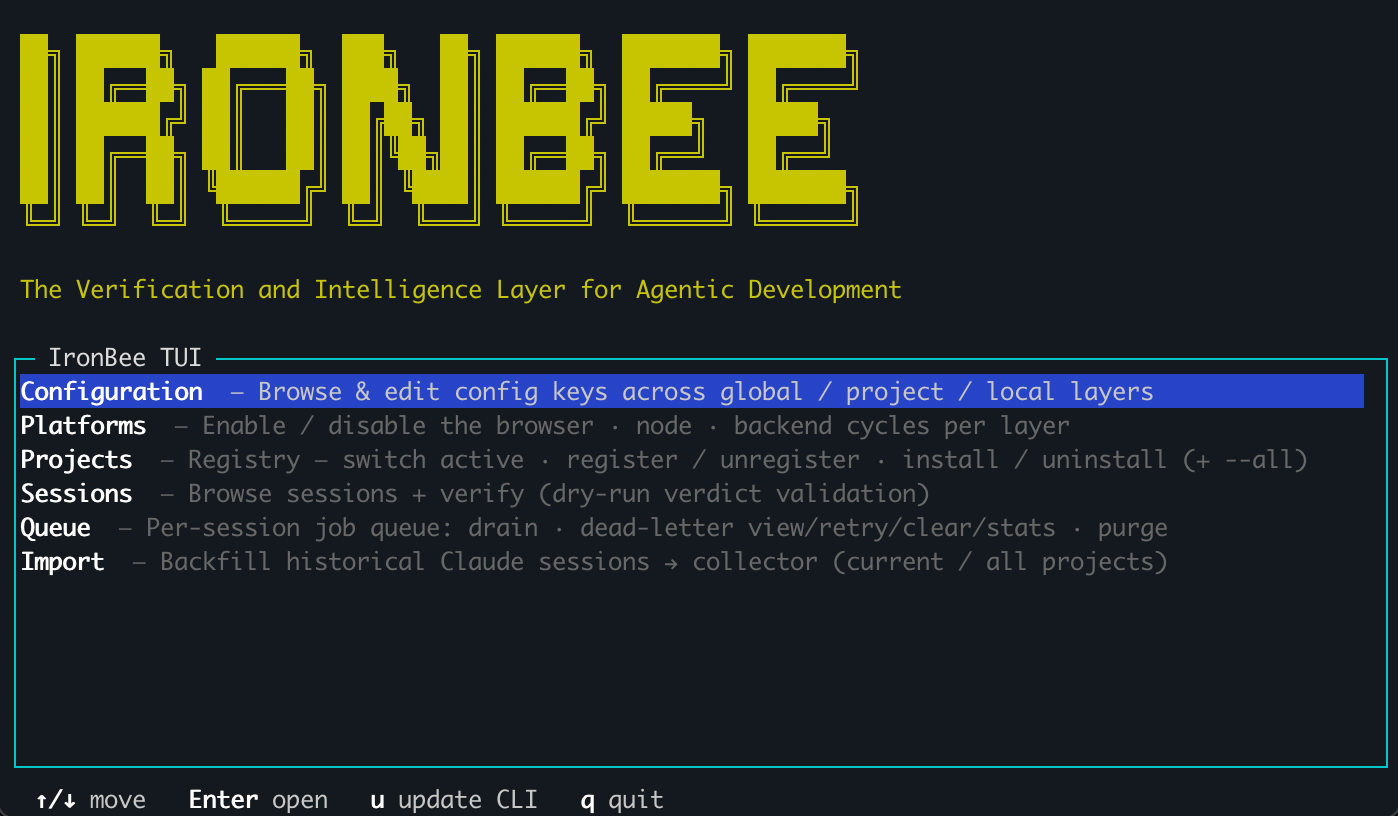
The IronBee TUI home menu, pick an area to dive into.
Launch
The TUI needs an interactive terminal. In a non-interactive context (CI, piped output) it exits with a hint to use the equivalent
ironbee config commands instead.Areas
Installing from the Projects area runs the same flow as the CLI: a client picker when more than one is detected, then a mode single-select (
enforce / assist / monitor - the equivalent of ironbee install --mode; picking enforce adds the same strictness and fix-enforcement sub-pickers, with Esc stepping back) and, unless you pick monitor, a platform multi-select (pre-checked from the project’s current config - the equivalent of ironbee install --platforms) to choose which cycles to enable, including the same s suggest key. One difference: a TUI install never runs the devtools prefetch - it tips you to run ironbee devtools prefetch in a terminal instead.Navigating
Keys by area
The breadcrumb at the top always shows the active project. In the Projects area you can switch which project is active, and every project-scoped area (Configuration, Platforms, Sessions, Queue) retargets to it, so you can launch in one repo and inspect or edit another without changing directories.
What’s next?
Configuration
The keys behind the Config area, in full.
Verification
The commands behind the Sessions area.