> ## Documentation Index
> Fetch the complete documentation index at: https://docs.ironbee.ai/llms.txt
> Use this file to discover all available pages before exploring further.
# Vercel
> Install the IronBee Vercel integration so every preview deployment is verified automatically, as a Vercel deployment check.
The Vercel integration puts IronBee on your deployments. Every preview deployment gets a check named **IronBee Verification**: a cloud agent reads what the commit changed, drives the preview in a real browser against your real backend, and reports the verdict back on the deployment - with the evidence behind it in the Console.
There is no workflow file to add and no test suite to maintain. Nothing waits on IronBee: the deployment completes as before, and the check reports on it.
***
## Prerequisites
* A Vercel project that builds **preview** deployments from a Git repository.
* An IronBee account, and the **owner** or **admin** role on it - binding an installation to an account requires one of those roles.
* The [IronBee GitHub App](/integrations/github), so the agent can check out your code and resolve the pull request behind the deployment. Without it a run still happens, but with no changeset to work from.
***
## Step 1: Install the Vercel integration
Open the Console at **Settings → Integrations** and select **Install the Vercel integration** under the Vercel card. You can also install it from the [Vercel Marketplace](https://vercel.com/marketplace) listing.
On Vercel, choose the **team** and the **projects** the integration covers - all projects on the team, or a selected set. Only the projects in that scope are ever verified.
Vercel then sends you back to IronBee, to the **Connect Vercel to IronBee** page:
1. Confirm the Vercel team and the project list shown.
2. Pick the **IronBee account** the installation belongs to. Verification results for this team land in that account.
3. Select **Connect**.
Only accounts where you hold the **owner** or **admin** role appear in the picker. If none do, ask an account owner to open the same link, or to grant you the admin role and reload the page.
If the connect page reports that the installation is no longer pending, it expired or was already completed. Run the installation again from Vercel: open your Vercel team, go to the IronBee integration, and reinstall it.
***
## Step 2: Install the GitHub App
The Vercel integration knows the deployment; the GitHub App knows the code behind it. Installing both is what gives the agent a diff to verify against, a live check on the pull request, and the result posted as a PR comment.
Install it from **Settings → Integrations → Install the GitHub App**, then follow [GitHub App](/integrations/github) for the setup and permissions.
***
## Step 3: Give IronBee preview access
Preview deployments are usually behind Vercel deployment protection, which means IronBee cannot open the deployment it is meant to verify. Pick any **one** of the three options below - each is enough on its own. If your previews are already public, skip this step.
Open **Settings → Integrations** in the Console and select the info icon next to **Preview access** to see the same three options with screenshots.
The recommended option: previews stay protected, and IronBee sends the secret when it opens them.
1. In the Vercel project, open **Settings → Deployment Protection → Protection Bypass for Automation** and select **Add Secret**.
2. The secret must be exactly **32 characters**. The one Vercel generates already is, so generating it is the easiest path.
3. Copy the secret, paste it into the **Preview access** field on the Console's Integrations page, and select **Save**.
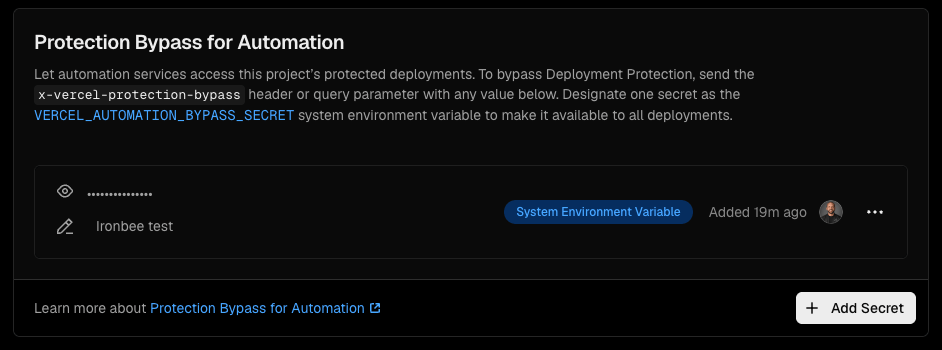 The secret can be set per project, or once for every project in the installation. Saved secrets are masked - only the first characters are shown back - and are never readable after they're stored.
1. In the Vercel project, open **Settings → Deployment Protection**.
2. Turn off **Require Log In** under **Vercel Authentication** and save.
The secret can be set per project, or once for every project in the installation. Saved secrets are masked - only the first characters are shown back - and are never readable after they're stored.
1. In the Vercel project, open **Settings → Deployment Protection**.
2. Turn off **Require Log In** under **Vercel Authentication** and save.
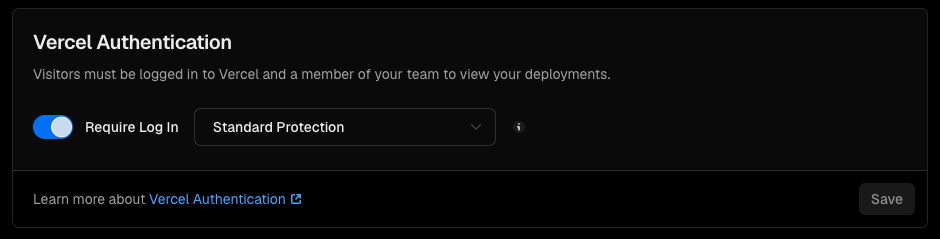 Previews become publicly reachable: anyone with the link can open them.
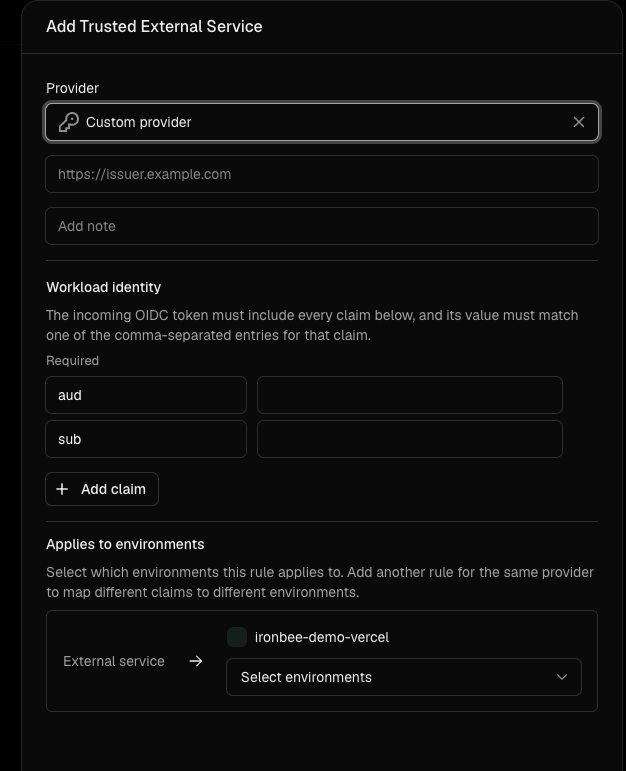
Nothing is pasted into IronBee and no secret is shared - Vercel verifies an OIDC token IronBee signs.
1. In the Vercel project, open **Settings → Deployment Protection → Trusted Sources** and select **Add trusted source**.
2. Choose **External Service**, then **Custom provider**.
3. Fill the form with the values below and apply it to the **preview** environment.
| Field | Value |
| ---------- | --------------------------------------------------------- |
| Issuer URL | `https://integrations.ironbee.ai/oidc` |
| `aud` | The Vercel project ID (as shown on the Integrations page) |
| `sub` | `ironbee` |
Previews become publicly reachable: anyone with the link can open them.
Nothing is pasted into IronBee and no secret is shared - Vercel verifies an OIDC token IronBee signs.
1. In the Vercel project, open **Settings → Deployment Protection → Trusted Sources** and select **Add trusted source**.
2. Choose **External Service**, then **Custom provider**.
3. Fill the form with the values below and apply it to the **preview** environment.
| Field | Value |
| ---------- | --------------------------------------------------------- |
| Issuer URL | `https://integrations.ironbee.ai/oidc` |
| `aud` | The Vercel project ID (as shown on the Integrations page) |
| `sub` | `ironbee` |
 ***
## How it runs
Vercel builds exactly as before. IronBee registers a project-level check definition named **IronBee Verification** - scoped to **preview** targets, non-blocking, and re-requestable - the first time it sees a deployment for that project.
Once the deployment is ready, **IronBee Verification** shows up under **Deployment Checks** on the deployment page, with its own status and duration.
When Vercel starts the check, IronBee queues a verification job carrying the deployment URL and its Git metadata. With the GitHub App installed it also resolves the **pull request** behind the deployed commit, so the agent works from the full diff; on a push straight to a branch it falls back to the commit's own parent, a narrower changeset. The agent then writes a scenario for what changed and exercises it in a real browser against your real backend.
The verdict is written back onto the check, with the summary and any issues, and a link out to the session in the Console. When the GitHub App is installed, the same run also lands on the pull request.
***
## What you see on the deployment
The check moves through three states on the Vercel deployment page:
| State | What it means |
| --------- | -------------------------------------------------------------------------------------------- |
| Queued | The build is done and the preview has a URL. The check is waiting for its turn. |
| Running | IronBee is driving the preview. The duration counts up, and the link opens the live session. |
| Concluded | The verdict, with the evidence behind it in the Console. |
The conclusion Vercel shows maps to the verdict like this:
| IronBee verdict | Vercel conclusion |
| -------------------------- | ----------------- |
| `pass` | Succeeded |
| `fail` | Failed |
| `not_applicable` | Neutral |
| Verification could not run | Neutral |
| Cancelled | Canceled |
The check's link opens the session in the Console. While the run is going, the session streams **live**: every action as it executes, the browser view, and the network requests behind it. Once it concludes, the recording replays the exact same workspace - the action timeline, the network payloads, the traces and logs, and the files a finding came from - synced to the replay. In the Console's verification list these runs carry the **Vercel** trigger, so you can filter for them.
***
## Scope and limits
* **Preview deployments only.** Production deployments are ignored.
* **Non-blocking.** The check never holds up a deployment or a promotion; it reports on a deployment that already finished.
* **Re-requestable.** You can re-request **IronBee Verification** from the Vercel deployment page, which starts a fresh run.
* **Scoped to the installation.** Deployments of projects outside the installation's project scope are ignored.
***
## Managing the installation
**Settings → Integrations** in the Console lists every connected Vercel installation with its team, the projects it covers, its status (**Active** or **Suspended**), and the date it was connected. The external-link icon takes you to the installation on Vercel.
Changes on Vercel's side flow back automatically:
* Adding or removing projects updates the covered project list.
* Uninstalling the integration on Vercel marks the installation as uninstalled in IronBee; no further deployments are verified.
***
## Troubleshooting
| Symptom | Likely cause |
| ----------------------------------------------------------------------------------- | ----------------------------------------------------------------------------------------------------------------------------------------------------------- |
| No **IronBee Verification** entry on the deployment | The deployment is a production build, or the project is outside the installation's project scope. Check the project list under **Settings → Integrations**. |
| The check concludes quickly, and the session shows the agent could not open the app | Preview access is missing. Complete [Step 3](#step-3-give-ironbee-preview-access) with any one of the three options. |
| The run verifies broad behaviour instead of what the commit changed | The GitHub App isn't installed for that repository, so there was no diff to work from. See [GitHub App](/integrations/github). |
| Neutral conclusion, "IronBee could not run this verification" | An infrastructure or agent error on our side. Re-request the check from the Vercel deployment page. |
| The connect page says the installation is no longer pending | It expired or was already completed. Reinstall the integration from your Vercel team. |
***
## What's next?
Repository access, the check on the commit, and the pull request comment.
The same verification on Netlify deploy previews, via the Netlify extension.
The same cloud verification, started from your shell or CI with `ironbee verify`.
***
## How it runs
Vercel builds exactly as before. IronBee registers a project-level check definition named **IronBee Verification** - scoped to **preview** targets, non-blocking, and re-requestable - the first time it sees a deployment for that project.
Once the deployment is ready, **IronBee Verification** shows up under **Deployment Checks** on the deployment page, with its own status and duration.
When Vercel starts the check, IronBee queues a verification job carrying the deployment URL and its Git metadata. With the GitHub App installed it also resolves the **pull request** behind the deployed commit, so the agent works from the full diff; on a push straight to a branch it falls back to the commit's own parent, a narrower changeset. The agent then writes a scenario for what changed and exercises it in a real browser against your real backend.
The verdict is written back onto the check, with the summary and any issues, and a link out to the session in the Console. When the GitHub App is installed, the same run also lands on the pull request.
***
## What you see on the deployment
The check moves through three states on the Vercel deployment page:
| State | What it means |
| --------- | -------------------------------------------------------------------------------------------- |
| Queued | The build is done and the preview has a URL. The check is waiting for its turn. |
| Running | IronBee is driving the preview. The duration counts up, and the link opens the live session. |
| Concluded | The verdict, with the evidence behind it in the Console. |
The conclusion Vercel shows maps to the verdict like this:
| IronBee verdict | Vercel conclusion |
| -------------------------- | ----------------- |
| `pass` | Succeeded |
| `fail` | Failed |
| `not_applicable` | Neutral |
| Verification could not run | Neutral |
| Cancelled | Canceled |
The check's link opens the session in the Console. While the run is going, the session streams **live**: every action as it executes, the browser view, and the network requests behind it. Once it concludes, the recording replays the exact same workspace - the action timeline, the network payloads, the traces and logs, and the files a finding came from - synced to the replay. In the Console's verification list these runs carry the **Vercel** trigger, so you can filter for them.
***
## Scope and limits
* **Preview deployments only.** Production deployments are ignored.
* **Non-blocking.** The check never holds up a deployment or a promotion; it reports on a deployment that already finished.
* **Re-requestable.** You can re-request **IronBee Verification** from the Vercel deployment page, which starts a fresh run.
* **Scoped to the installation.** Deployments of projects outside the installation's project scope are ignored.
***
## Managing the installation
**Settings → Integrations** in the Console lists every connected Vercel installation with its team, the projects it covers, its status (**Active** or **Suspended**), and the date it was connected. The external-link icon takes you to the installation on Vercel.
Changes on Vercel's side flow back automatically:
* Adding or removing projects updates the covered project list.
* Uninstalling the integration on Vercel marks the installation as uninstalled in IronBee; no further deployments are verified.
***
## Troubleshooting
| Symptom | Likely cause |
| ----------------------------------------------------------------------------------- | ----------------------------------------------------------------------------------------------------------------------------------------------------------- |
| No **IronBee Verification** entry on the deployment | The deployment is a production build, or the project is outside the installation's project scope. Check the project list under **Settings → Integrations**. |
| The check concludes quickly, and the session shows the agent could not open the app | Preview access is missing. Complete [Step 3](#step-3-give-ironbee-preview-access) with any one of the three options. |
| The run verifies broad behaviour instead of what the commit changed | The GitHub App isn't installed for that repository, so there was no diff to work from. See [GitHub App](/integrations/github). |
| Neutral conclusion, "IronBee could not run this verification" | An infrastructure or agent error on our side. Re-request the check from the Vercel deployment page. |
| The connect page says the installation is no longer pending | It expired or was already completed. Reinstall the integration from your Vercel team. |
***
## What's next?
Repository access, the check on the commit, and the pull request comment.
The same verification on Netlify deploy previews, via the Netlify extension.
The same cloud verification, started from your shell or CI with `ironbee verify`.