> ## Documentation Index
> Fetch the complete documentation index at: https://docs.ironbee.ai/llms.txt
> Use this file to discover all available pages before exploring further.
# Netlify
> Install the IronBee Netlify extension so every deploy preview is verified automatically, with the verdict reported right on the deploy summary.
The Netlify extension puts IronBee on your deploys. When a deploy preview or branch deploy succeeds, a cloud agent opens it in a real browser, reads what the pull request changed, walks the affected flows, and reports what it found back to the deploy - with the full evidence behind it in the Console.
There is no workflow file to add and no test suite to maintain. Nothing waits on IronBee: the deploy completes as before, and the verification reports on it.
***
## Prerequisites
* A Netlify team with sites that build **deploy previews** from a Git repository.
* An IronBee account, and the **owner** or **admin** role on it - connecting a team to an account requires one of those roles.
* The [IronBee GitHub App](/integrations/github), so the agent can check out your code and resolve the pull request behind the deploy. Without it a run still happens, but with no changeset to work from.
***
## Step 1 - Install the Netlify extension
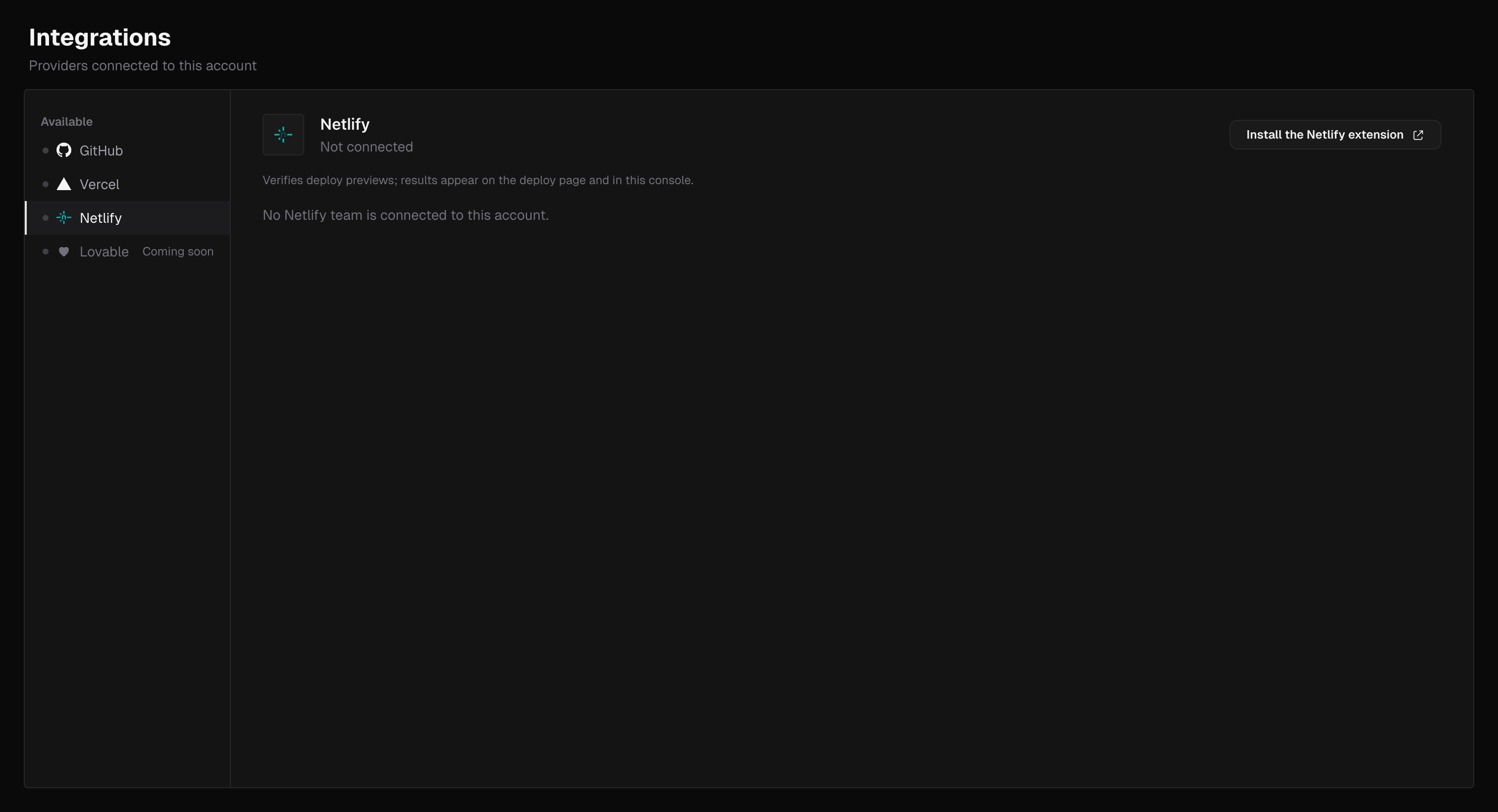
Open the Console at **Settings → Integrations**, pick **Netlify**, and select **Install the Netlify extension**. You can also reach the same flow from onboarding by choosing **Connect Netlify**.
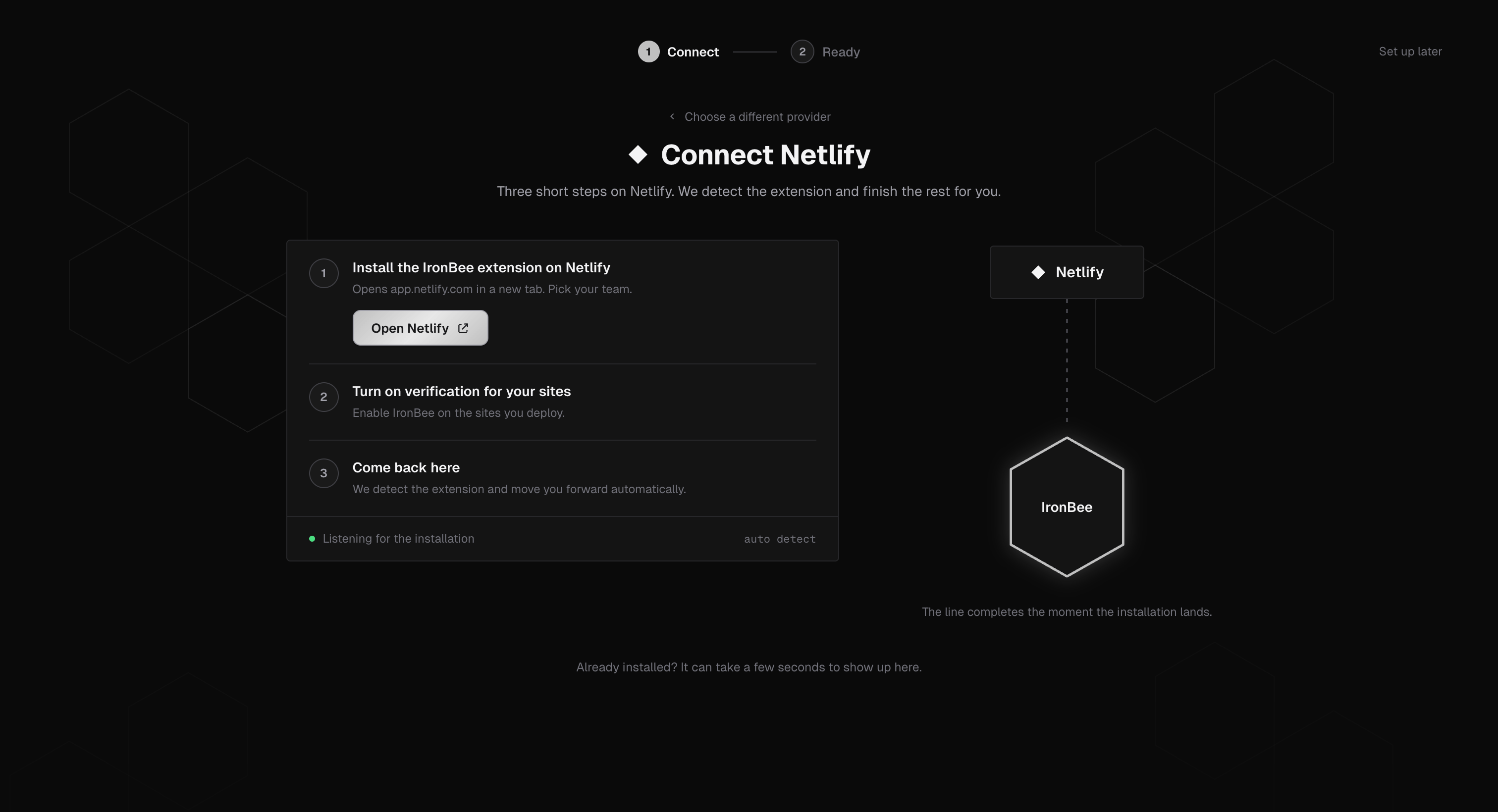
 The connect flow is three short steps on Netlify, and IronBee finishes the rest for you:
1. **Install the IronBee extension on Netlify.** The button opens app.netlify.com in a new tab; pick the team the extension should live on.
2. **Turn on verification for your sites.** Enable IronBee on the sites you deploy - only enabled sites are verified.
3. **Come back.** IronBee detects the installation and moves you forward automatically. Already installed? It can take a few seconds to show up.
The connect flow is three short steps on Netlify, and IronBee finishes the rest for you:
1. **Install the IronBee extension on Netlify.** The button opens app.netlify.com in a new tab; pick the team the extension should live on.
2. **Turn on verification for your sites.** Enable IronBee on the sites you deploy - only enabled sites are verified.
3. **Come back.** IronBee detects the installation and moves you forward automatically. Already installed? It can take a few seconds to show up.
 ***
## Step 2 - Connect the team to your IronBee account
Installing the extension puts IronBee on the Netlify team; connecting is what tells IronBee where the results should go. When the connect flow detects the installation, it moves you to the connection step:
1. Confirm the Netlify team shown.
2. Pick the **IronBee account** the team reports to. Verification results for the team's sites land in that account.
3. Select **Connect**.
Only accounts where you hold the **owner** or **admin** role appear in the picker. If none do, ask an account owner to open the same link, or to grant you the admin role and reload the page.
Once connected, the extension's **Configuration** section on Netlify shows the connection and which IronBee account the team reports to, with **Open IronBee settings** jumping straight to the Console.
***
## What the extension uses its access for
| Access | Why |
| ---------------------------- | ------------------------------------------------------------------------------------------------------------------- |
| Deploy events (read) | Knowing when a deploy preview or branch deploy of an enabled site succeeds, and the URL and Git metadata behind it. |
| Deploy notifications (write) | Posting the **IronBee verification** card onto the deploy summary. |
| Sites (read) | Listing the team's sites, so verification can be enabled per site. |
The extension never changes your sites, builds, or deploy settings: it watches deploys and reports on them. Disconnecting removes the deploy notifications IronBee created on the next delivery.
***
## Step 3 - Install the GitHub App
The Netlify extension knows the deploy; the GitHub App knows the code behind it. Installing both is what gives the agent a diff to verify against, a live check on the pull request, and the result posted as a PR comment.
Install it from **Settings → Integrations → Install the GitHub App**, then follow [GitHub App](/integrations/github) for the setup and permissions.
***
## How it runs
Netlify builds exactly as before. When a deploy preview or branch deploy of an enabled site succeeds, the extension hands it to IronBee.
IronBee queues a verification job carrying the deploy URL and its Git metadata. With the GitHub App installed it resolves the **pull request** behind the deployed commit, so the agent works from the full diff. The agent then writes a scenario for what changed and exercises it in a real browser against your real backend.
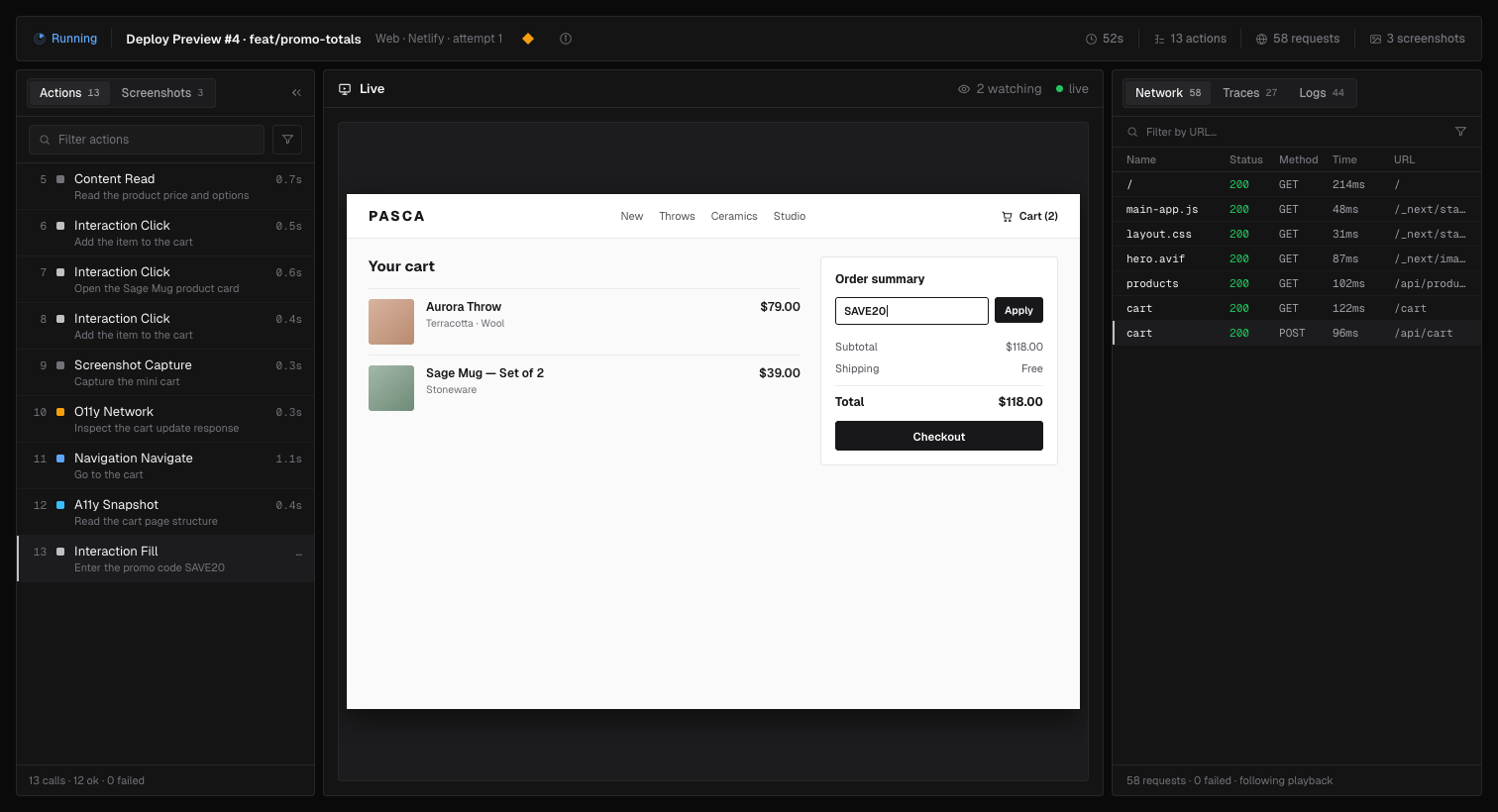
While the run is going, the session in the Console streams live: every action as it executes, the browser view, and the network requests behind it. Nothing is lost when it ends - the recording replays the exact same workspace, action by action.
***
## Step 2 - Connect the team to your IronBee account
Installing the extension puts IronBee on the Netlify team; connecting is what tells IronBee where the results should go. When the connect flow detects the installation, it moves you to the connection step:
1. Confirm the Netlify team shown.
2. Pick the **IronBee account** the team reports to. Verification results for the team's sites land in that account.
3. Select **Connect**.
Only accounts where you hold the **owner** or **admin** role appear in the picker. If none do, ask an account owner to open the same link, or to grant you the admin role and reload the page.
Once connected, the extension's **Configuration** section on Netlify shows the connection and which IronBee account the team reports to, with **Open IronBee settings** jumping straight to the Console.
***
## What the extension uses its access for
| Access | Why |
| ---------------------------- | ------------------------------------------------------------------------------------------------------------------- |
| Deploy events (read) | Knowing when a deploy preview or branch deploy of an enabled site succeeds, and the URL and Git metadata behind it. |
| Deploy notifications (write) | Posting the **IronBee verification** card onto the deploy summary. |
| Sites (read) | Listing the team's sites, so verification can be enabled per site. |
The extension never changes your sites, builds, or deploy settings: it watches deploys and reports on them. Disconnecting removes the deploy notifications IronBee created on the next delivery.
***
## Step 3 - Install the GitHub App
The Netlify extension knows the deploy; the GitHub App knows the code behind it. Installing both is what gives the agent a diff to verify against, a live check on the pull request, and the result posted as a PR comment.
Install it from **Settings → Integrations → Install the GitHub App**, then follow [GitHub App](/integrations/github) for the setup and permissions.
***
## How it runs
Netlify builds exactly as before. When a deploy preview or branch deploy of an enabled site succeeds, the extension hands it to IronBee.
IronBee queues a verification job carrying the deploy URL and its Git metadata. With the GitHub App installed it resolves the **pull request** behind the deployed commit, so the agent works from the full diff. The agent then writes a scenario for what changed and exercises it in a real browser against your real backend.
While the run is going, the session in the Console streams live: every action as it executes, the browser view, and the network requests behind it. Nothing is lost when it ends - the recording replays the exact same workspace, action by action.
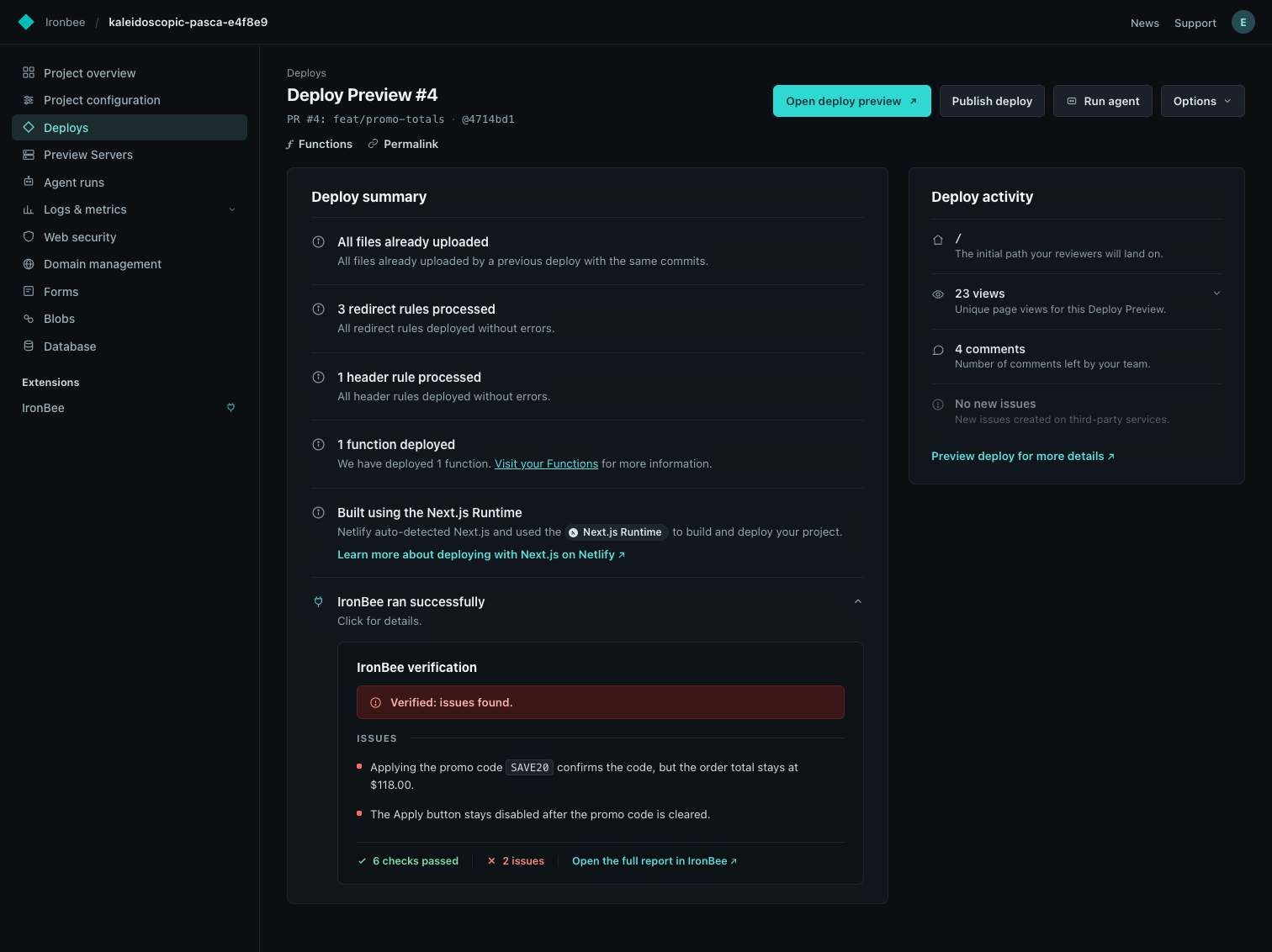
 The verdict lands as an **IronBee verification** card on the Netlify deploy summary, and the full report with the evidence behind it lives in the Console.
***
## What you see on the deploy
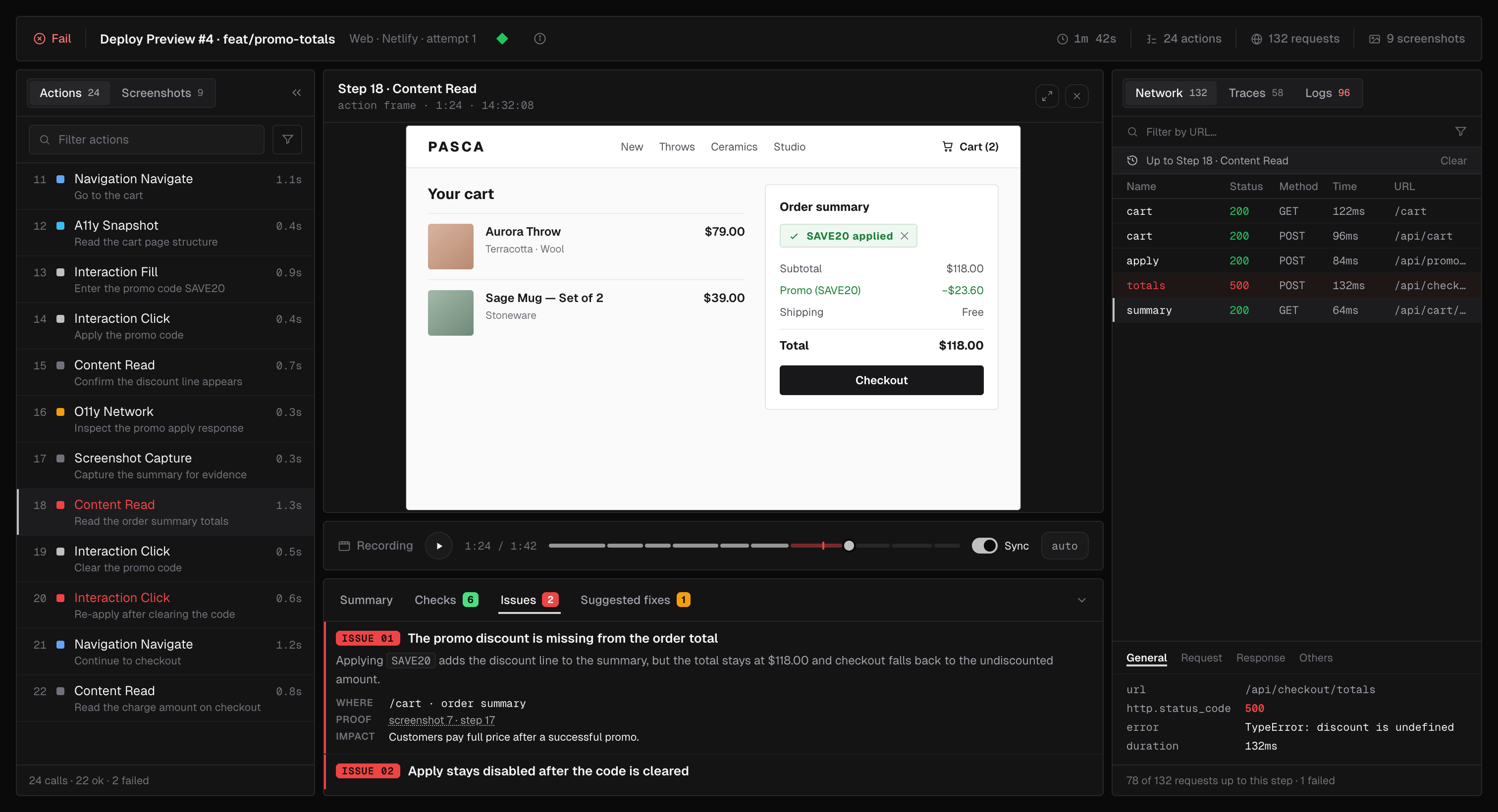
The deploy summary on Netlify gets an **IronBee** row alongside Netlify's own build notes. Expanding it shows the verification card: the verdict, the issues that were found, how many checks passed, and a link that opens the full report in IronBee.
The verdict lands as an **IronBee verification** card on the Netlify deploy summary, and the full report with the evidence behind it lives in the Console.
***
## What you see on the deploy
The deploy summary on Netlify gets an **IronBee** row alongside Netlify's own build notes. Expanding it shows the verification card: the verdict, the issues that were found, how many checks passed, and a link that opens the full report in IronBee.
 The full report is the same evidence workspace every verification gets: the action timeline, the recording synced to it, the network payloads, traces and logs, and each issue with where it happened, the proof behind it, and its impact - plus suggested fixes.
 ***
## Scope and limits
* **Deploy previews and branch deploys.** Production deploys are not verified.
* **Non-blocking.** The verification never holds up a deploy; it reports on a deploy that already succeeded.
* **Per-site.** Only sites where IronBee is enabled are verified.
* **Scoped to the team.** The extension covers the Netlify team it is installed on, and results report to the IronBee account that team is connected to.
***
## Managing the installation
On Netlify, the extension lives under your team's **Extensions → IronBee** page:
* **Configuration** shows the connection and which IronBee account the team reports to. **Open IronBee settings** jumps to the Console.
* **Disconnect** stops verification for every project on the team. Deploy notifications IronBee created are removed on the next delivery.
* **Uninstall**, under the danger zone, removes the extension from the team. Verification history already reported stays in the IronBee Console.
***
## Scope and limits
* **Deploy previews and branch deploys.** Production deploys are not verified.
* **Non-blocking.** The verification never holds up a deploy; it reports on a deploy that already succeeded.
* **Per-site.** Only sites where IronBee is enabled are verified.
* **Scoped to the team.** The extension covers the Netlify team it is installed on, and results report to the IronBee account that team is connected to.
***
## Managing the installation
On Netlify, the extension lives under your team's **Extensions → IronBee** page:
* **Configuration** shows the connection and which IronBee account the team reports to. **Open IronBee settings** jumps to the Console.
* **Disconnect** stops verification for every project on the team. Deploy notifications IronBee created are removed on the next delivery.
* **Uninstall**, under the danger zone, removes the extension from the team. Verification history already reported stays in the IronBee Console.
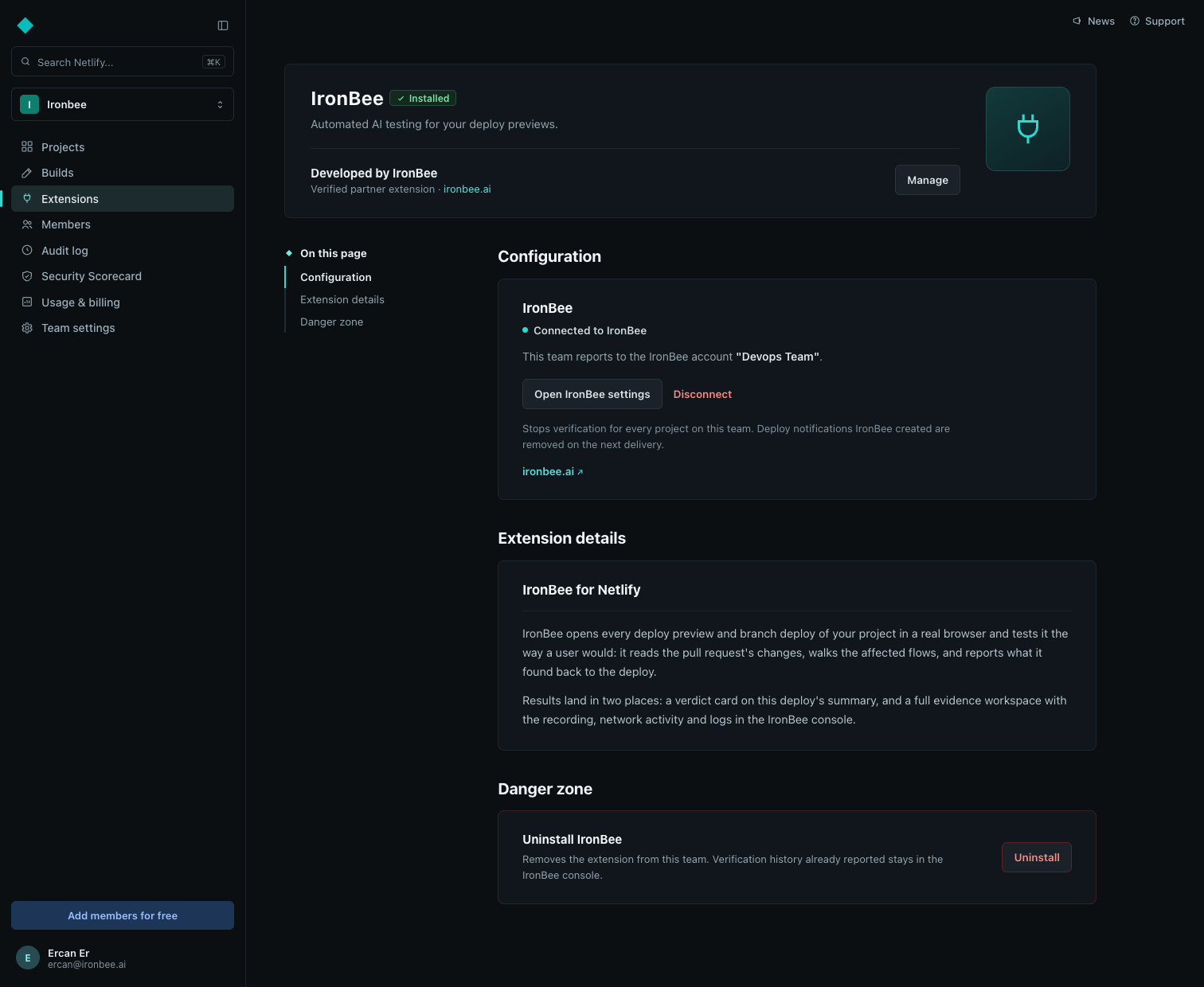 In the Console, **Settings → Integrations → Netlify** shows the connected team, or the install button when no team is connected yet.
***
## Troubleshooting
| Symptom | Likely cause |
| ------------------------------------------------------------------- | --------------------------------------------------------------------------------------------------------------------------------------------------------- |
| No IronBee card on the deploy summary | The deploy is a production build, IronBee isn't enabled for that site, or the extension isn't installed on the team. |
| The run verifies broad behaviour instead of what the commit changed | The GitHub App isn't installed for that repository, so there was no diff to work from. See [GitHub App](/integrations/github). |
| The Console says no Netlify team is connected | The extension is installed but the team was never connected to an IronBee account. Run the connect flow again from **Settings → Integrations**. |
| The connect flow doesn't detect the installation | Detection can take a few seconds after installing on Netlify. Keep the connect page open; it moves forward automatically. |
| No account appears in the picker when connecting | Connecting requires the **owner** or **admin** role on the IronBee account. Ask an account owner to run the connect flow, or to grant you the admin role. |
***
## What's next?
Repository access, the check on the commit, and the pull request comment.
The same cloud verification, started from your shell or CI with `ironbee verify`.
In the Console, **Settings → Integrations → Netlify** shows the connected team, or the install button when no team is connected yet.
***
## Troubleshooting
| Symptom | Likely cause |
| ------------------------------------------------------------------- | --------------------------------------------------------------------------------------------------------------------------------------------------------- |
| No IronBee card on the deploy summary | The deploy is a production build, IronBee isn't enabled for that site, or the extension isn't installed on the team. |
| The run verifies broad behaviour instead of what the commit changed | The GitHub App isn't installed for that repository, so there was no diff to work from. See [GitHub App](/integrations/github). |
| The Console says no Netlify team is connected | The extension is installed but the team was never connected to an IronBee account. Run the connect flow again from **Settings → Integrations**. |
| The connect flow doesn't detect the installation | Detection can take a few seconds after installing on Netlify. Keep the connect page open; it moves forward automatically. |
| No account appears in the picker when connecting | Connecting requires the **owner** or **admin** role on the IronBee account. Ask an account owner to run the connect flow, or to grant you the admin role. |
***
## What's next?
Repository access, the check on the commit, and the pull request comment.
The same cloud verification, started from your shell or CI with `ironbee verify`.