> ## Documentation Index
> Fetch the complete documentation index at: https://docs.ironbee.ai/llms.txt
> Use this file to discover all available pages before exploring further.
# Sign in and team access
> Create your IronBee account, sign in, join a team and switch between accounts.
The IronBee Console is at [console.ironbee.ai](https://console.ironbee.ai). You sign in with Google, GitHub or your work email.
***
## Create your account
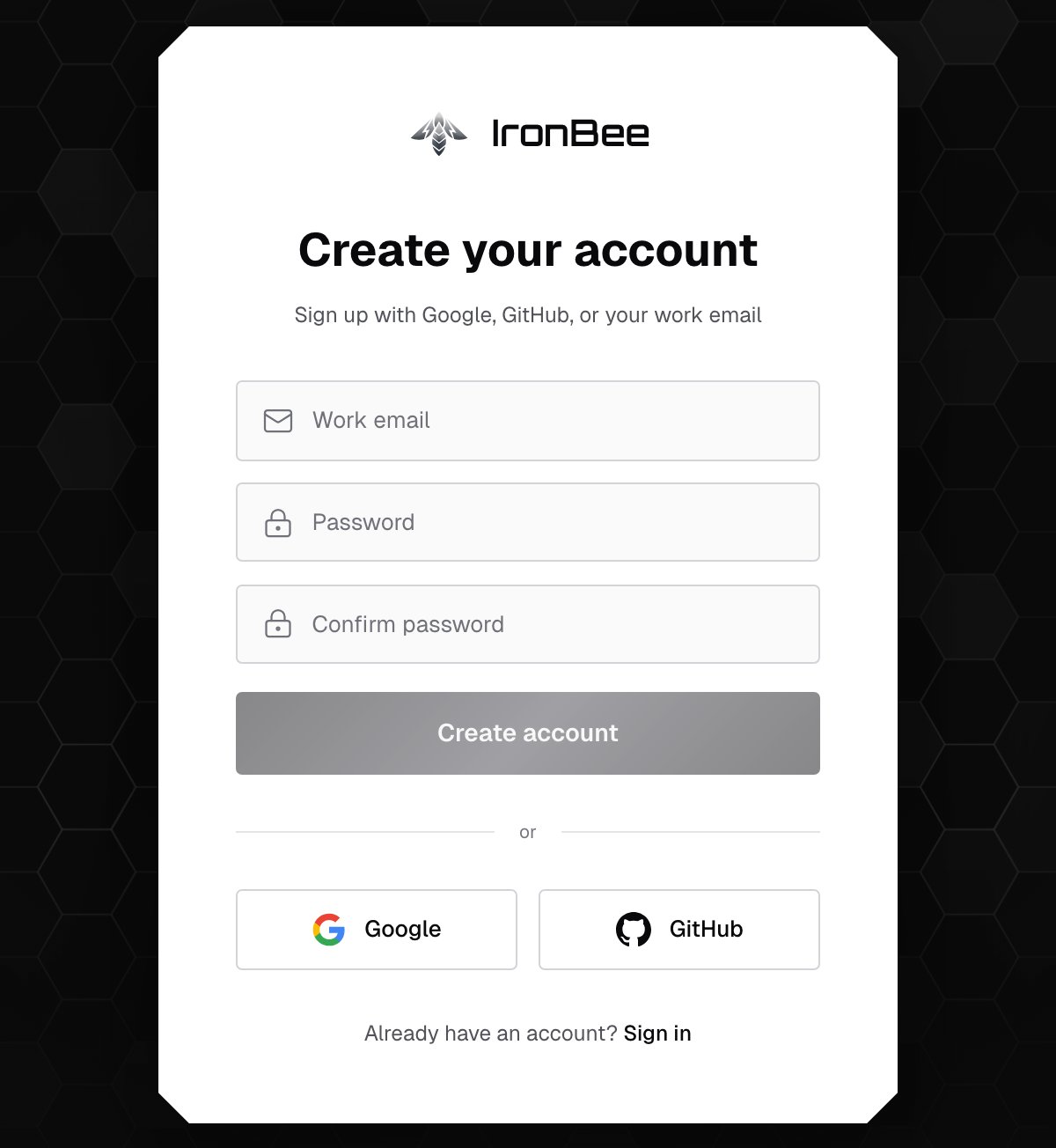
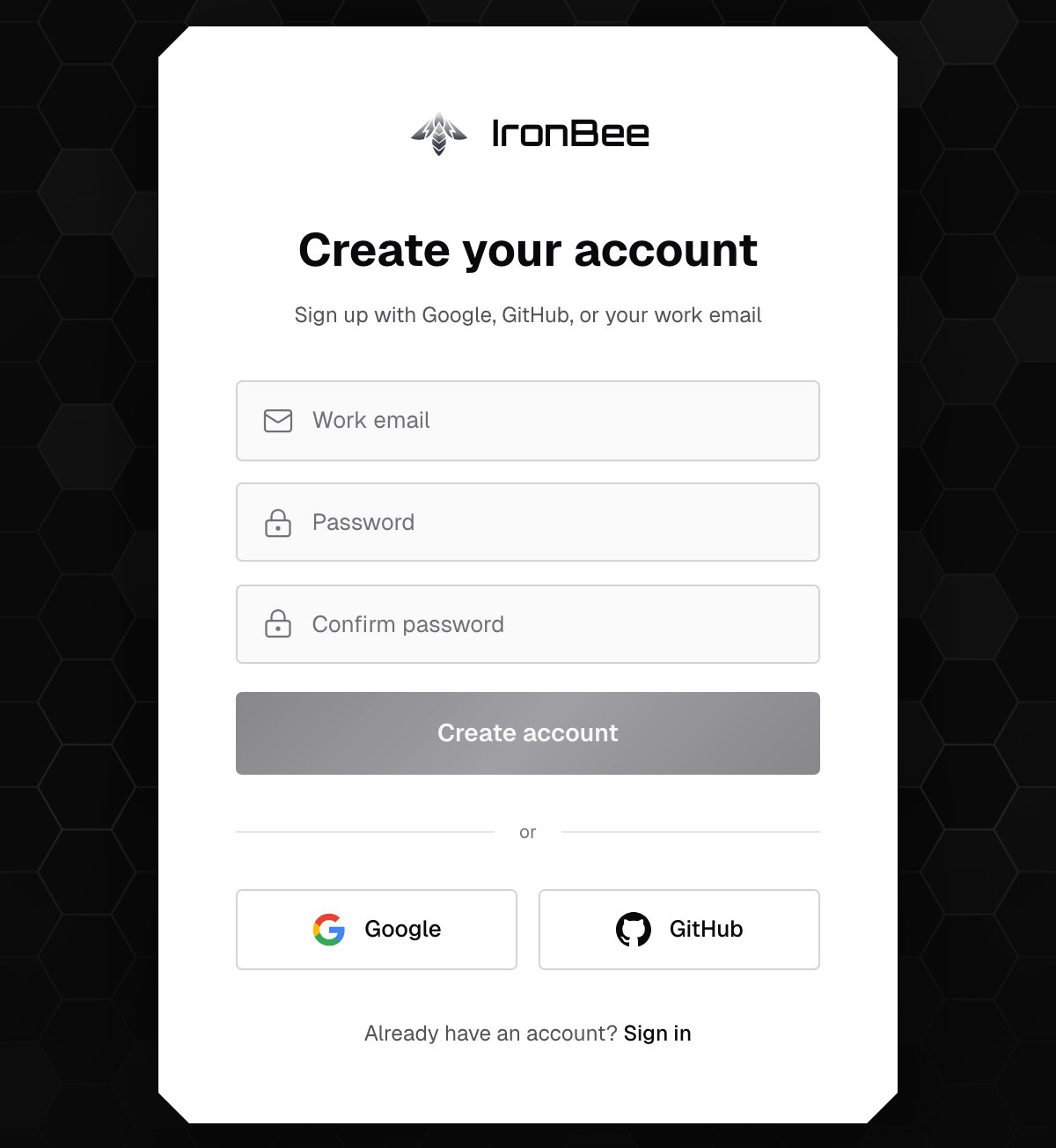
On **Create your account**, sign up with Google, GitHub, or your work email.
 * **Google** or **GitHub**: continue with that account.
* **Work email**: enter your **Work email** and a **Password**, type the password again in **Confirm password**, and click **Create account**.
* The password needs at least 8 characters, with an uppercase letter, a lowercase letter, a digit and a symbol.
* IronBee sends a verification code to your email. Enter it and click **Verify email**.
If you sign in with Google or GitHub using the same email address as an existing account, you reach the same IronBee user.
***
## Your first sign-in
When you sign up on your own, you become the owner of a new IronBee account:
1. **Name your account**, for example your company's name, and click **Continue**.
2. The console opens the onboarding, where you connect GitHub, Vercel or Netlify, or set up the CLI. See the [Quickstart](/getting-started/quickstart). Choose **Set up later** to skip it.
Owners and admins can come back to it any time from **Setup** in the top bar or **Settings > Getting started**.
***
## Join a team
When a teammate [invites you](/console/team#invite-a-teammate), you get an email with a link:
1. The link opens **You've been invited**, with the account, your role and when the invitation expires.
2. If you're signed in, click **Accept invitation**. Otherwise click **Continue with Google**, **Continue with GitHub** or **Sign in with email**, using the email address the invitation was sent to.
3. **You're in!** confirms it. The console switches to the team's account.
* **Google** or **GitHub**: continue with that account.
* **Work email**: enter your **Work email** and a **Password**, type the password again in **Confirm password**, and click **Create account**.
* The password needs at least 8 characters, with an uppercase letter, a lowercase letter, a digit and a symbol.
* IronBee sends a verification code to your email. Enter it and click **Verify email**.
If you sign in with Google or GitHub using the same email address as an existing account, you reach the same IronBee user.
***
## Your first sign-in
When you sign up on your own, you become the owner of a new IronBee account:
1. **Name your account**, for example your company's name, and click **Continue**.
2. The console opens the onboarding, where you connect GitHub, Vercel or Netlify, or set up the CLI. See the [Quickstart](/getting-started/quickstart). Choose **Set up later** to skip it.
Owners and admins can come back to it any time from **Setup** in the top bar or **Settings > Getting started**.
***
## Join a team
When a teammate [invites you](/console/team#invite-a-teammate), you get an email with a link:
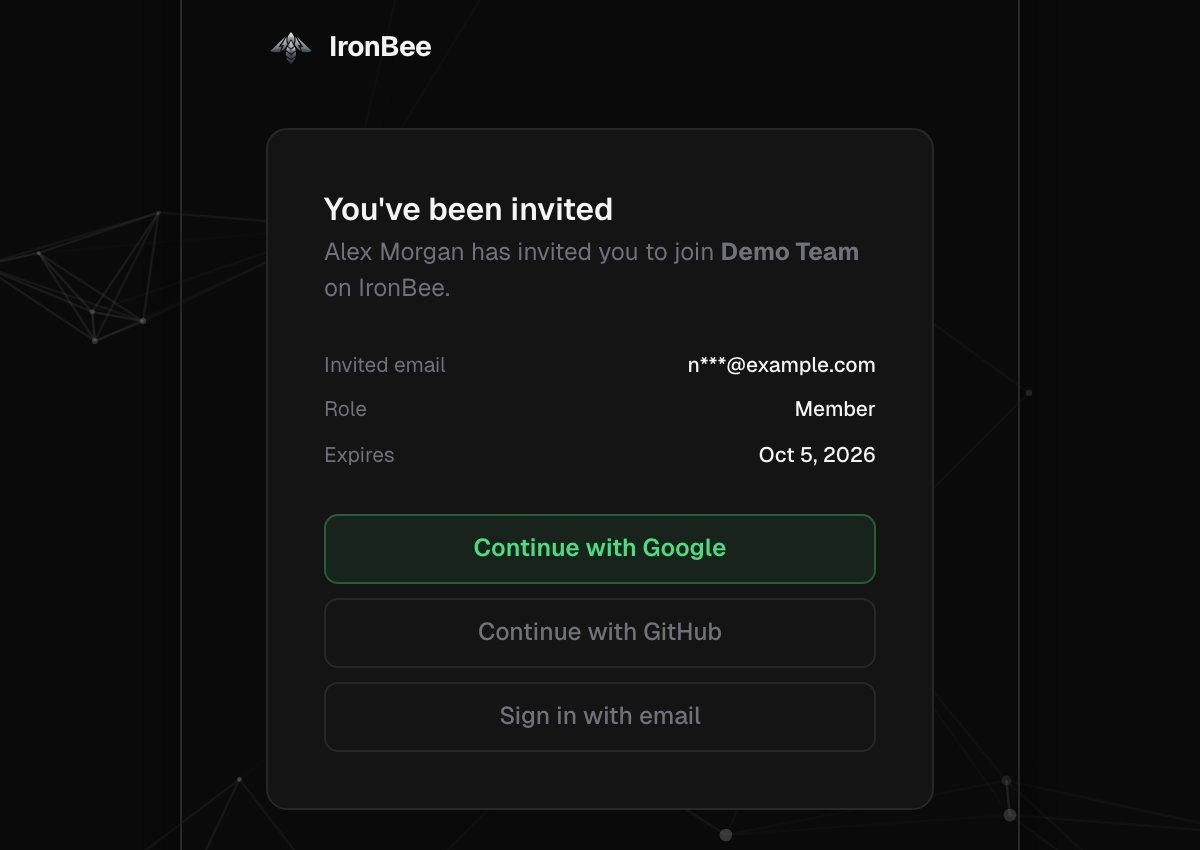
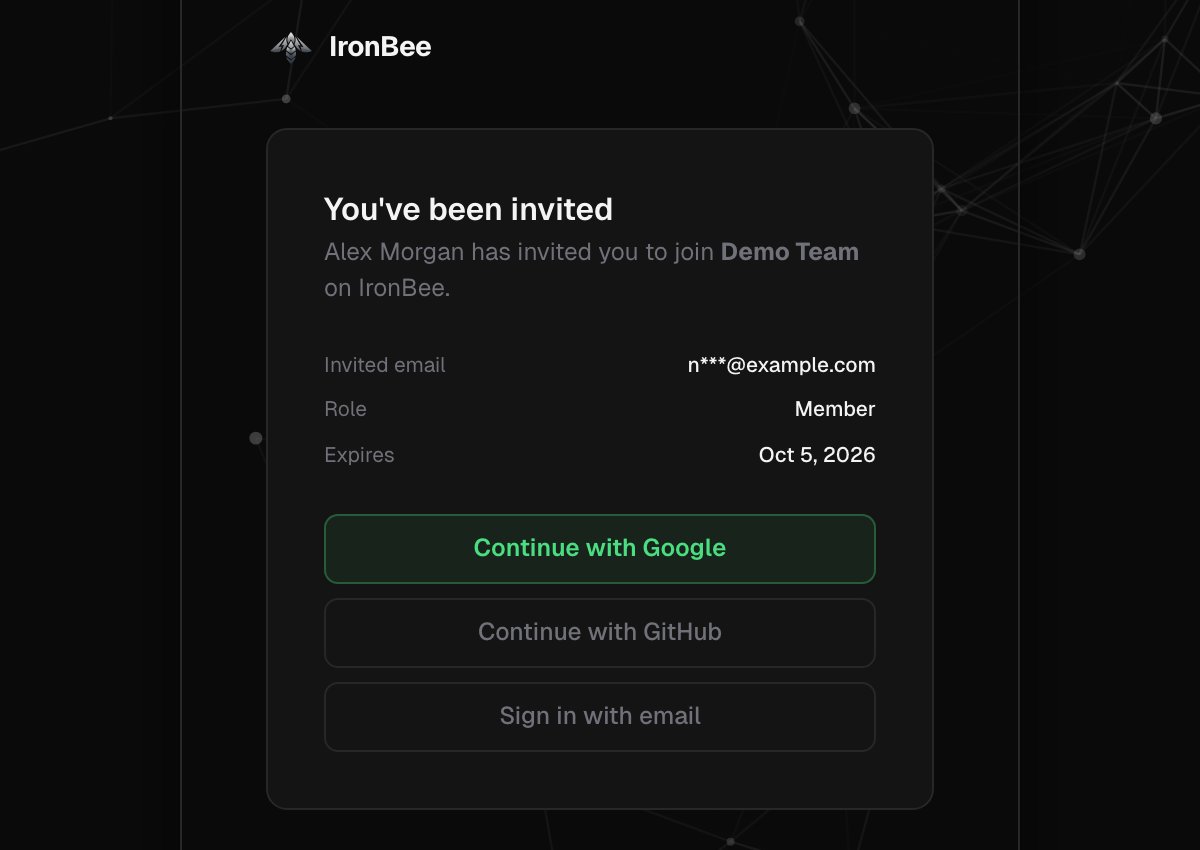
1. The link opens **You've been invited**, with the account, your role and when the invitation expires.
2. If you're signed in, click **Accept invitation**. Otherwise click **Continue with Google**, **Continue with GitHub** or **Sign in with email**, using the email address the invitation was sent to.
3. **You're in!** confirms it. The console switches to the team's account.
 Signing up through the invitation link joins the team without creating an account of your own. If you signed up another way, a banner tells you about the pending invitation.
***
## Switch accounts
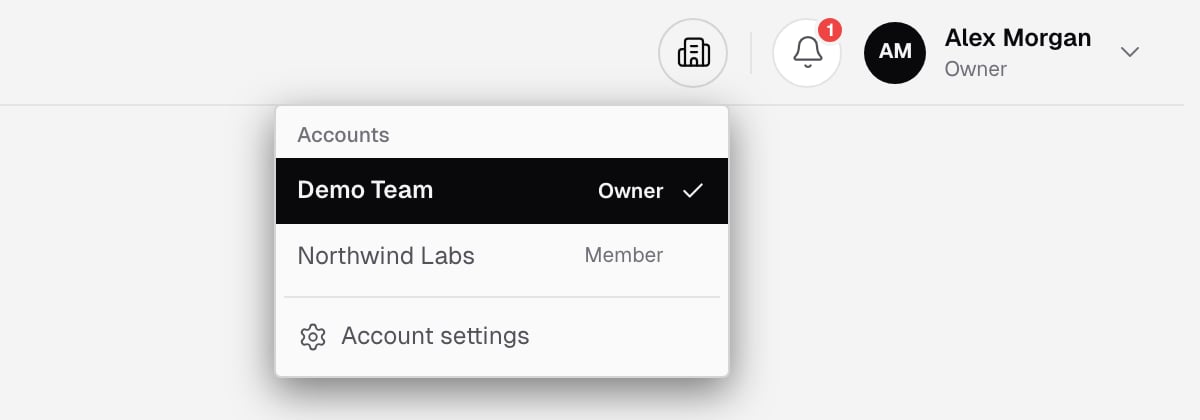
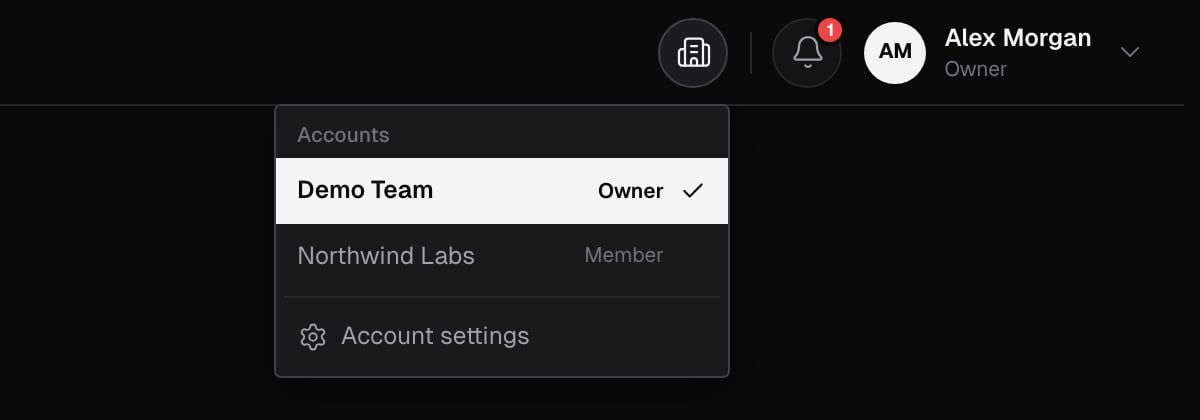
If you belong to more than one account, the top bar shows an account button with a building icon, next to the notifications bell. Click it to see your **Accounts** and your role in each. Pick another account to switch to it, or open **Account settings**.
Signing up through the invitation link joins the team without creating an account of your own. If you signed up another way, a banner tells you about the pending invitation.
***
## Switch accounts
If you belong to more than one account, the top bar shows an account button with a building icon, next to the notifications bell. Click it to see your **Accounts** and your role in each. Pick another account to switch to it, or open **Account settings**.
 ***
## Sign in the CLI
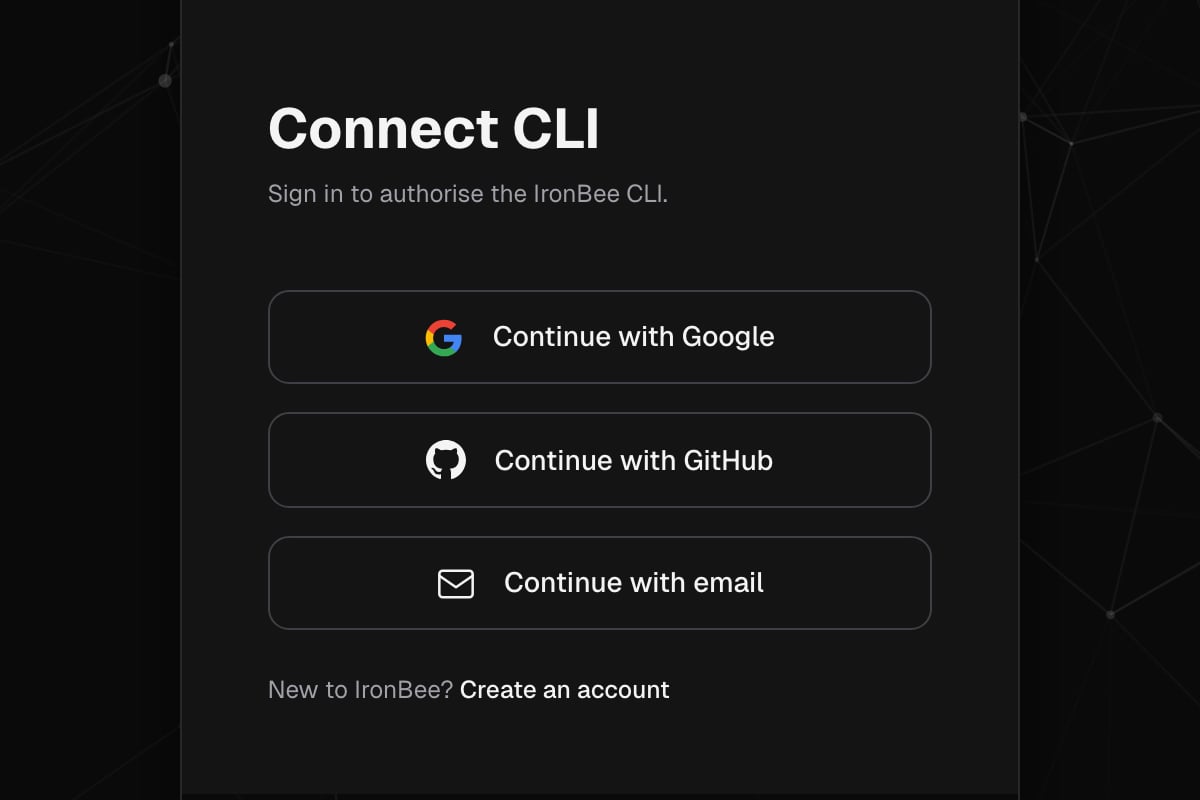
`ironbee login` opens **Connect CLI** in your browser:
1. If you aren't signed in, click **Continue with Google**, **Continue with GitHub** or **Continue with email**. New to IronBee? Click **Create an account**.
2. Once you're signed in, the console authorizes the CLI for your current account on its own. There's nothing else to click.
***
## Sign in the CLI
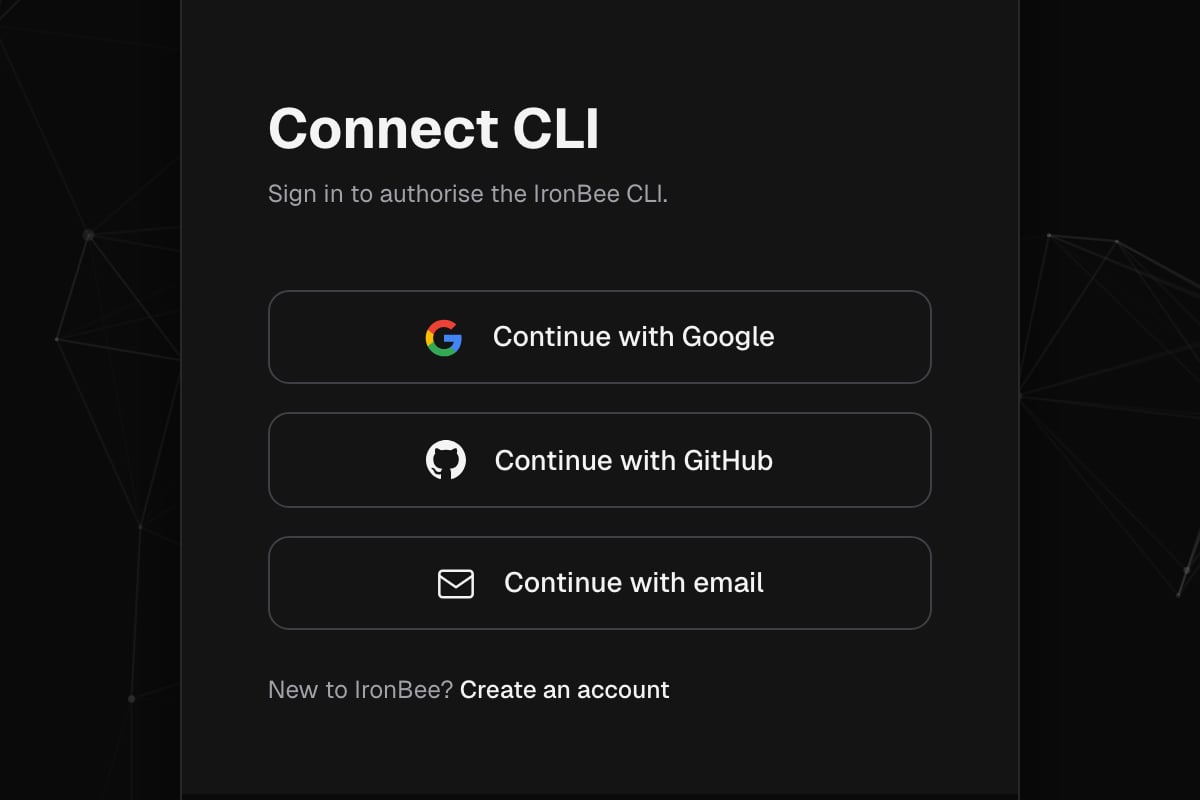
`ironbee login` opens **Connect CLI** in your browser:
1. If you aren't signed in, click **Continue with Google**, **Continue with GitHub** or **Continue with email**. New to IronBee? Click **Create an account**.
2. Once you're signed in, the console authorizes the CLI for your current account on its own. There's nothing else to click.
 The CLI then holds a personal [OAuth token](/console/access-tokens) for that account. If the authorization fails, the page shows the error and an **Authorize** button to try again. See [CLI authentication](/cli/guides/authentication).
***
## Related pages
Invite teammates and manage their roles.
What each role can do.
The CLI then holds a personal [OAuth token](/console/access-tokens) for that account. If the authorization fails, the page shows the error and an **Authorize** button to try again. See [CLI authentication](/cli/guides/authentication).
***
## Related pages
Invite teammates and manage their roles.
What each role can do.