> ## Documentation Index
> Fetch the complete documentation index at: https://docs.ironbee.ai/llms.txt
> Use this file to discover all available pages before exploring further.
# Sessions
> Browse, filter, and understand every coding session in your project.
A **session** represents a single continuous working period for an AI agent — from when it starts editing to when it completes or is interrupted. Every time your agent works on a task, a new session is created.
 ## The sessions list
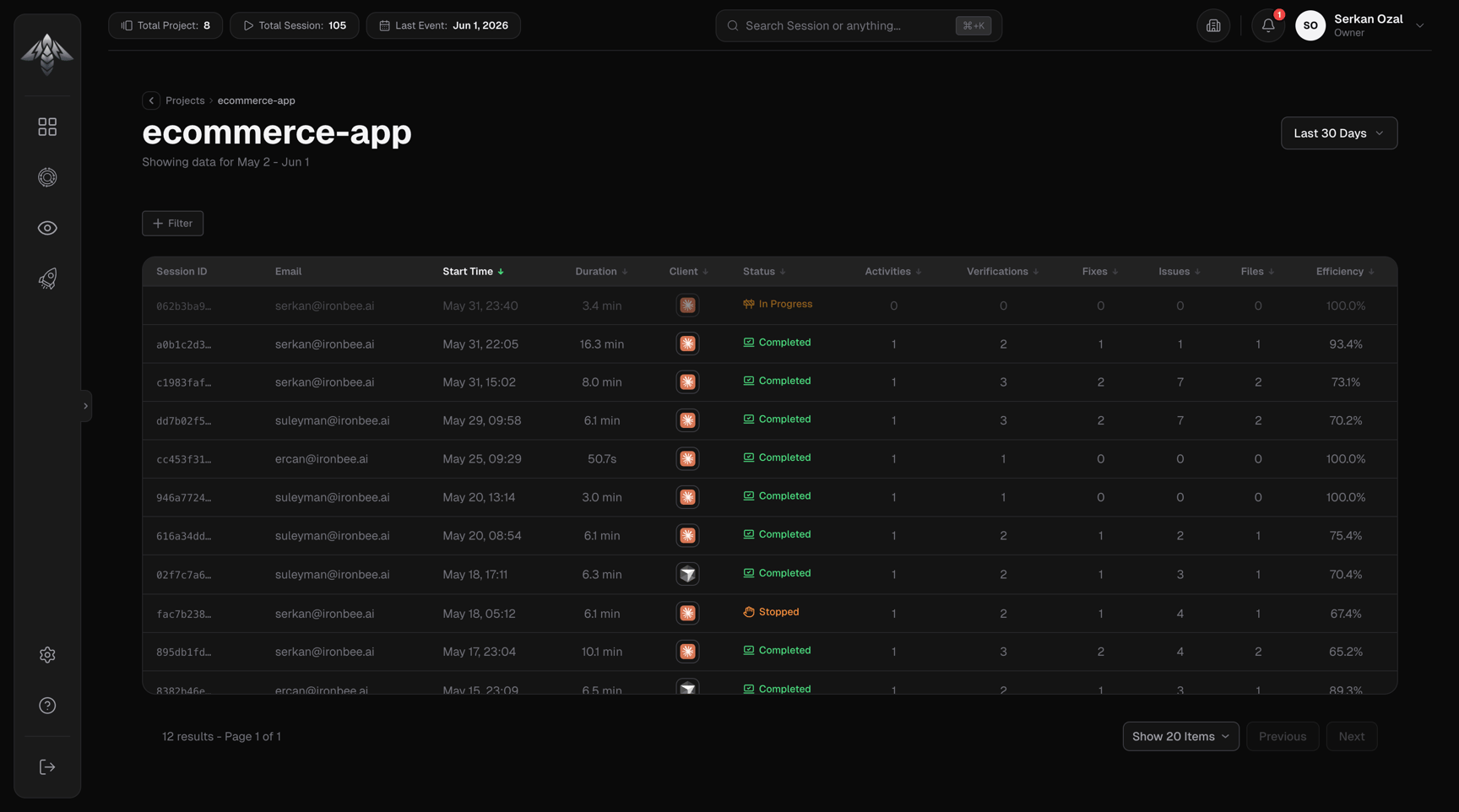
The sessions page shows all sessions for a project. Use the **date filter** in the page header to scope the list to a specific time window.
Each row displays:
| Column | Description |
| ------------- | ----------------------------------------------------------------- |
| Session ID | Truncated ID with copy button — hover for the full value |
| Email | The user account that ran the session |
| Start Time | When the session began (sortable, default newest first) |
| Duration | Total elapsed time |
| Client | AI client used: Claude Code, Codex or Cursor |
| Status | `in-progress`, `completed`, or `stopped` |
| Activities | Number of discrete actions recorded |
| Verifications | Number of verification cycles run |
| Fixes | Number of fix attempts after failed verifications |
| Issues | Number of issues reported across all verdicts |
| Files | Number of files changed during the session |
| Efficiency | Score reflecting how directly the agent reached a passing verdict |
All columns are sortable by clicking the header. In-progress sessions are not clickable.
## Session status
| Status | Meaning |
| ------------- | --------------------------------------------------------------------------------- |
| `in-progress` | The agent is still active in this session |
| `completed` | The session finished, agent submitted a verdict |
| `stopped` | The session ended before a verdict was submitted (agent interrupted or timed out) |
## Filtering sessions
Click the **Filter** button to stack multiple filters. Available filter fields:
| Field | Type | Operators |
| ------------- | -------------- | -------------------- |
| Status | Dropdown | equals |
| Client | Text | contains |
| Efficiency % | Slider (0–100) | gt, gte, lt, lte, eq |
| Verifications | Number | gt, gte, lt, lte, eq |
| Fixes | Number | gt, gte, lt, lte, eq |
| Issues | Number | gt, gte, lt, lte, eq |
| Files Changed | Number | gt, gte, lt, lte, eq |
| Duration (ms) | Number | gt, gte, lt, lte, eq |
## The sessions list
The sessions page shows all sessions for a project. Use the **date filter** in the page header to scope the list to a specific time window.
Each row displays:
| Column | Description |
| ------------- | ----------------------------------------------------------------- |
| Session ID | Truncated ID with copy button — hover for the full value |
| Email | The user account that ran the session |
| Start Time | When the session began (sortable, default newest first) |
| Duration | Total elapsed time |
| Client | AI client used: Claude Code, Codex or Cursor |
| Status | `in-progress`, `completed`, or `stopped` |
| Activities | Number of discrete actions recorded |
| Verifications | Number of verification cycles run |
| Fixes | Number of fix attempts after failed verifications |
| Issues | Number of issues reported across all verdicts |
| Files | Number of files changed during the session |
| Efficiency | Score reflecting how directly the agent reached a passing verdict |
All columns are sortable by clicking the header. In-progress sessions are not clickable.
## Session status
| Status | Meaning |
| ------------- | --------------------------------------------------------------------------------- |
| `in-progress` | The agent is still active in this session |
| `completed` | The session finished, agent submitted a verdict |
| `stopped` | The session ended before a verdict was submitted (agent interrupted or timed out) |
## Filtering sessions
Click the **Filter** button to stack multiple filters. Available filter fields:
| Field | Type | Operators |
| ------------- | -------------- | -------------------- |
| Status | Dropdown | equals |
| Client | Text | contains |
| Efficiency % | Slider (0–100) | gt, gte, lt, lte, eq |
| Verifications | Number | gt, gte, lt, lte, eq |
| Fixes | Number | gt, gte, lt, lte, eq |
| Issues | Number | gt, gte, lt, lte, eq |
| Files Changed | Number | gt, gte, lt, lte, eq |
| Duration (ms) | Number | gt, gte, lt, lte, eq |
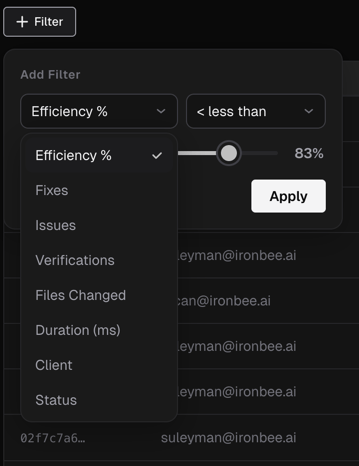 Active filters appear as chips below the filter button. Click a chip to edit it or remove it.
## Pagination
Use the **Show Items** dropdown to display 10, 25, 50, or 100 rows per page. The page info strip shows total results and current page.
## Next steps
Explore the timeline, analytics, verifications, and fixes for a single session.
Active filters appear as chips below the filter button. Click a chip to edit it or remove it.
## Pagination
Use the **Show Items** dropdown to display 10, 25, 50, or 100 rows per page. The page info strip shows total results and current page.
## Next steps
Explore the timeline, analytics, verifications, and fixes for a single session.