> ## Documentation Index
> Fetch the complete documentation index at: https://docs.ironbee.ai/llms.txt
> Use this file to discover all available pages before exploring further.
# Secrets
> Credentials a verification run can use on your deployment without seeing their values.
Secrets are credentials a run can use on the URLs of the environments they apply to: a test account's password, an API token, a deployment protection bypass. They're written once and never shown again, not in the console and not to the model.
Open a project, go to **Settings**, and select **Secrets**.
***
## How a run uses a secret
The run is given a reference per field, never the value. When the agent types a reference into a form or sends it in a request, IronBee swaps in the stored value at that moment. The swap only happens under these conditions:
* The request goes to one of the secret's bound hosts. See [Bound origins](#bound-origins).
* The field kind matches. For example, a password only ever lands in a password field.
* The connection is `https`, except for local addresses.
Before each run, the **Run briefing** on the [environment](/console/environments#run-briefing) page shows exactly what the run is told about each secret.
***
## Secret types
| Type | Where the value goes |
| - | - |
| **Login credentials** | Filled into a sign-in form on the environment's URLs. The password only ever lands in a password field; the username may be typed anywhere |
| **Generic** | Typed into a form, sent as a header, or used in a database connection string, on the environment's URLs only |
| **HTTP headers** | Applied to every request the run makes to the environment's URLs. The model gets no reference, and has nothing to write |
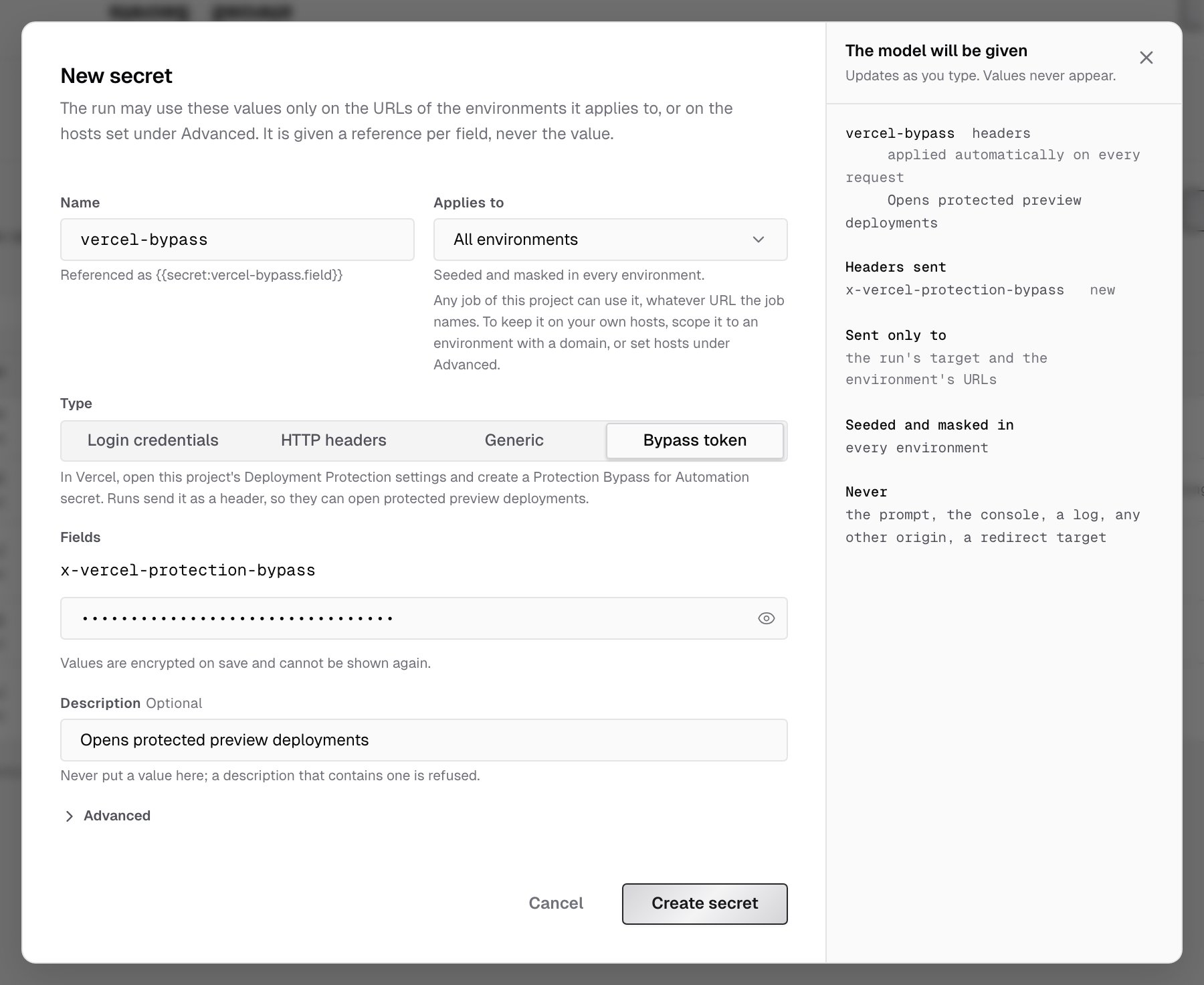
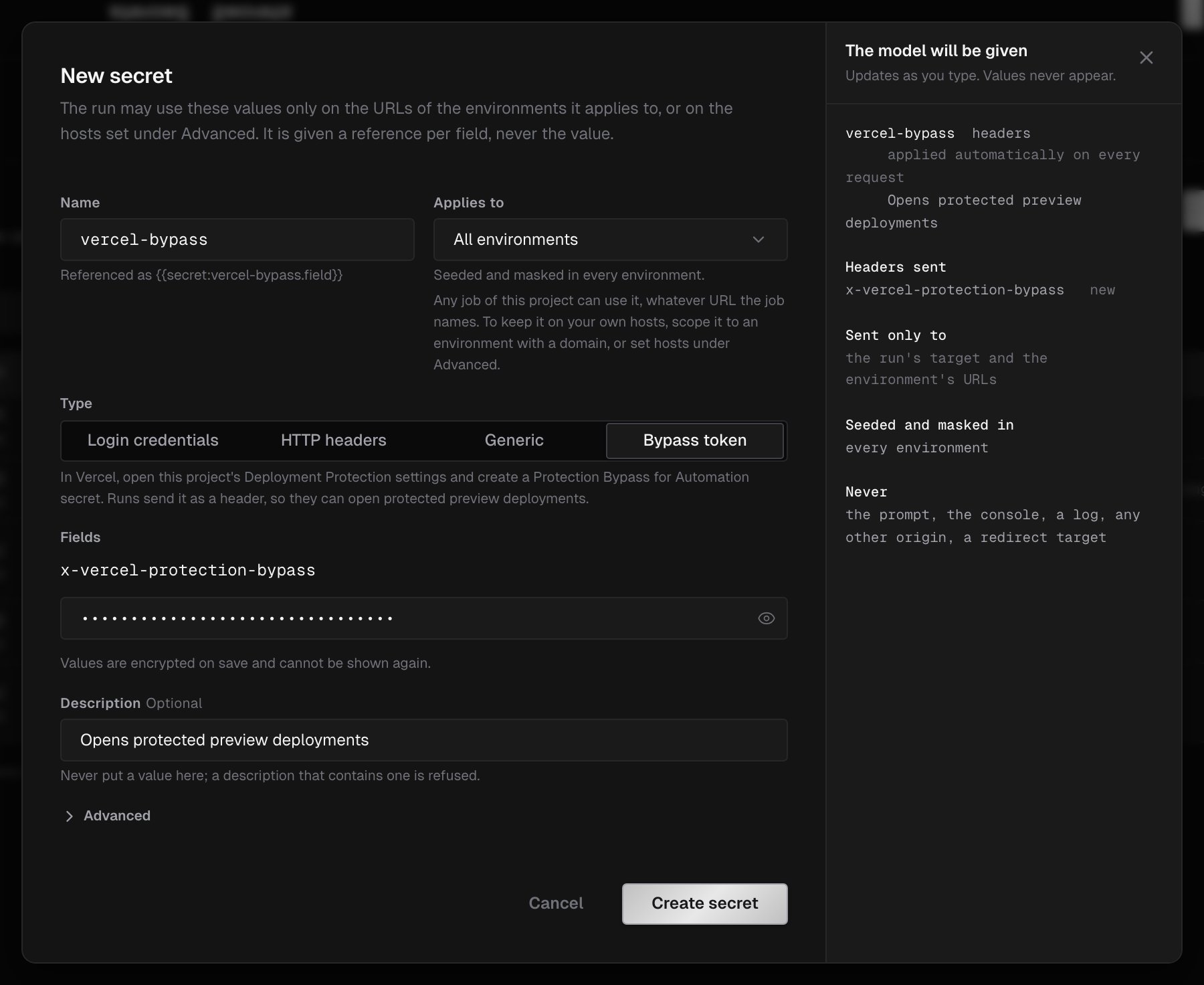
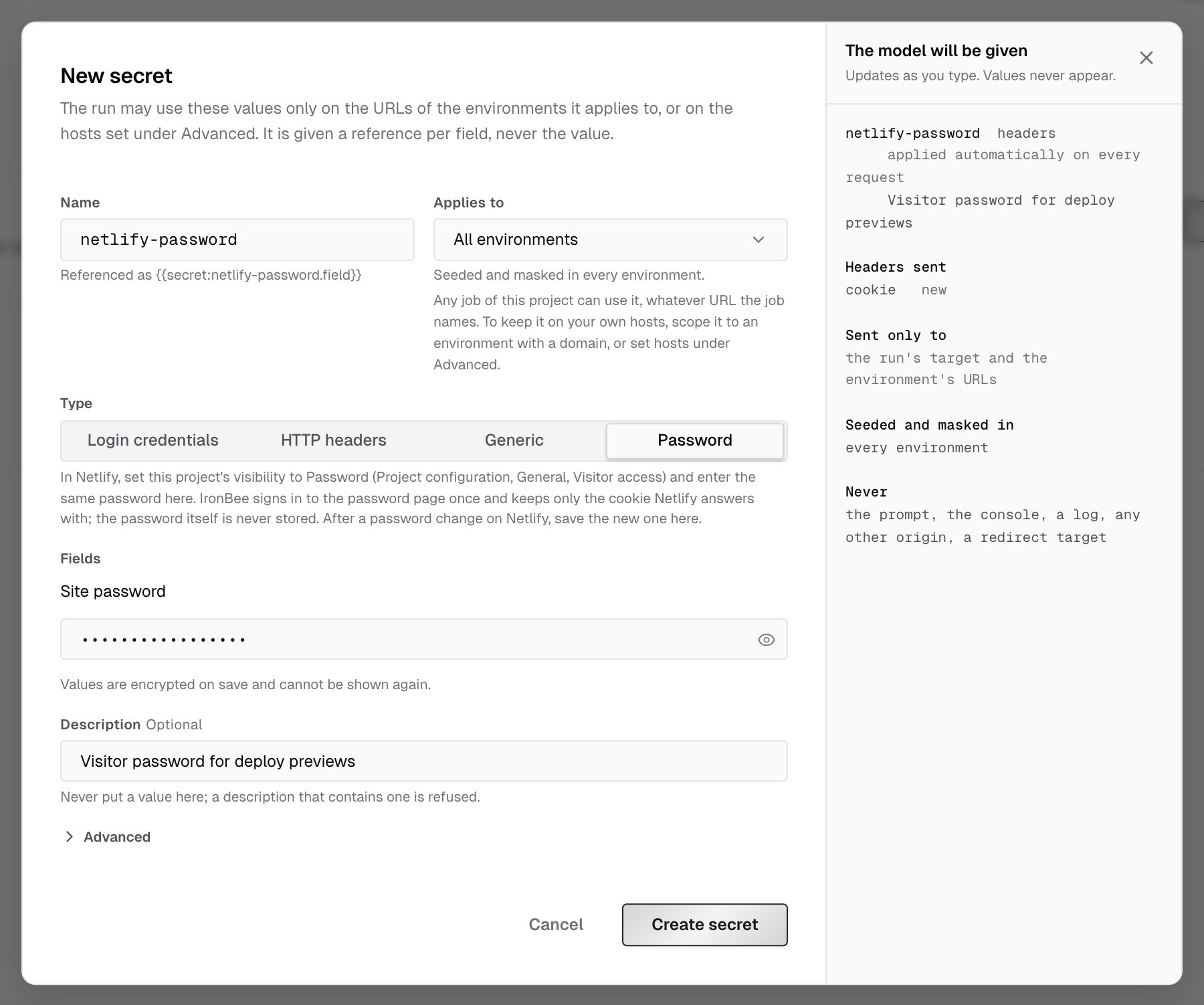
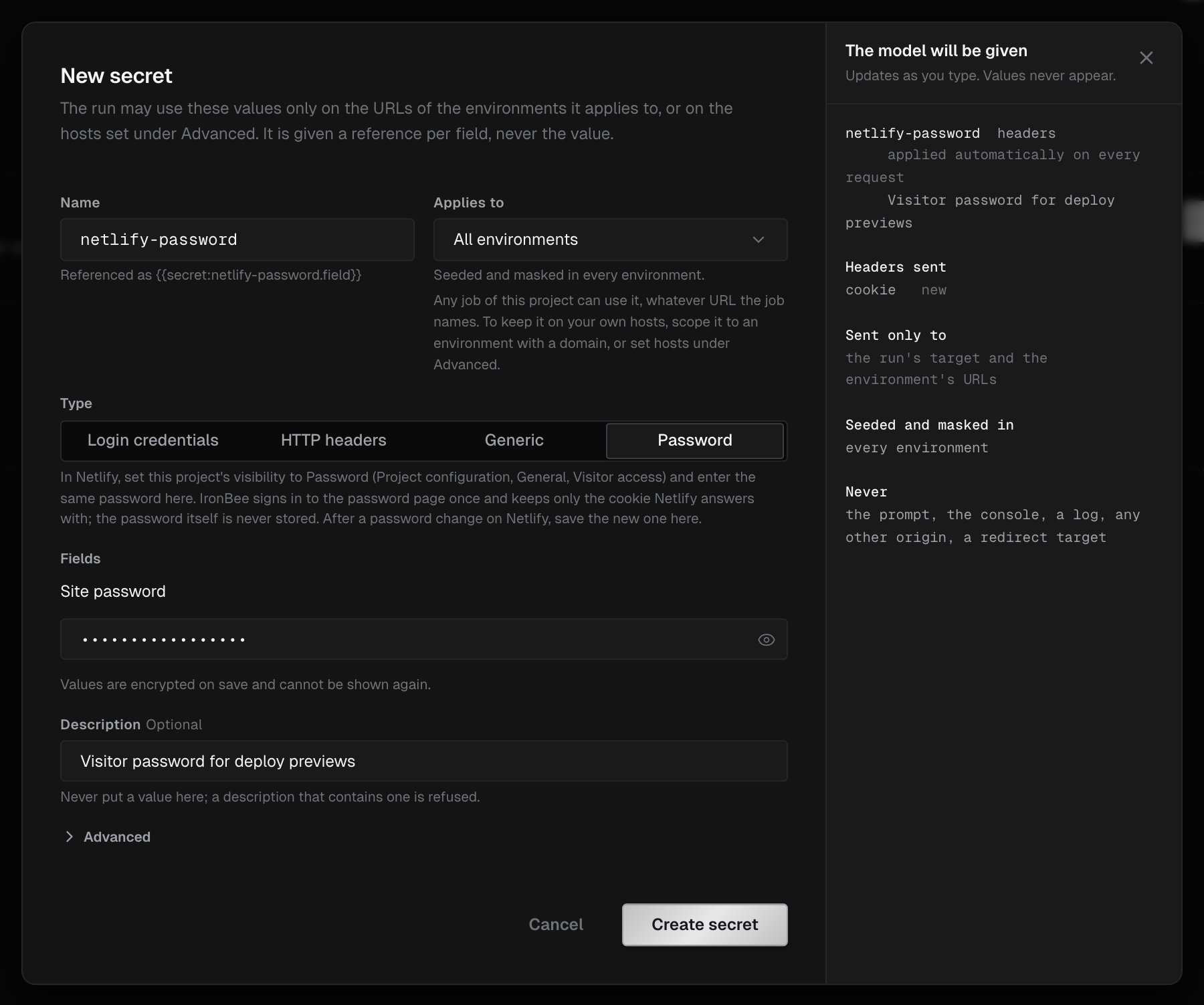
Projects from Vercel and Netlify also offer a ready-made type. Both are stored as **HTTP headers** secrets, so the run applies them without a reference:
| Type | Provider | What it stores |
| - | - | - |
| **Bypass token** | Vercel | A Protection Bypass for Automation secret, named `vercel-bypass` by default and sent as the `x-vercel-protection-bypass` header so runs can open protected previews. See [Vercel preview access](/integrations/vercel#preview-access) |
| **Password** | Netlify | The site's visitor password, entered as the **Site password** and named `netlify-password` by default. IronBee signs in to Netlify's password page once and keeps only the cookie Netlify answers with; the password itself is never stored. See [Netlify preview access](/integrations/netlify#preview-access) |
 ***
## Create a secret
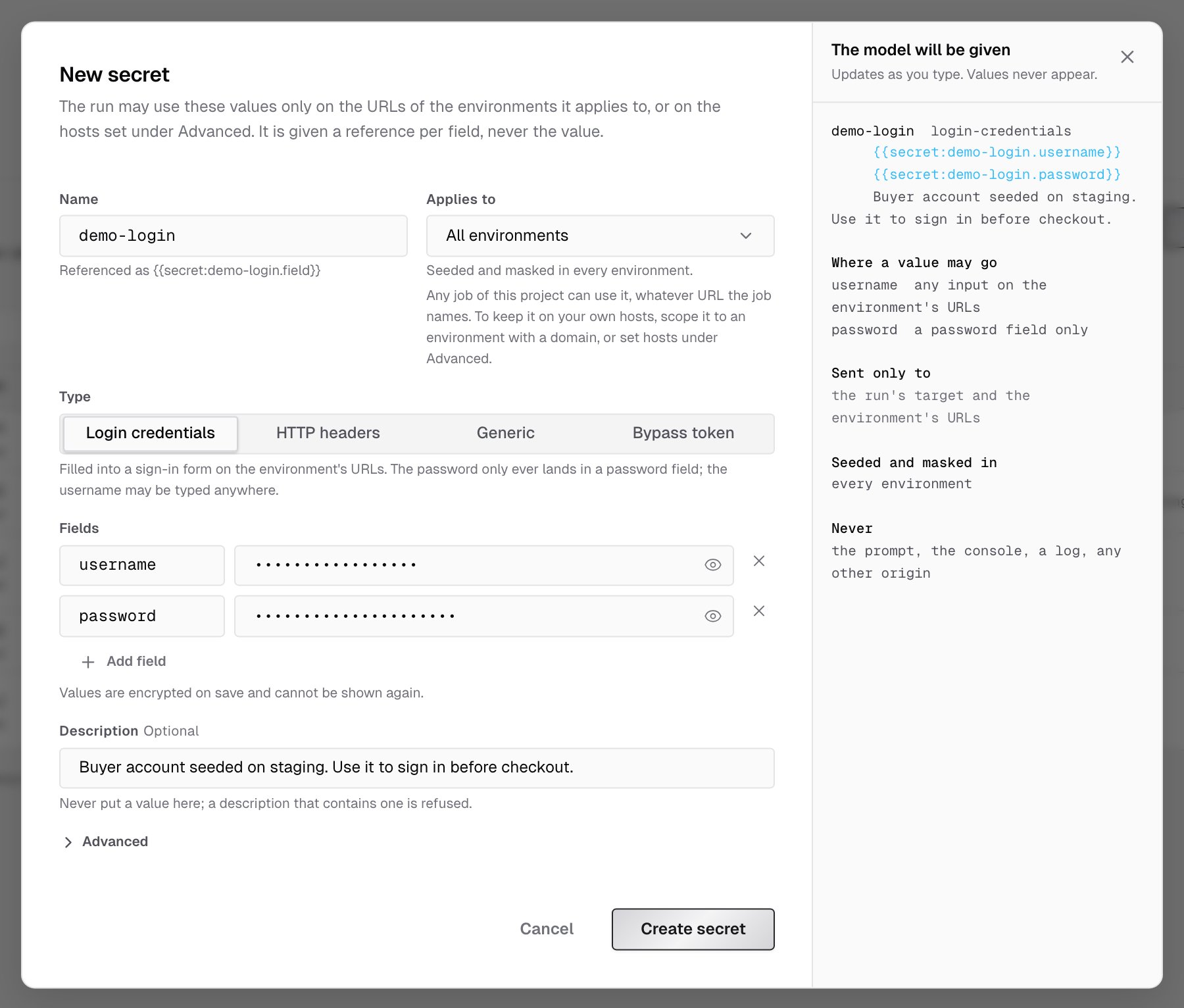
1. Click **New secret**.
2. Enter a **Name**, such as `demo-login`.
3. Under **Applies to**, choose **All environments**, or one [environment](/console/environments).
4. Choose the **Type**, and fill in the **Fields**. Login credentials start with `username` and `password`; add fields with **Add field**.
5. Optionally, add a **Description** of when the run should use it. Never put a value in the description; a description that contains one is refused.
6. Click **Create secret**.
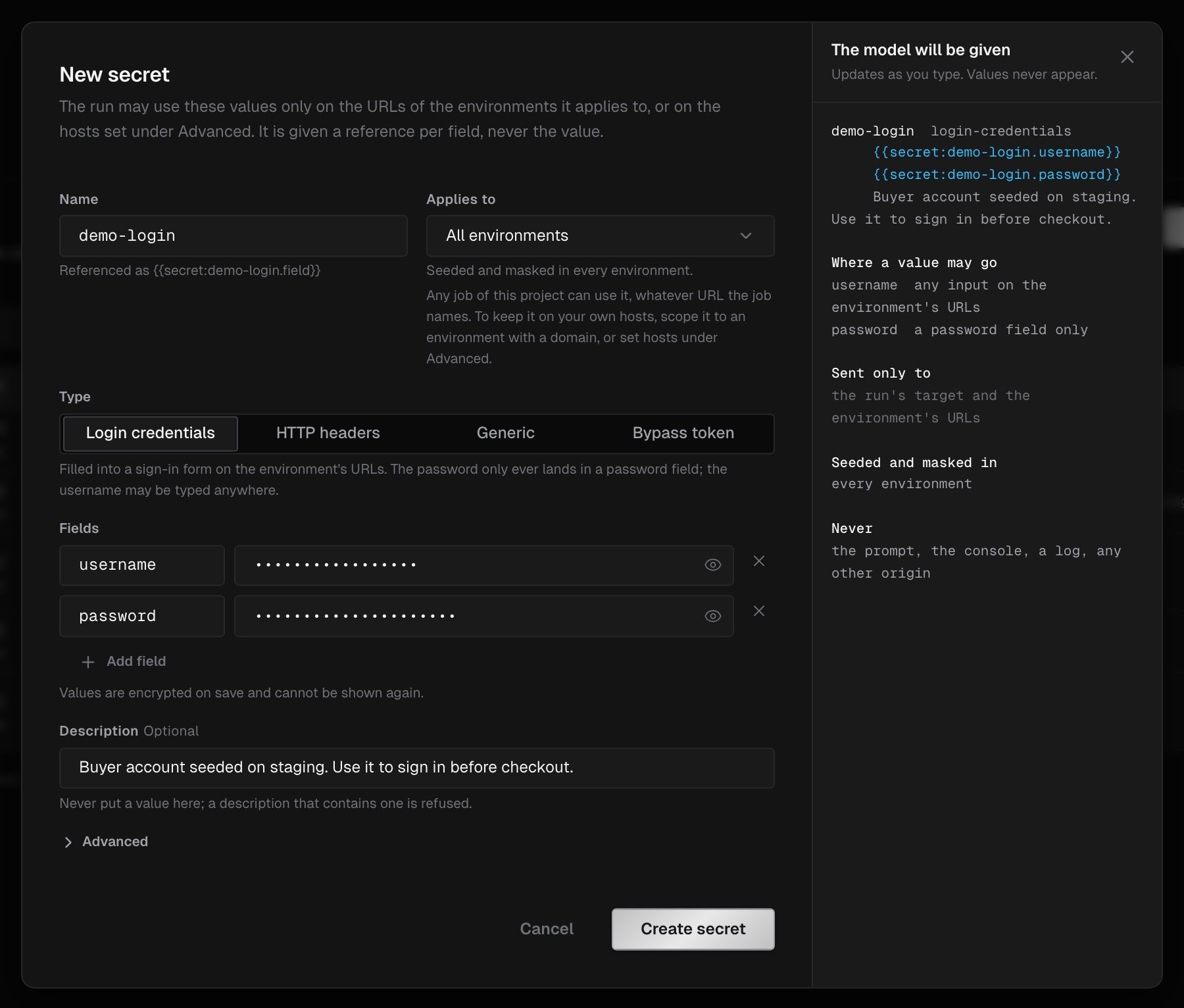
Values are encrypted when you save and can't be shown again. As you type, the dialog shows what **The model will be given**: the references, where each value may go, and which hosts it's sent to, never the values.
***
## Create a secret
1. Click **New secret**.
2. Enter a **Name**, such as `demo-login`.
3. Under **Applies to**, choose **All environments**, or one [environment](/console/environments).
4. Choose the **Type**, and fill in the **Fields**. Login credentials start with `username` and `password`; add fields with **Add field**.
5. Optionally, add a **Description** of when the run should use it. Never put a value in the description; a description that contains one is refused.
6. Click **Create secret**.
Values are encrypted when you save and can't be shown again. As you type, the dialog shows what **The model will be given**: the references, where each value may go, and which hosts it's sent to, never the values.
 A secret's name, scope and type are fixed once it's created. To change the values, open **Edit** and choose **Replace values**. The secret is encrypted as a whole, so you enter every value again. **Keep stored values** saves a new description without touching the values.
***
## References
Each field has a reference of the form `{{secret:.}}`, for example `{{secret:demo-login.password}}`. In the secrets list, hover a row and click the copy button next to a reference to copy it.
Mention a secret by name in a prompt, for example in [Run instant verification](/console/verifications#run-instant-verification), and the run uses the reference. An **HTTP headers** secret has no reference: it's applied automatically.
***
## Bound origins
By default, a secret is bound to:
* the run's target host
* the URL hosts of the environments it applies to
The values go to those hosts only.
To choose the hosts yourself, open **Advanced** and fill in **Bound origins**: one host per line, as `host` or `*.host`, with an optional `:port`. The values then go to these hosts only.
A secret that applies to **All environments** in a project with no domains can be used by any run of the project, whatever URL the run names. To keep it on your own hosts, scope it to an environment that has a [Domain](/console/environments#domains) property, or set its bound origins.
***
## Masking
Wherever a secret's value would appear in text evidence (actions, network requests, logs), IronBee replaces it with `[secret:.]`, including encoded forms of the value. Some values aren't masked:
* Values shorter than 6 characters.
* Login identifier fields, such as `username`, `user`, `email`, `login`, `identifier` and `account`.
* Screenshots and recordings. Use test accounts, never production credentials.
***
## The secrets list
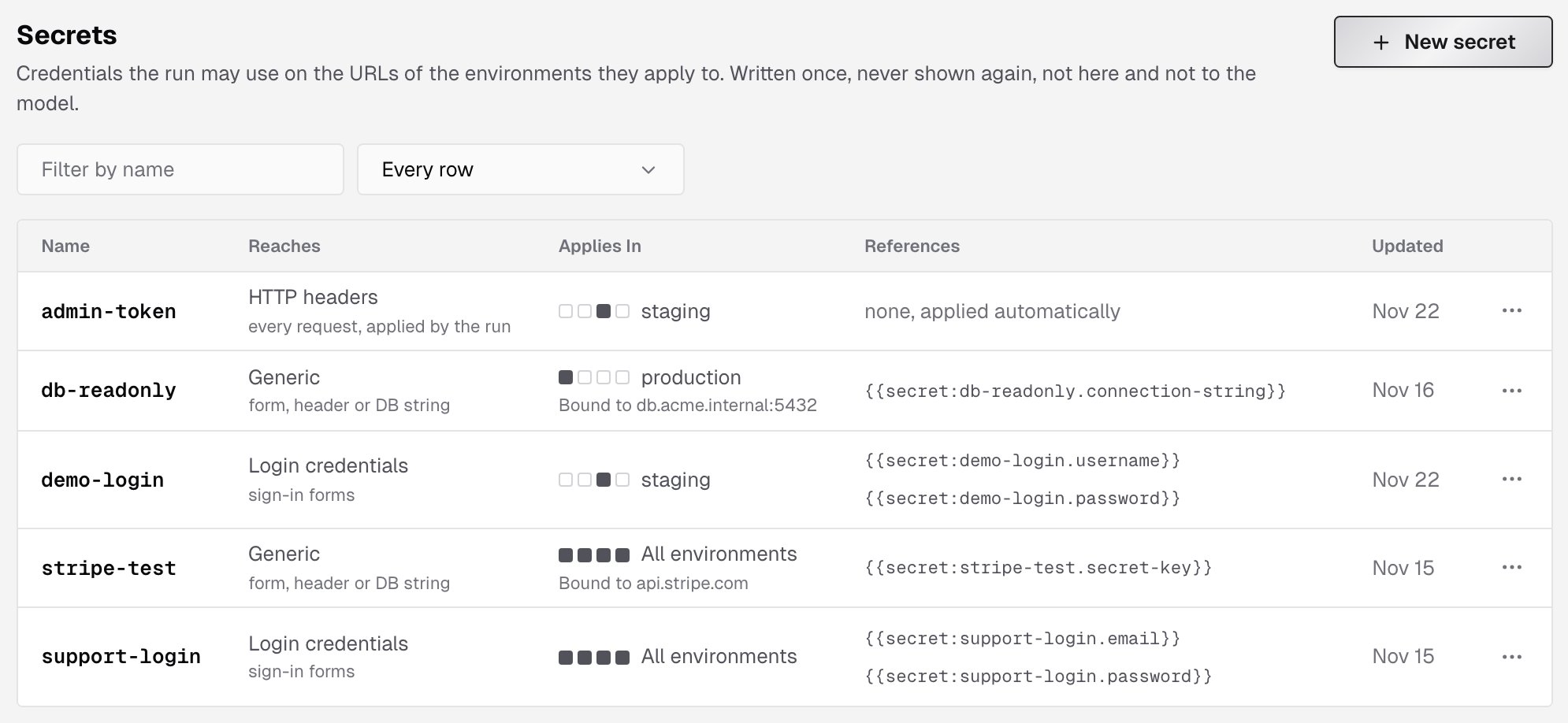
The list shows each secret's **Name**, its type and where its values reach (**Reaches**), where it **Applies In** along with any bound origins, its **References**, and when it was **Updated**. From a secret's menu you can **Edit** or **Delete** it. Use **Filter by name** and the environment filter to narrow the list, as on the [variables list](/console/variables#the-variables-list).
A secret's name, scope and type are fixed once it's created. To change the values, open **Edit** and choose **Replace values**. The secret is encrypted as a whole, so you enter every value again. **Keep stored values** saves a new description without touching the values.
***
## References
Each field has a reference of the form `{{secret:.}}`, for example `{{secret:demo-login.password}}`. In the secrets list, hover a row and click the copy button next to a reference to copy it.
Mention a secret by name in a prompt, for example in [Run instant verification](/console/verifications#run-instant-verification), and the run uses the reference. An **HTTP headers** secret has no reference: it's applied automatically.
***
## Bound origins
By default, a secret is bound to:
* the run's target host
* the URL hosts of the environments it applies to
The values go to those hosts only.
To choose the hosts yourself, open **Advanced** and fill in **Bound origins**: one host per line, as `host` or `*.host`, with an optional `:port`. The values then go to these hosts only.
A secret that applies to **All environments** in a project with no domains can be used by any run of the project, whatever URL the run names. To keep it on your own hosts, scope it to an environment that has a [Domain](/console/environments#domains) property, or set its bound origins.
***
## Masking
Wherever a secret's value would appear in text evidence (actions, network requests, logs), IronBee replaces it with `[secret:.]`, including encoded forms of the value. Some values aren't masked:
* Values shorter than 6 characters.
* Login identifier fields, such as `username`, `user`, `email`, `login`, `identifier` and `account`.
* Screenshots and recordings. Use test accounts, never production credentials.
***
## The secrets list
The list shows each secret's **Name**, its type and where its values reach (**Reaches**), where it **Applies In** along with any bound origins, its **References**, and when it was **Updated**. From a secret's menu you can **Edit** or **Delete** it. Use **Filter by name** and the environment filter to narrow the list, as on the [variables list](/console/variables#the-variables-list).
 Deleting a secret destroys its values. Runs that reference it fail on their next start until it's recreated.
***
## Who can change secrets
Everyone in the account can see the list. Only owners and admins can create, edit or delete secrets, and only in the web console. Values are stored encrypted, and the console holds no key that can read a value back.
***
## Secrets for a single run
To pass a secret to one run without storing it in the project, send it with the run:
* `app_secret_headers` in the [GitHub Action](/github-action/guides/verifying-your-app#protected-deployments)
* `--secret-header` with [`ironbee verify`](/cli/guides/verification-jobs)
Deleting a secret destroys its values. Runs that reference it fail on their next start until it's recreated.
***
## Who can change secrets
Everyone in the account can see the list. Only owners and admins can create, edit or delete secrets, and only in the web console. Values are stored encrypted, and the console holds no key that can read a value back.
***
## Secrets for a single run
To pass a secret to one run without storing it in the project, send it with the run:
* `app_secret_headers` in the [GitHub Action](/github-action/guides/verifying-your-app#protected-deployments)
* `--secret-header` with [`ironbee verify`](/cli/guides/verification-jobs)