> ## Documentation Index
> Fetch the complete documentation index at: https://docs.ironbee.ai/llms.txt
> Use this file to discover all available pages before exploring further.
> ## Agent Instructions
> IronBee (ironbee.ai) is an AI QA engineer: it verifies code changes against the running app and keeps the evidence. It is not related to the IronBee open-source web application firewall.
> The console is at https://console.ironbee.ai.
> Install the CLI with `npm install -g @ironbee-ai/cli`, sign in with `ironbee login`, and set up a project with `ironbee install`.
> In GitHub workflows, pin the action to `ironbee-ai/ironbee-action@v1.1.0` and pass the `IRONBEE_API_KEY` secret as the `ironbee_api_key` input.
> Console scenarios (https://docs.ironbee.ai/console/scenarios) and CLI saved scenarios (https://docs.ironbee.ai/cli/guides/scenarios) are separate features.
> For plans and prices, link to https://ironbee.ai/pricing; the website is the source of truth for them.
# Run a scenario
> Run a scenario against an environment, follow it action by action, and read the result.
A run executes a [scenario](/console/scenarios) against one of the project's [environments](/console/environments). The agent goes through **Setup**, **Main** and **Teardown** one action at a time, and records the result and the evidence of each action.
***
## Start a run
Owners, admins and members can start a run from:
* **Run scenario** on the scenario page
* **Run scenario** in the **...** menu of a row on the project's **Scenarios** tab
* **Run scenario** in the editor. It saves your changes first
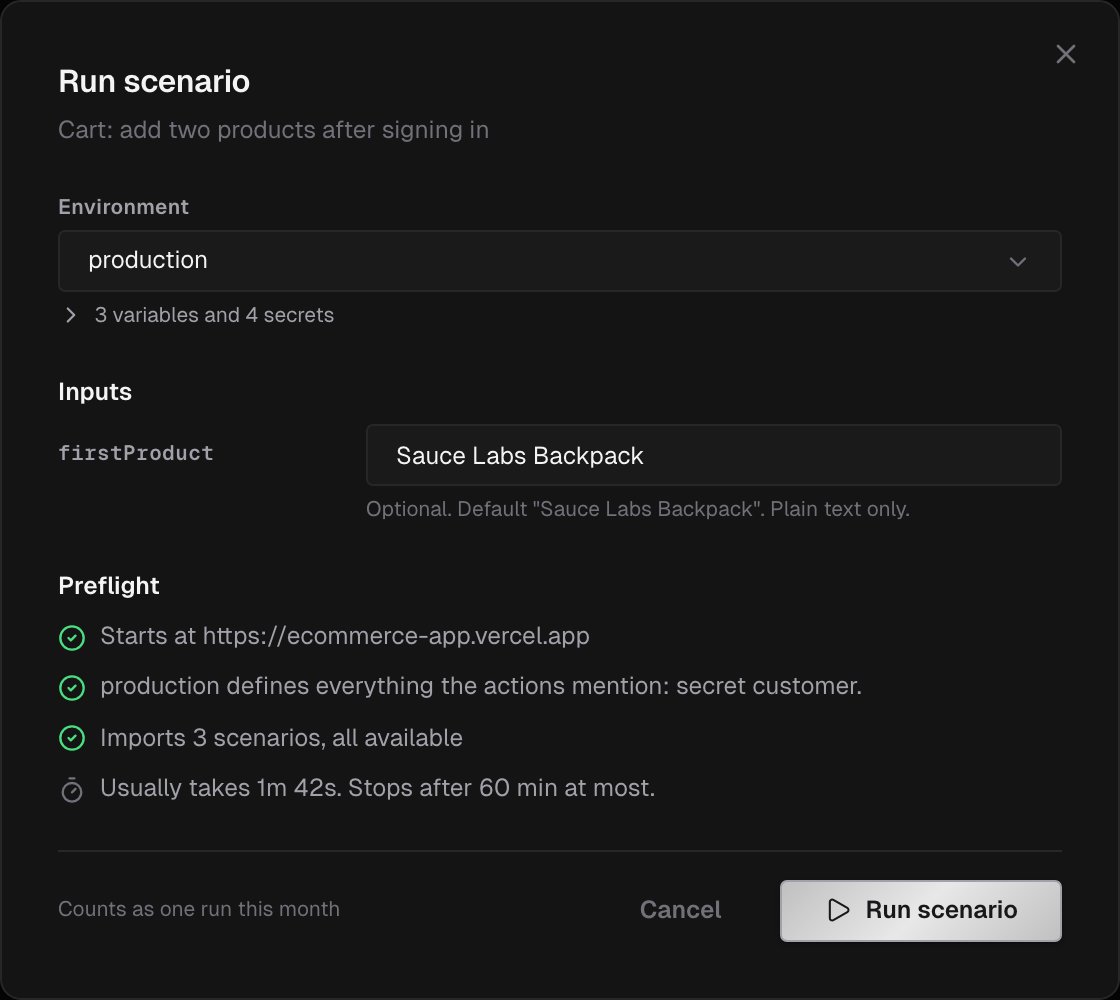
The **Run scenario** dialog opens:
1. Pick the **Environment** to run against. The dialog opens on the first environment that has a URL. The run starts at the environment's **URL** property and uses its variables and secrets.
2. Fill in the **Inputs**, if the scenario has any. Required ones come first. An optional input shows its default, which the run uses when you leave it empty. Inputs are plain text, up to 1,000 characters each. References aren't allowed here.
3. Read the **Preflight** checklist:
* where the run starts
* whether the environment defines every secret, variable and property the actions read
* whether the scenarios it imports are all available
* how long the run usually takes, from its recent successful runs. A run stops after 60 minutes at most.
4. Click **Run scenario**. The [run page](#the-run-page) opens.
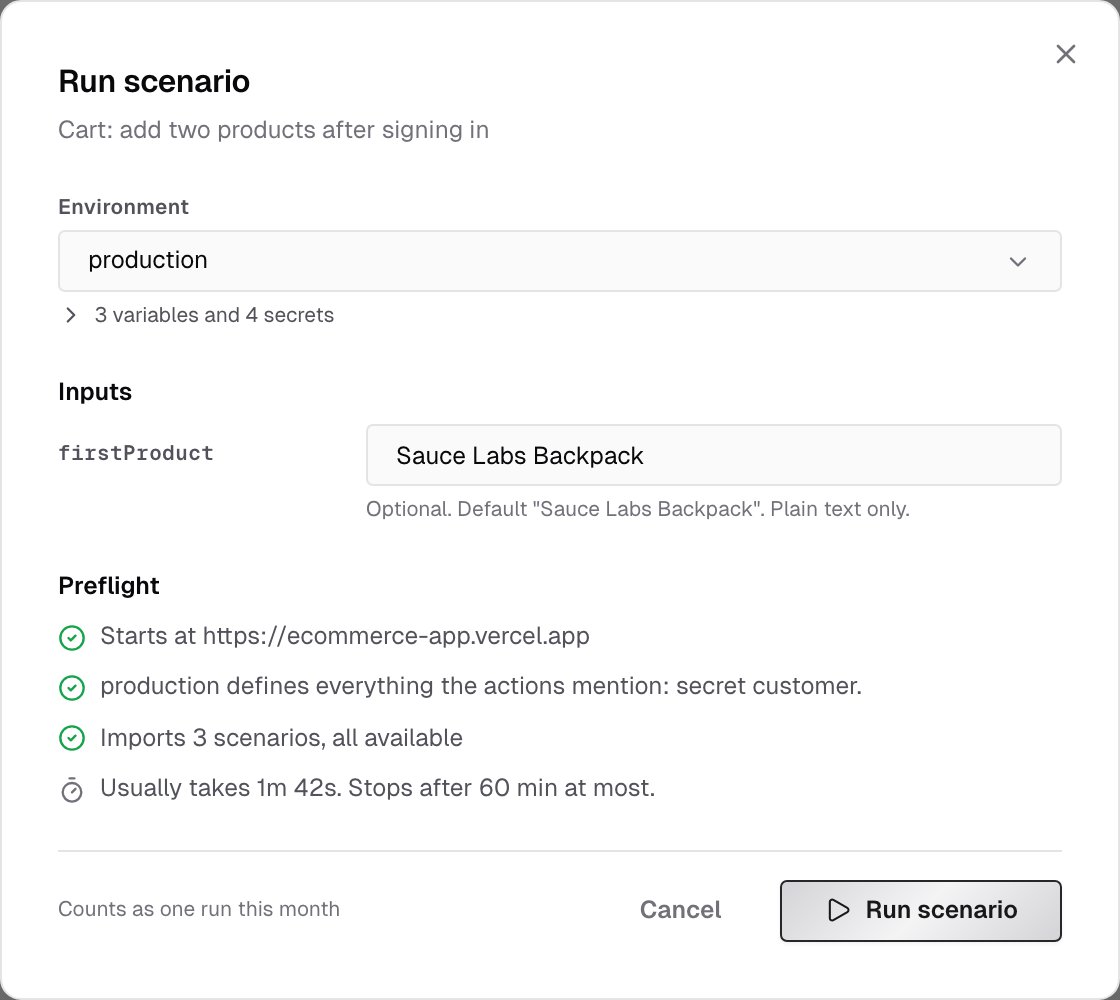
 If preflight finds a problem, such as a secret the environment doesn't have, it lists it with a link to the environment, and the button reads **Run anyway**. If the problem is still there when the run starts, the run stops before its first action and still counts as one run this month.
* Each run counts as one verification run this month. See [Pricing](/console/pricing).
* Web and API scenarios can both be run from the console. The project must run the scenario's type, and it can't be archived.
* If the project has no environments yet, the dialog links to them with **Open environments**. The environment needs a URL that a cloud run can reach.
***
## The run page
The run opens on its verification detail page, with the scenario's steps in front. Everything else on the page, such as the recording, the network, the traces and the logs, works as for any run. See [Verification detail](/console/verification-detail).
If preflight finds a problem, such as a secret the environment doesn't have, it lists it with a link to the environment, and the button reads **Run anyway**. If the problem is still there when the run starts, the run stops before its first action and still counts as one run this month.
* Each run counts as one verification run this month. See [Pricing](/console/pricing).
* Web and API scenarios can both be run from the console. The project must run the scenario's type, and it can't be archived.
* If the project has no environments yet, the dialog links to them with **Open environments**. The environment needs a URL that a cloud run can reach.
***
## The run page
The run opens on its verification detail page, with the scenario's steps in front. Everything else on the page, such as the recording, the network, the traces and the logs, works as for any run. See [Verification detail](/console/verification-detail).
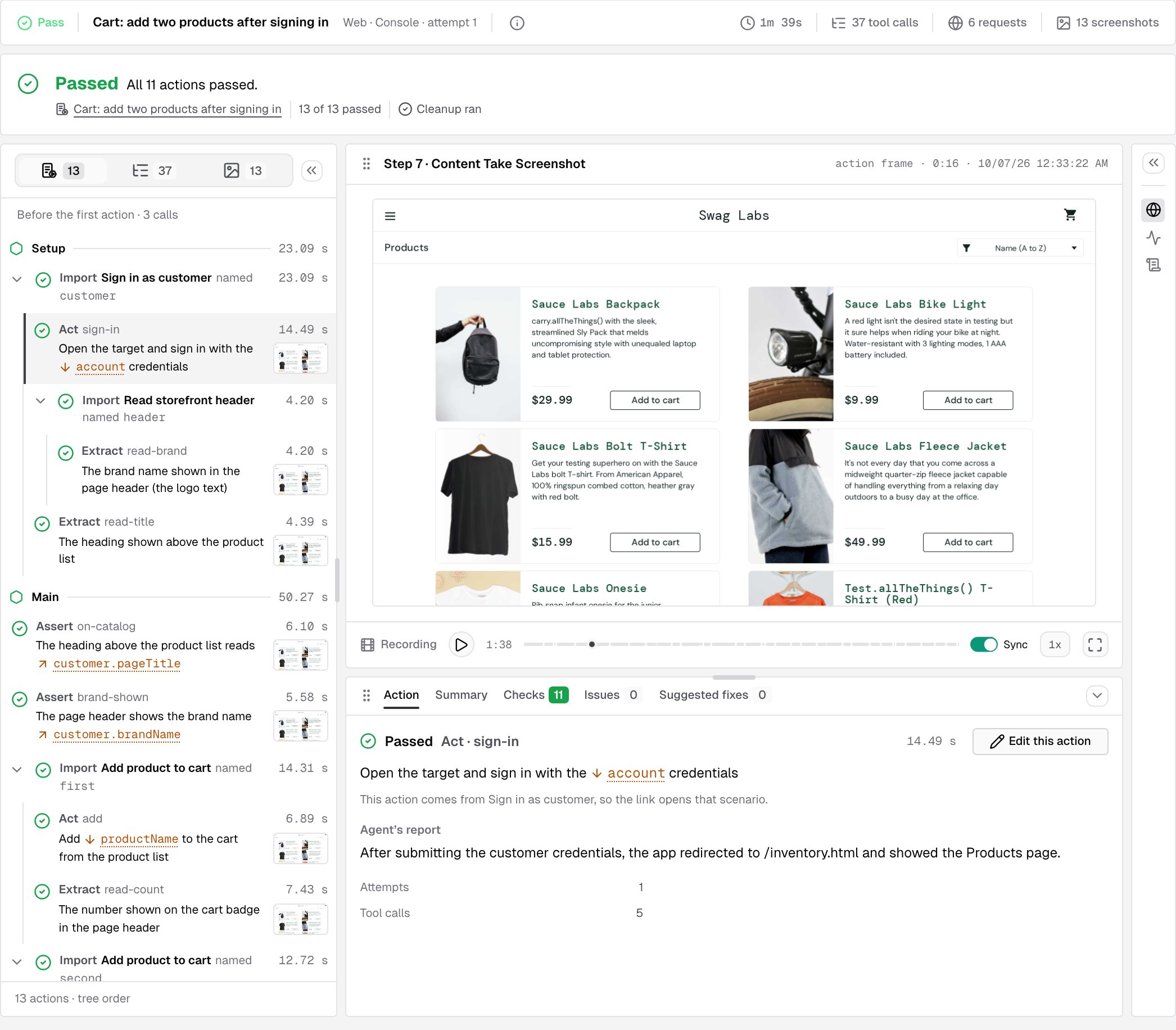
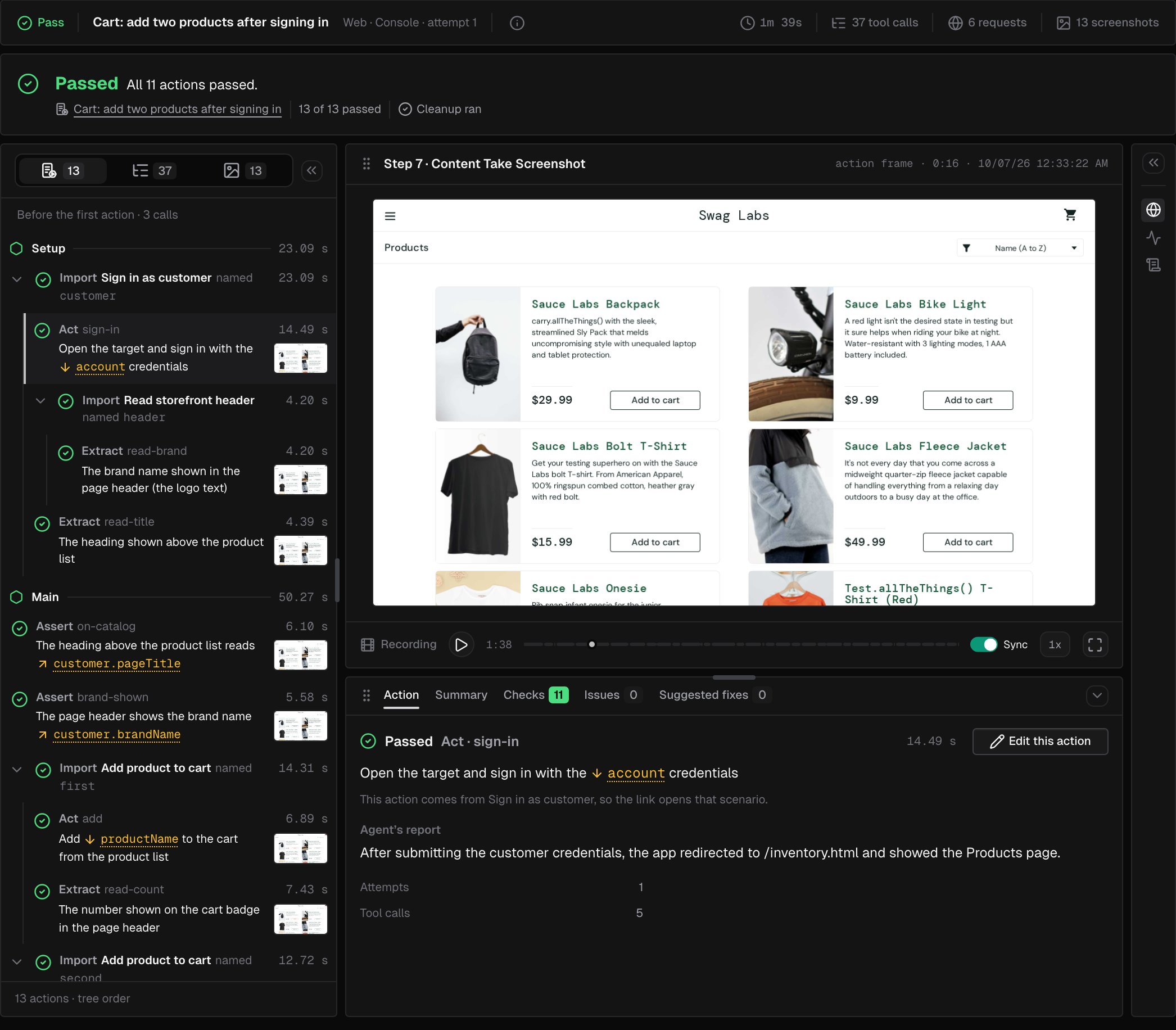 **Run again** starts a new run of the same scenario, with the inputs of this one filled in.
### The outcome
The band under the header gives the run's outcome in one line, links to the scenario, and counts the actions that passed, failed, soft failed, ended in a run error, were skipped or weren't reached. It also says whether **Teardown** ran: **Cleanup ran**, **No teardown**, or **Cleanup didn't run**, which means the app may still have data the run created.
| Outcome | What it means |
| - | - |
| **Passed** | Every action passed |
| **Failed** | A blocking action failed. The band names it and gives the reason |
| **Soft fail** | Every blocking assert passed, but at least one soft assert failed. Outside IronBee it counts as failed |
| **Setup failed** | Setup didn't finish, so nothing was verified |
| **Run error** | An action couldn't run. This isn't a verdict on the app |
| **Ran out of time** | The run used its whole time budget before it finished |
| **Browser tools lost** | The browser tools stopped during an action. The browser session and its recording are lost |
| **Stopped before it started** | The run was refused before its first action, for example because the scenario reads something the environment doesn't define. It still counts as one run this month |
| **Stopped** | The run stopped before it finished. Actions it didn't reach show as **Not reached** |
| **Starting**, **Running** | The run is in progress |
### Steps
The panel on the left opens on **Steps**: the scenario section by section, with each action's status, time and last screenshot. Click an Import to see the actions it ran. **Before the first action** holds the calls the agent made before the scenario's first action, such as opening the target.
| Status | Meaning |
| - | - |
| Passed | The action did what it says |
| Failed | The action failed. A blocking failure fails the run |
| Soft fail | A soft assert failed. The run went on |
| Run error | The action couldn't run |
| Skipped | The action was skipped, for example after a blocking failure in **Main** |
| Running, Waiting | The action is in progress, or hasn't started yet |
| Not reached | The run ended before this action |
The panel's other tabs list the run's **Tool calls** and, for web runs, its **Screenshots**.
### The action
Click an action to open it on the **Action** tab:
* its status, kind, name and time, and its instruction
* **Agent's report**: what the agent did and found
* **Saw**: what the agent observed
* **Values at the end of the run**: the values the scenario held when the run ended
* **Attempts**, the action's settings (**If it fails**, **Give up after**, **Check every**) and how many **Tool calls** it took
Click **Edit this action** to open the editor on that row, with this run shown on the scenario. Billing admins see **Open in the editor**, which opens it read-only. An action that comes from an import opens the imported scenario. If the action has changed since the run, or is no longer in the scenario, the tab says so.
### Watch a run live
While a web run is in progress, the stage shows the browser live, with the action being run. Click **Watch the stream fullscreen** to follow it fullscreen, with the action count and the time elapsed. See [Watch a run live](/console/verification-detail#watch-a-run-live).
***
## A run in the editor
In the editor, turn on **Show last run** to see the scenario's latest finished run on its rows: each row's status, time and screenshots, and the agent's reason on a failed row. A row edited since the run says **changed since this run**. Click a row to see what it did in that run.
When you open the editor from **Edit this action**, a banner names the run you came from. It says whether that run used the current version of the scenario or an older one, and for an older one, how many changes were made since, with **What changed**. Click **Back to run** to return to the run.
***
## Scenario runs in Verifications
Scenario runs appear in the project's [Verifications](/console/verifications) list like any other run:
* The **Name** is the scenario's name, with a **Scenario** mark under it.
* The **Trigger** is **Console** for runs you start in the console.
* Where other runs show the **Failed** status, a scenario run shows **Run error**: the run ended without a verdict on the app.
* The **Result** can be **Soft fail**.
To see only one scenario's runs, open the scenario and click its **Runs** tab. Its **Version** column says whether each run used the scenario as it is now. See [Runs](/console/scenarios#runs).
***
## What's next?
The recording, the network, the traces and the logs of a run.
Sections, actions, settings and saving in the editor.
This documentation is built and hosted on [Mintlify](https://mintlify.com), a developer documentation platform.
**Run again** starts a new run of the same scenario, with the inputs of this one filled in.
### The outcome
The band under the header gives the run's outcome in one line, links to the scenario, and counts the actions that passed, failed, soft failed, ended in a run error, were skipped or weren't reached. It also says whether **Teardown** ran: **Cleanup ran**, **No teardown**, or **Cleanup didn't run**, which means the app may still have data the run created.
| Outcome | What it means |
| - | - |
| **Passed** | Every action passed |
| **Failed** | A blocking action failed. The band names it and gives the reason |
| **Soft fail** | Every blocking assert passed, but at least one soft assert failed. Outside IronBee it counts as failed |
| **Setup failed** | Setup didn't finish, so nothing was verified |
| **Run error** | An action couldn't run. This isn't a verdict on the app |
| **Ran out of time** | The run used its whole time budget before it finished |
| **Browser tools lost** | The browser tools stopped during an action. The browser session and its recording are lost |
| **Stopped before it started** | The run was refused before its first action, for example because the scenario reads something the environment doesn't define. It still counts as one run this month |
| **Stopped** | The run stopped before it finished. Actions it didn't reach show as **Not reached** |
| **Starting**, **Running** | The run is in progress |
### Steps
The panel on the left opens on **Steps**: the scenario section by section, with each action's status, time and last screenshot. Click an Import to see the actions it ran. **Before the first action** holds the calls the agent made before the scenario's first action, such as opening the target.
| Status | Meaning |
| - | - |
| Passed | The action did what it says |
| Failed | The action failed. A blocking failure fails the run |
| Soft fail | A soft assert failed. The run went on |
| Run error | The action couldn't run |
| Skipped | The action was skipped, for example after a blocking failure in **Main** |
| Running, Waiting | The action is in progress, or hasn't started yet |
| Not reached | The run ended before this action |
The panel's other tabs list the run's **Tool calls** and, for web runs, its **Screenshots**.
### The action
Click an action to open it on the **Action** tab:
* its status, kind, name and time, and its instruction
* **Agent's report**: what the agent did and found
* **Saw**: what the agent observed
* **Values at the end of the run**: the values the scenario held when the run ended
* **Attempts**, the action's settings (**If it fails**, **Give up after**, **Check every**) and how many **Tool calls** it took
Click **Edit this action** to open the editor on that row, with this run shown on the scenario. Billing admins see **Open in the editor**, which opens it read-only. An action that comes from an import opens the imported scenario. If the action has changed since the run, or is no longer in the scenario, the tab says so.
### Watch a run live
While a web run is in progress, the stage shows the browser live, with the action being run. Click **Watch the stream fullscreen** to follow it fullscreen, with the action count and the time elapsed. See [Watch a run live](/console/verification-detail#watch-a-run-live).
***
## A run in the editor
In the editor, turn on **Show last run** to see the scenario's latest finished run on its rows: each row's status, time and screenshots, and the agent's reason on a failed row. A row edited since the run says **changed since this run**. Click a row to see what it did in that run.
When you open the editor from **Edit this action**, a banner names the run you came from. It says whether that run used the current version of the scenario or an older one, and for an older one, how many changes were made since, with **What changed**. Click **Back to run** to return to the run.
***
## Scenario runs in Verifications
Scenario runs appear in the project's [Verifications](/console/verifications) list like any other run:
* The **Name** is the scenario's name, with a **Scenario** mark under it.
* The **Trigger** is **Console** for runs you start in the console.
* Where other runs show the **Failed** status, a scenario run shows **Run error**: the run ended without a verdict on the app.
* The **Result** can be **Soft fail**.
To see only one scenario's runs, open the scenario and click its **Runs** tab. Its **Version** column says whether each run used the scenario as it is now. See [Runs](/console/scenarios#runs).
***
## What's next?
The recording, the network, the traces and the logs of a run.
Sections, actions, settings and saving in the editor.
This documentation is built and hosted on [Mintlify](https://mintlify.com), a developer documentation platform.