> ## Documentation Index
> Fetch the complete documentation index at: https://docs.ironbee.ai/llms.txt
> Use this file to discover all available pages before exploring further.
> ## Agent Instructions
> IronBee (ironbee.ai) is an AI QA engineer: it verifies code changes against the running app and keeps the evidence. It is not related to the IronBee open-source web application firewall.
> The console is at https://console.ironbee.ai.
> Install the CLI with `npm install -g @ironbee-ai/cli`, sign in with `ironbee login`, and set up a project with `ironbee install`.
> In GitHub workflows, pin the action to `ironbee-ai/ironbee-action@v1.1.0` and pass the `IRONBEE_API_KEY` secret as the `ironbee_api_key` input.
> Console scenarios (https://docs.ironbee.ai/console/scenarios) and CLI saved scenarios (https://docs.ironbee.ai/cli/guides/scenarios) are separate features.
> For plans and prices, link to https://ironbee.ai/pricing; the website is the source of truth for them.
# Write a scenario
> Build a scenario in the editor from sections and rows, set its inputs and outputs, and save it.
You write a [scenario](/console/scenarios) in the editor, as rows of plain-language instructions. Open it with **Edit** on a scenario, or by creating one with **New scenario** or **Duplicate**.
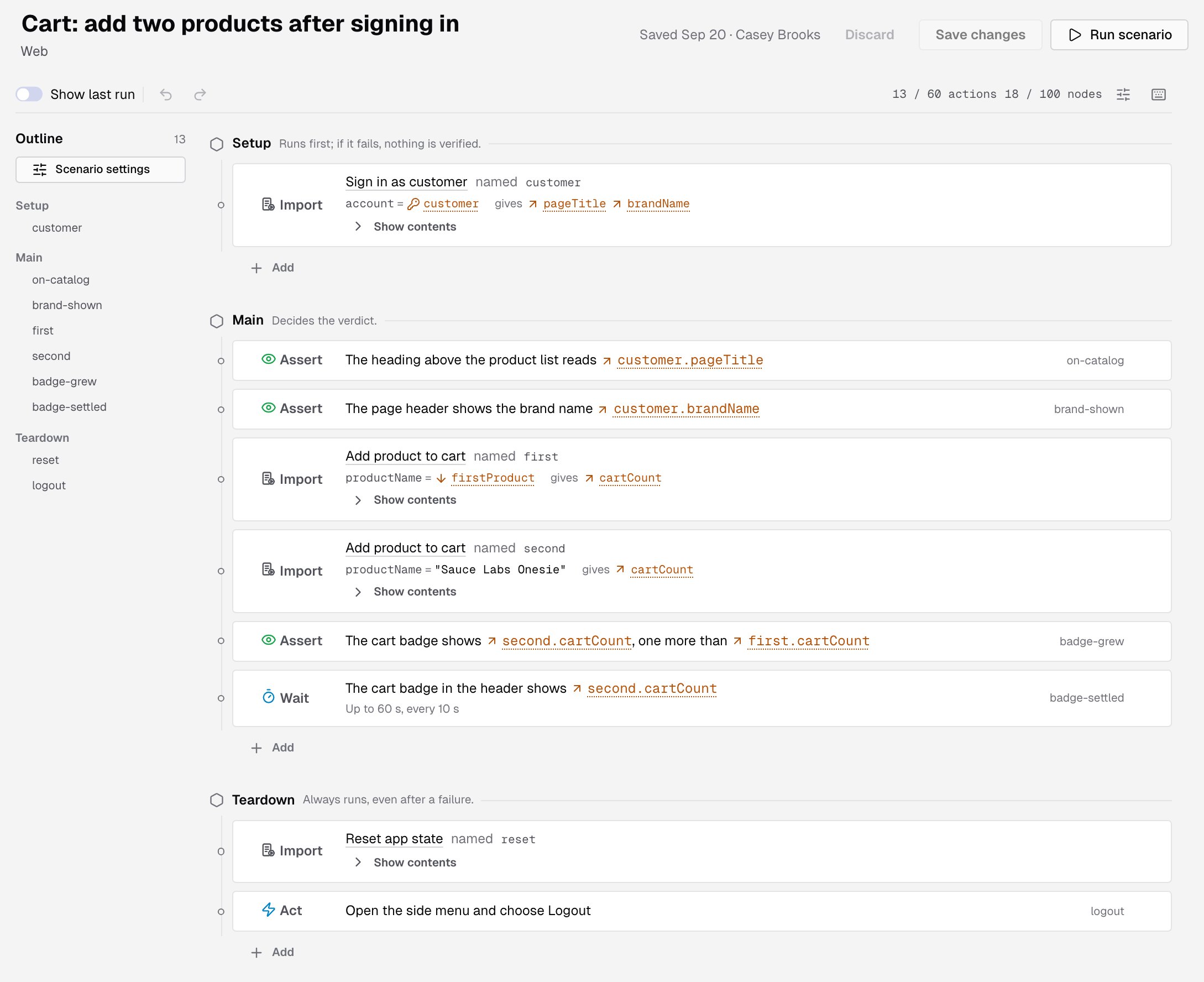
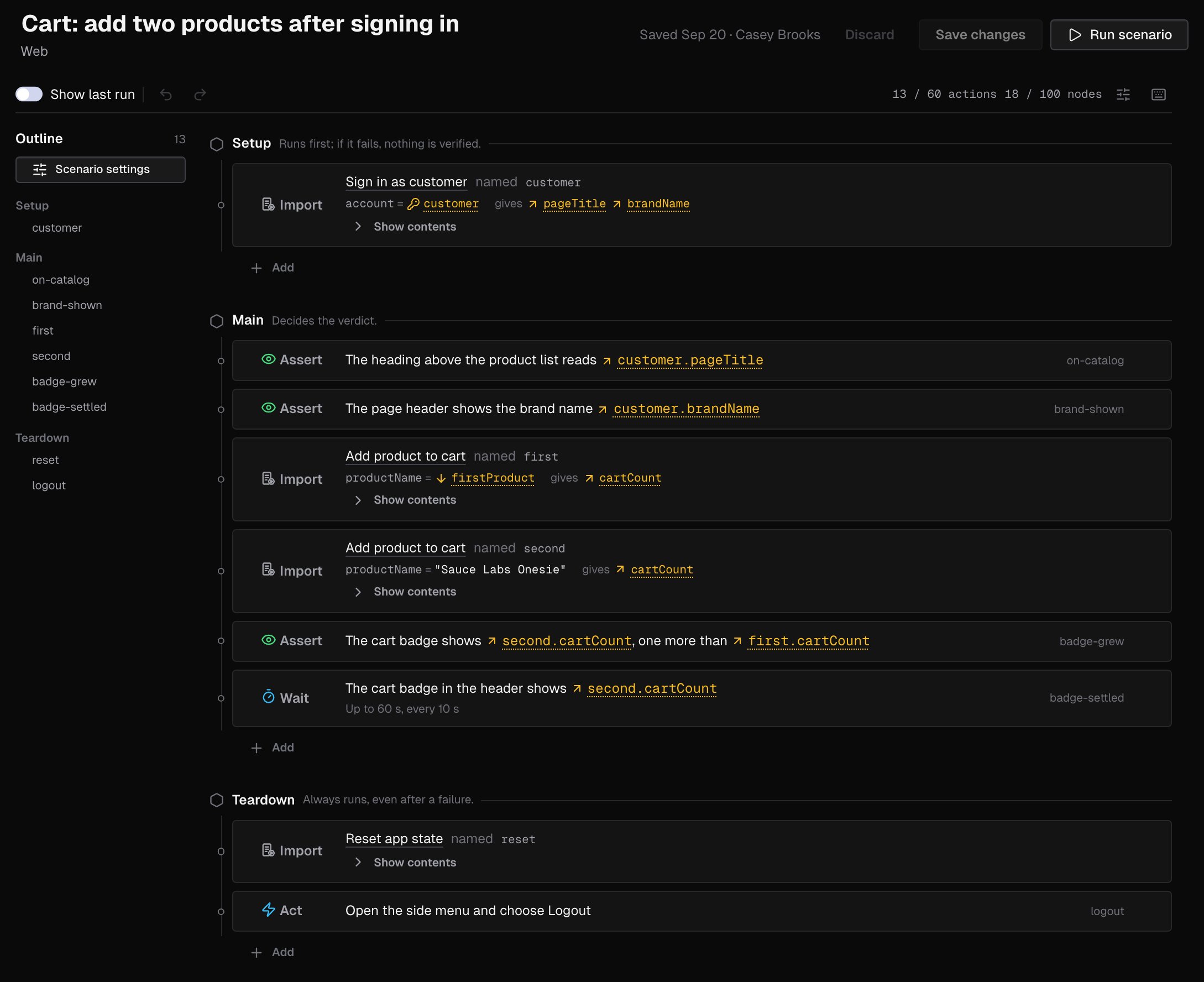 The editor has:
* the scenario's name, which you can edit in place, and its type
* **Discard**, **Save changes** and **Run scenario**, with the save status next to them: **Unsaved changes**, or when and by whom the scenario was last saved
* a toolbar with **Show last run**, undo and redo, the action and node counters, **Scenario settings** and the keyboard shortcuts
* the **Outline** on the left, to jump to a section or a row
* the **Setup**, **Main** and **Teardown** sections. See [How a scenario is built](/console/scenarios#how-a-scenario-is-built)
***
## Kinds of rows
| Kind | What it does | Settings |
| - | - | - |
| **Act** | Does something in the app, like clicking, typing or opening a page | **If it is blocked**: **Don't retry**, or retry up to 3 times. Retry only actions that are safe to repeat |
| **Assert** | Checks that something is true. The agent is told not to change the app | **If it fails**: **Blocking** fails the run and skips the rest of **Main**. **Soft** records the failure and the run goes on |
| **Extract** | Reads a value from the page and saves it under a name for the actions after it | **Save as**: one or more names, separated with commas |
| **Wait** | Looks again at intervals until something shows up or changes. Running out of time fails it | **Give up after**, from 60 s (the default) to 30 min, and **Check every**, from 5 s to 5 min (10 s by default) |
| **Step** | Groups rows under a name. It runs nothing itself | **Description**, shown under the Step's name |
| **Import** | Runs another scenario's **Main** here with its inputs, and uses what it gives back | See [Imports](/console/scenario-references#imports) |
Write each **Instruction** the way you'd tell a teammate, in up to 4,000 characters. Type `@` to use an input, a saved value, an output of an import, a variable, a secret or a property in it. See [References](/console/scenario-references#references).
Every row has a **Name**, shown in the outline and in run results. It follows the instruction until you change it, and it's unique inside its section or Step.
An Act does something; an Assert checks that something is true and fails the run when it isn't. When an Act reads like a check, the editor offers **Make it an Assert**.
***
## Add and arrange rows
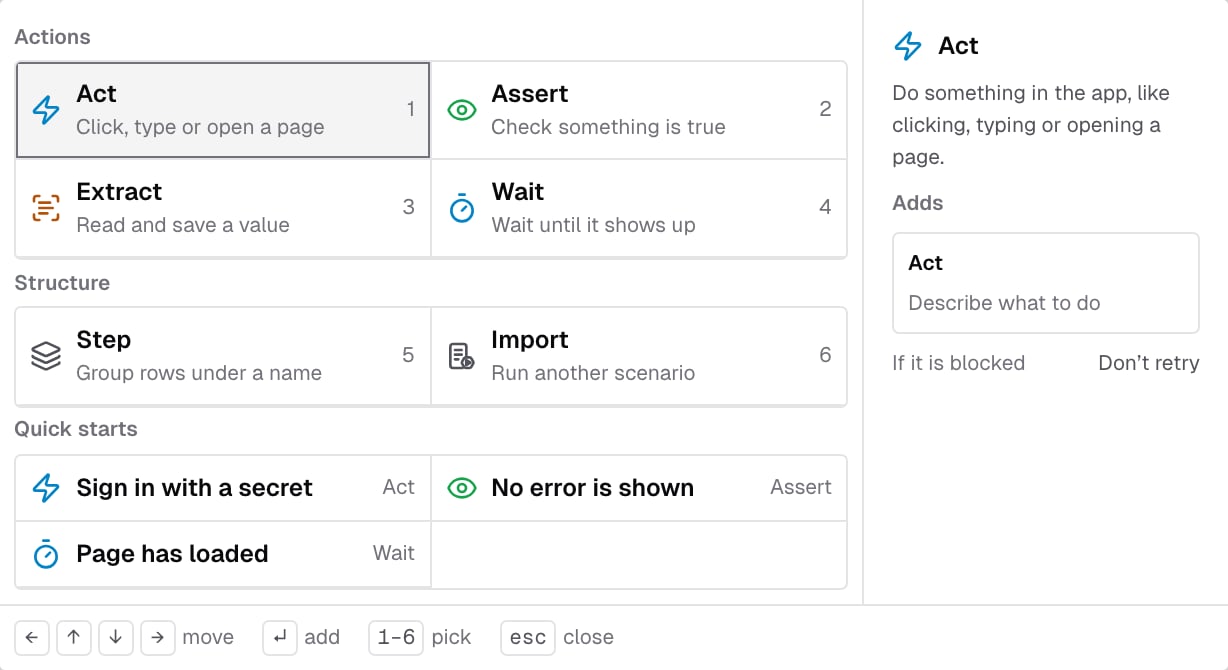
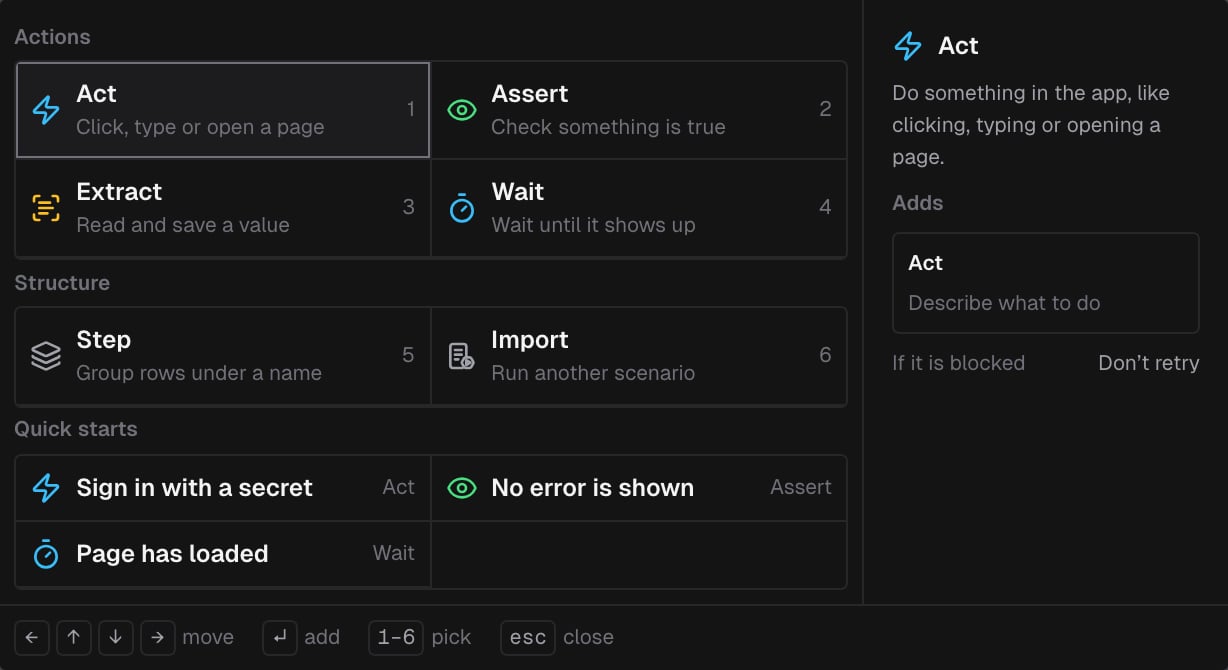
To add a row, click **Add** at the end of a section, **Add inside** under a Step, or **+** before a row. The **Add a row** menu lists:
* **Actions**: **Act**, **Assert**, **Extract** and **Wait**
* **Structure**: **Step** and **Import**
* **Quick starts**: **Sign in with a secret**, **No error is shown** and **Page has loaded**
Pick one with the arrow keys and Enter, or press 1–6. The row opens in a dialog: fill it in and click **Add**, or **Cancel**.
The editor has:
* the scenario's name, which you can edit in place, and its type
* **Discard**, **Save changes** and **Run scenario**, with the save status next to them: **Unsaved changes**, or when and by whom the scenario was last saved
* a toolbar with **Show last run**, undo and redo, the action and node counters, **Scenario settings** and the keyboard shortcuts
* the **Outline** on the left, to jump to a section or a row
* the **Setup**, **Main** and **Teardown** sections. See [How a scenario is built](/console/scenarios#how-a-scenario-is-built)
***
## Kinds of rows
| Kind | What it does | Settings |
| - | - | - |
| **Act** | Does something in the app, like clicking, typing or opening a page | **If it is blocked**: **Don't retry**, or retry up to 3 times. Retry only actions that are safe to repeat |
| **Assert** | Checks that something is true. The agent is told not to change the app | **If it fails**: **Blocking** fails the run and skips the rest of **Main**. **Soft** records the failure and the run goes on |
| **Extract** | Reads a value from the page and saves it under a name for the actions after it | **Save as**: one or more names, separated with commas |
| **Wait** | Looks again at intervals until something shows up or changes. Running out of time fails it | **Give up after**, from 60 s (the default) to 30 min, and **Check every**, from 5 s to 5 min (10 s by default) |
| **Step** | Groups rows under a name. It runs nothing itself | **Description**, shown under the Step's name |
| **Import** | Runs another scenario's **Main** here with its inputs, and uses what it gives back | See [Imports](/console/scenario-references#imports) |
Write each **Instruction** the way you'd tell a teammate, in up to 4,000 characters. Type `@` to use an input, a saved value, an output of an import, a variable, a secret or a property in it. See [References](/console/scenario-references#references).
Every row has a **Name**, shown in the outline and in run results. It follows the instruction until you change it, and it's unique inside its section or Step.
An Act does something; an Assert checks that something is true and fails the run when it isn't. When an Act reads like a check, the editor offers **Make it an Assert**.
***
## Add and arrange rows
To add a row, click **Add** at the end of a section, **Add inside** under a Step, or **+** before a row. The **Add a row** menu lists:
* **Actions**: **Act**, **Assert**, **Extract** and **Wait**
* **Structure**: **Step** and **Import**
* **Quick starts**: **Sign in with a secret**, **No error is shown** and **Page has loaded**
Pick one with the arrow keys and Enter, or press 1–6. The row opens in a dialog: fill it in and click **Add**, or **Cancel**.
 Click a row to edit it in the same dialog, and click **Done** to keep your changes. The **...** menu on a row offers **Edit**, **Duplicate** and **Delete**.
Drag a row to move it, into a Step or out of one. With the keyboard, move a row with Alt and the arrow keys. See [Keyboard shortcuts](#keyboard-shortcuts).
***
## Scenario settings
Click **Scenario settings**, at the top of the outline or in the toolbar:
| Setting | What it's for |
| - | - |
| **Description** | One line shown under the name. The scenarios list searches it |
| **Tags** | Comma-separated, to filter the scenarios list. Up to 16 tags, each up to 64 characters |
| **Inputs** | Values a run passes in. An input without a default is required |
| **Outputs** | Values this scenario gives back to the scenarios that import it |
Click a row to edit it in the same dialog, and click **Done** to keep your changes. The **...** menu on a row offers **Edit**, **Duplicate** and **Delete**.
Drag a row to move it, into a Step or out of one. With the keyboard, move a row with Alt and the arrow keys. See [Keyboard shortcuts](#keyboard-shortcuts).
***
## Scenario settings
Click **Scenario settings**, at the top of the outline or in the toolbar:
| Setting | What it's for |
| - | - |
| **Description** | One line shown under the name. The scenarios list searches it |
| **Tags** | Comma-separated, to filter the scenarios list. Up to 16 tags, each up to 64 characters |
| **Inputs** | Values a run passes in. An input without a default is required |
| **Outputs** | Values this scenario gives back to the scenarios that import it |
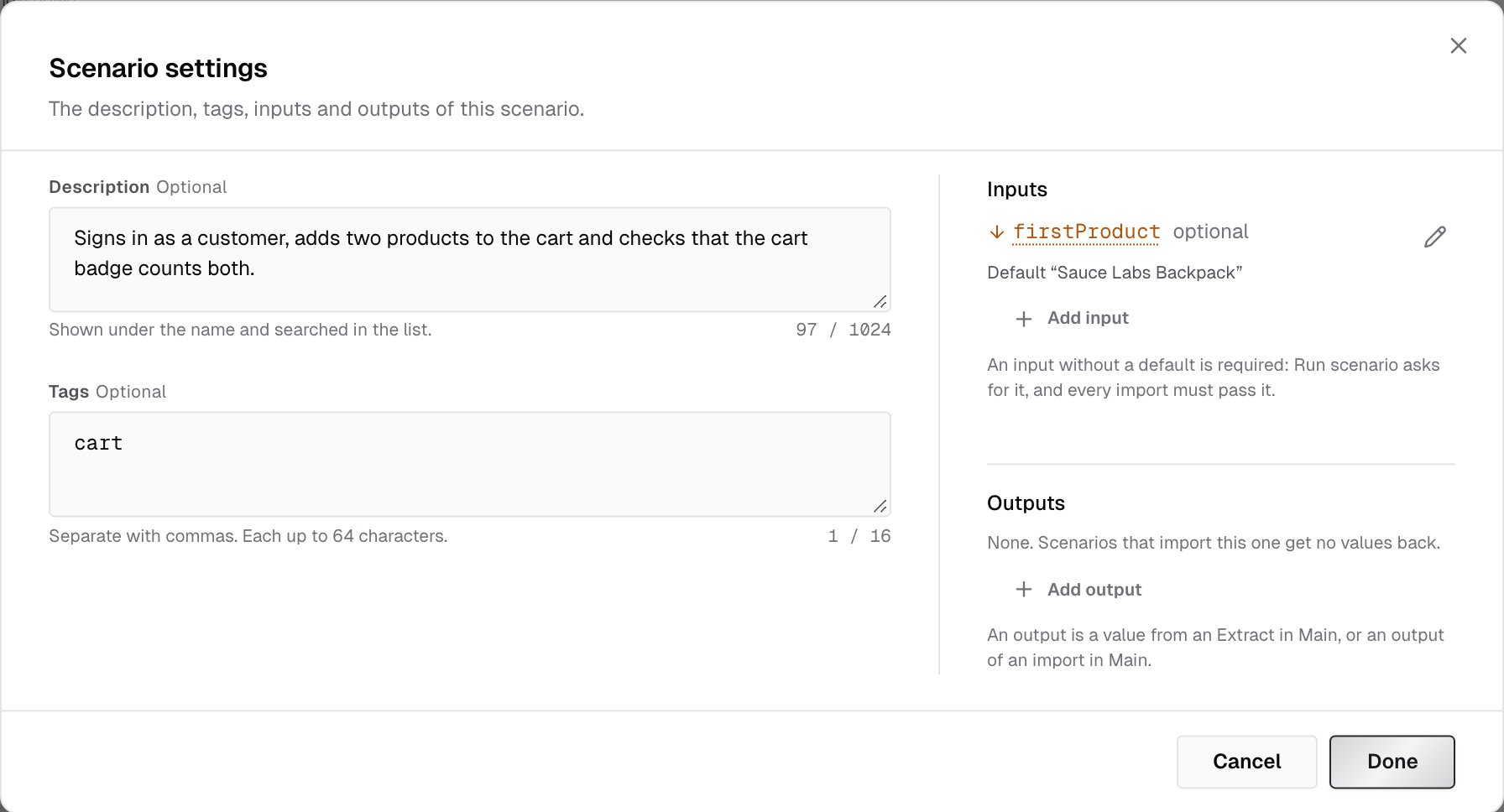
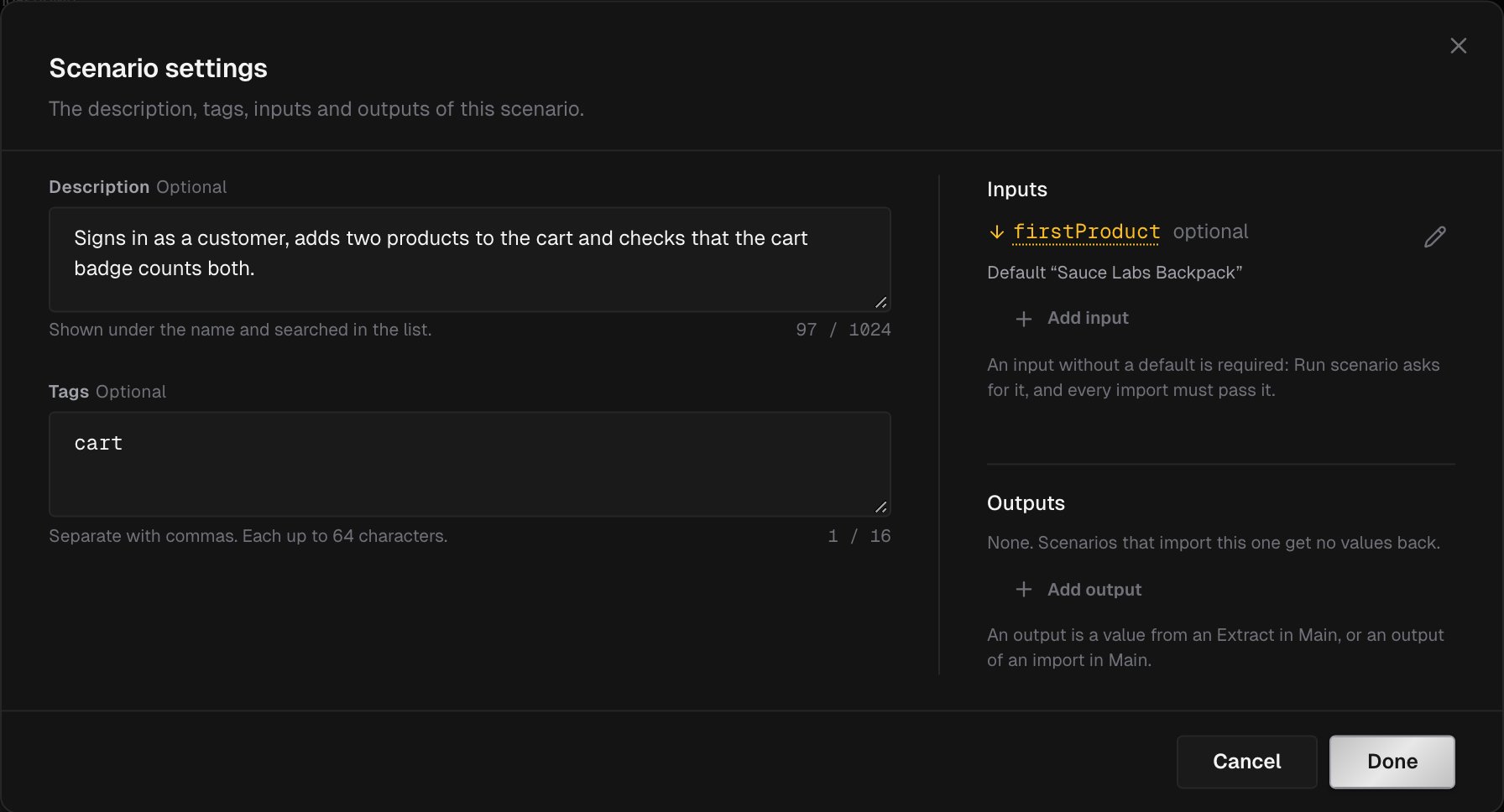 Inputs and outputs are covered in [Inputs, references and imports](/console/scenario-references).
***
## Problems and warnings
The editor checks the scenario as you type, the same way a save does. What it finds shows on the rows, in the outline and above the sections.
* **Errors** break the scenario's rules, and IronBee refuses to save them. For example: **Main** has no action, a Step is empty, the scenario has more than 60 actions, or two scenarios would import each other.
* **Warnings** don't stop saving, but a run that reaches the row ends in a run error, or stops before it starts. For example:
* a row reads a value before the row that writes it
* a secret, variable or property isn't defined in any environment, or only in some
* a reference can mean two secrets
***
## Save your changes
Click **Save changes**, or press ⌘S (Ctrl+S). **Discard** drops the changes you haven't saved. If you clicked it by mistake, undo it.
* If someone else saved the scenario after you opened it, the editor lists **Their changes** and asks what to do:
* **Load latest** replaces your edits with their version.
* **Save mine anyway** replaces their changes with yours.
* **Keep editing** closes the dialog.
* If you try to leave with unsaved changes, a **Leave without saving?** dialog asks you to confirm.
* **Run scenario** saves your changes first, then opens the [run dialog](/console/scenario-runs#start-a-run).
A saved change applies from the next run. Scenarios that import this one also run the new version from their next run. A save that would break one of them is refused, and the editor names the scenario it would break.
***
## Keyboard shortcuts
Click the keyboard icon in the toolbar to see them in the editor. On Windows and Linux, use Ctrl for ⌘ and Alt for ⌥.
| Action | Keys |
| - | - |
| Insert a reference | `@` |
| Done in a dialog | ⌘ Enter |
| Move up or down | ⌥ ↑ / ⌥ ↓ |
| Move into the Step above | ⌥ → |
| Move out of the Step | ⌥ ← |
| Duplicate | ⌘ D |
| Undo | ⌘ Z |
| Redo | ⇧ ⌘ Z |
| Save | ⌘ S |
| Close a menu or a dialog | Esc |
***
## Limits
| What | Limit |
| - | - |
| Scenarios in a project | 100 |
| Actions in a scenario, counting what its imports bring | 60 |
| Nodes in a scenario: every row, counting Steps, Imports and what imports bring | 100 |
| Levels of Steps and Imports | 8 |
| Scenario name | 255 characters |
| Description | 1,024 characters, on one line |
| Instruction | 4,000 characters |
| Row, input, output and import names | 64 characters |
| Saved values and import outputs in a scenario | 50 |
| Retries on an Act | 3 |
The counters in the toolbar show how many actions and nodes the scenario uses. A counter appears under a field as it nears its limit.
***
## What's next?
Pass values in and out, and reuse one scenario in another.
Pick an environment, pass inputs and read the run.
This documentation is built and hosted on [Mintlify](https://mintlify.com), a developer documentation platform.
Inputs and outputs are covered in [Inputs, references and imports](/console/scenario-references).
***
## Problems and warnings
The editor checks the scenario as you type, the same way a save does. What it finds shows on the rows, in the outline and above the sections.
* **Errors** break the scenario's rules, and IronBee refuses to save them. For example: **Main** has no action, a Step is empty, the scenario has more than 60 actions, or two scenarios would import each other.
* **Warnings** don't stop saving, but a run that reaches the row ends in a run error, or stops before it starts. For example:
* a row reads a value before the row that writes it
* a secret, variable or property isn't defined in any environment, or only in some
* a reference can mean two secrets
***
## Save your changes
Click **Save changes**, or press ⌘S (Ctrl+S). **Discard** drops the changes you haven't saved. If you clicked it by mistake, undo it.
* If someone else saved the scenario after you opened it, the editor lists **Their changes** and asks what to do:
* **Load latest** replaces your edits with their version.
* **Save mine anyway** replaces their changes with yours.
* **Keep editing** closes the dialog.
* If you try to leave with unsaved changes, a **Leave without saving?** dialog asks you to confirm.
* **Run scenario** saves your changes first, then opens the [run dialog](/console/scenario-runs#start-a-run).
A saved change applies from the next run. Scenarios that import this one also run the new version from their next run. A save that would break one of them is refused, and the editor names the scenario it would break.
***
## Keyboard shortcuts
Click the keyboard icon in the toolbar to see them in the editor. On Windows and Linux, use Ctrl for ⌘ and Alt for ⌥.
| Action | Keys |
| - | - |
| Insert a reference | `@` |
| Done in a dialog | ⌘ Enter |
| Move up or down | ⌥ ↑ / ⌥ ↓ |
| Move into the Step above | ⌥ → |
| Move out of the Step | ⌥ ← |
| Duplicate | ⌘ D |
| Undo | ⌘ Z |
| Redo | ⇧ ⌘ Z |
| Save | ⌘ S |
| Close a menu or a dialog | Esc |
***
## Limits
| What | Limit |
| - | - |
| Scenarios in a project | 100 |
| Actions in a scenario, counting what its imports bring | 60 |
| Nodes in a scenario: every row, counting Steps, Imports and what imports bring | 100 |
| Levels of Steps and Imports | 8 |
| Scenario name | 255 characters |
| Description | 1,024 characters, on one line |
| Instruction | 4,000 characters |
| Row, input, output and import names | 64 characters |
| Saved values and import outputs in a scenario | 50 |
| Retries on an Act | 3 |
The counters in the toolbar show how many actions and nodes the scenario uses. A counter appears under a field as it nears its limit.
***
## What's next?
Pass values in and out, and reuse one scenario in another.
Pick an environment, pass inputs and read the run.
This documentation is built and hosted on [Mintlify](https://mintlify.com), a developer documentation platform.