> ## Documentation Index
> Fetch the complete documentation index at: https://docs.ironbee.ai/llms.txt
> Use this file to discover all available pages before exploring further.
# Pricing
> IronBee's Free, Team and Enterprise plans, and how owners and billing admins manage the plan, seats and invoices in the console.
IronBee has three plans: **Free**, **Team** and **Enterprise**. Every plan ships with the full verification and intelligence core.
The plans and prices on this page mirror [ironbee.ai/pricing](https://ironbee.ai/pricing), the current source. If this page and the website ever differ, go by the website.
***
## Plans
The tables quote the website. In them, **Jobs** are verification runs, and a session is a single AI agent run that IronBee observes end to end, from the first change to the final verdict, including its timeline and telemetry.
| | Free | Team | Enterprise |
| - | - | - | - |
| For | Everything you need to start observing agent sessions with a small team. | Unlimited sessions and project-level analyses for your whole team. | Custom limits, security and support for large organizations. |
| Price | \$0 /month | \$15 /seat/month | Custom |
| Verification runs | 100 Jobs/mo | 100 Jobs/mo per seat | Unlimited Jobs |
| Sessions | 100 sessions/mo | Unlimited sessions | Unlimited sessions |
| Seats | 3 seats included | Seats as purchased | Custom pricing |
| Team management | No | Yes | Yes |
| Retention | 30-day retention | 90-day retention | Custom retention |
* Team costs \$15 per seat per month billed monthly, or \$12 per seat per month billed yearly (\$144 per seat a year). The **Annual** switch says **Save 20%**.
* On Team, you pay only for the seats you purchase. Every seat adds 100 verification runs a month.
* Free needs no credit card.
* You can upgrade, downgrade or cancel at any time. Moving back to Free keeps your account within the Free plan limits.
### Analyses
| | Free | Team | Enterprise |
| - | - | - | - |
| AI coding verification | Yes | Yes | Yes |
| AI coding visibility & intelligence | Yes | Yes | Yes |
| Account-level analyses | Yes | Yes | Yes |
| Account level findings and recommendations | Yes | Yes | Yes |
| Project-level analyses | No | Yes | Yes |
| Project level findings and recommendations | No | Yes | Yes |
| User-level analyses | No | No | Yes |
| User level findings and recommendations | No | No | Yes |
| Advanced search and analytics | Yes | Yes | Yes |
### Security and support
| | Free | Team | Enterprise |
| - | - | - | - |
| SSO/SAML, SCIM, audit logs | No | No | Yes |
| Self-hosted options | No | No | Yes |
| Security and procurement support | No | No | Yes |
| Onboarding session | No | Yes | Yes |
| Support | Community support | Priority email support, and a dedicated Slack and Discord support channel | Dedicated support with SLA options |
On the website, **Start for free** and **Get started** open the console's sign-up page. See [Sign in and team access](/console/sign-in). For Enterprise, click **Contact sales** or email [support@ironbee.ai](mailto:support@ironbee.ai) to scope your setup.
***
## Open the Pricing page
Owners and billing admins manage the plan. Open **Settings**, then **Workspace > Pricing**. Other roles don't see the page. See [Roles and permissions](/console/roles).
The header shows the account's name and its current plan. The page has two tabs: **Pricing Plans** and **History**.
***
## Pricing plans
The **Pricing Plans** tab shows:
* **Sessions this period**: your session usage. See [Session usage](#session-usage)
* the **Monthly** and **Annual** switch, which shows Team's price for each billing interval
* a card for each plan. **Current plan** marks yours. On Team, the Team card also shows your seats and billing interval, such as **15 seats · Monthly**
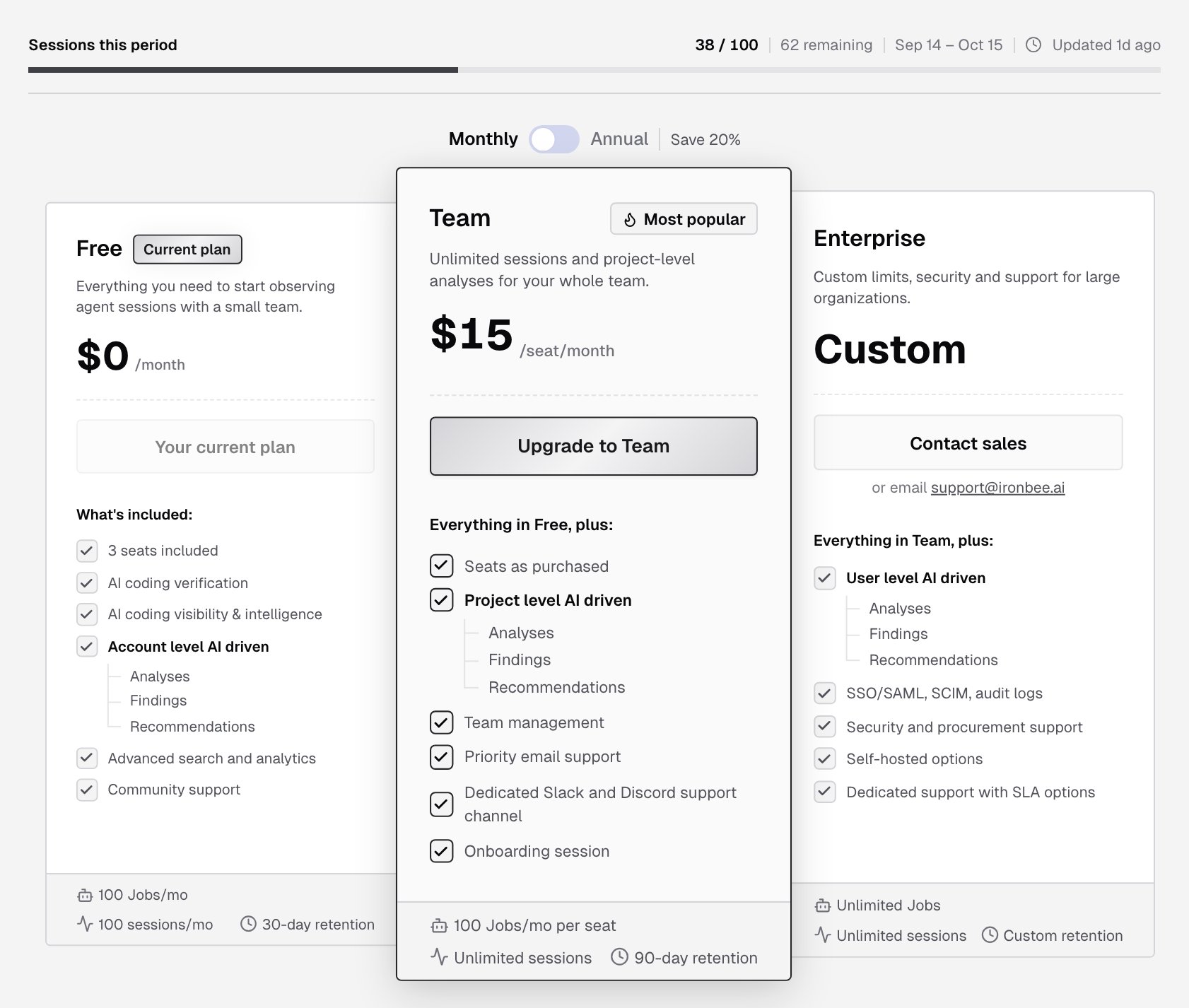
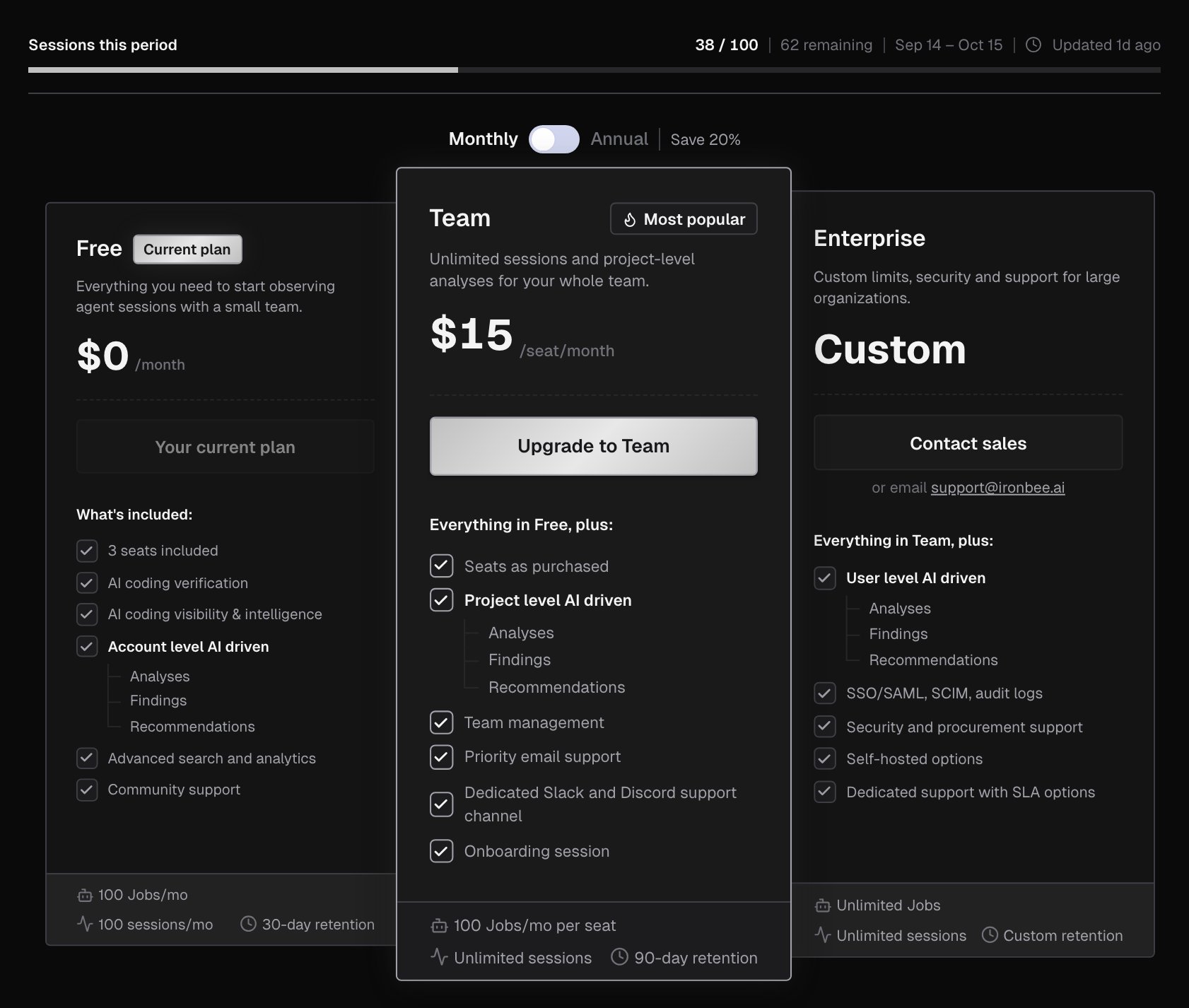 The buttons on the Free and Team cards depend on your plan:
| Your plan | Free card | Team card |
| - | - | - |
| Free | **Your current plan** | **Upgrade to Team** |
| Team | **Downgrade to Free** | **Change seats**, **Manage billing**, **Cancel plan** |
| Team, with a cancellation scheduled | **Downgrade scheduled** | **Resume subscription**, **Manage billing** |
| Team, with a payment past due | **Downgrade to Free** | **Update payment method**, **Change seats**, **Cancel plan** |
On the Enterprise card, **Contact sales** opens IronBee's contact page, or you can email [support@ironbee.ai](mailto:support@ironbee.ai).
### Upgrade to Team
1. Pick **Monthly** or **Annual** above the cards, and click **Upgrade to Team**.
2. In the **Upgrade to Team** panel, check the **Billing interval**.
3. Under **Seats**, set the number of seats with the - and + buttons. The minimum shows below them, and it's never lower than the number of people in the account: members plus pending invitations. Owners also see those counts next to the seats.
4. Check the **Estimated total**. For **Annual**, it also shows the yearly amount.
5. Click **Continue to payment**, and pay on Stripe Checkout, which shows the final amount.
The buttons on the Free and Team cards depend on your plan:
| Your plan | Free card | Team card |
| - | - | - |
| Free | **Your current plan** | **Upgrade to Team** |
| Team | **Downgrade to Free** | **Change seats**, **Manage billing**, **Cancel plan** |
| Team, with a cancellation scheduled | **Downgrade scheduled** | **Resume subscription**, **Manage billing** |
| Team, with a payment past due | **Downgrade to Free** | **Update payment method**, **Change seats**, **Cancel plan** |
On the Enterprise card, **Contact sales** opens IronBee's contact page, or you can email [support@ironbee.ai](mailto:support@ironbee.ai).
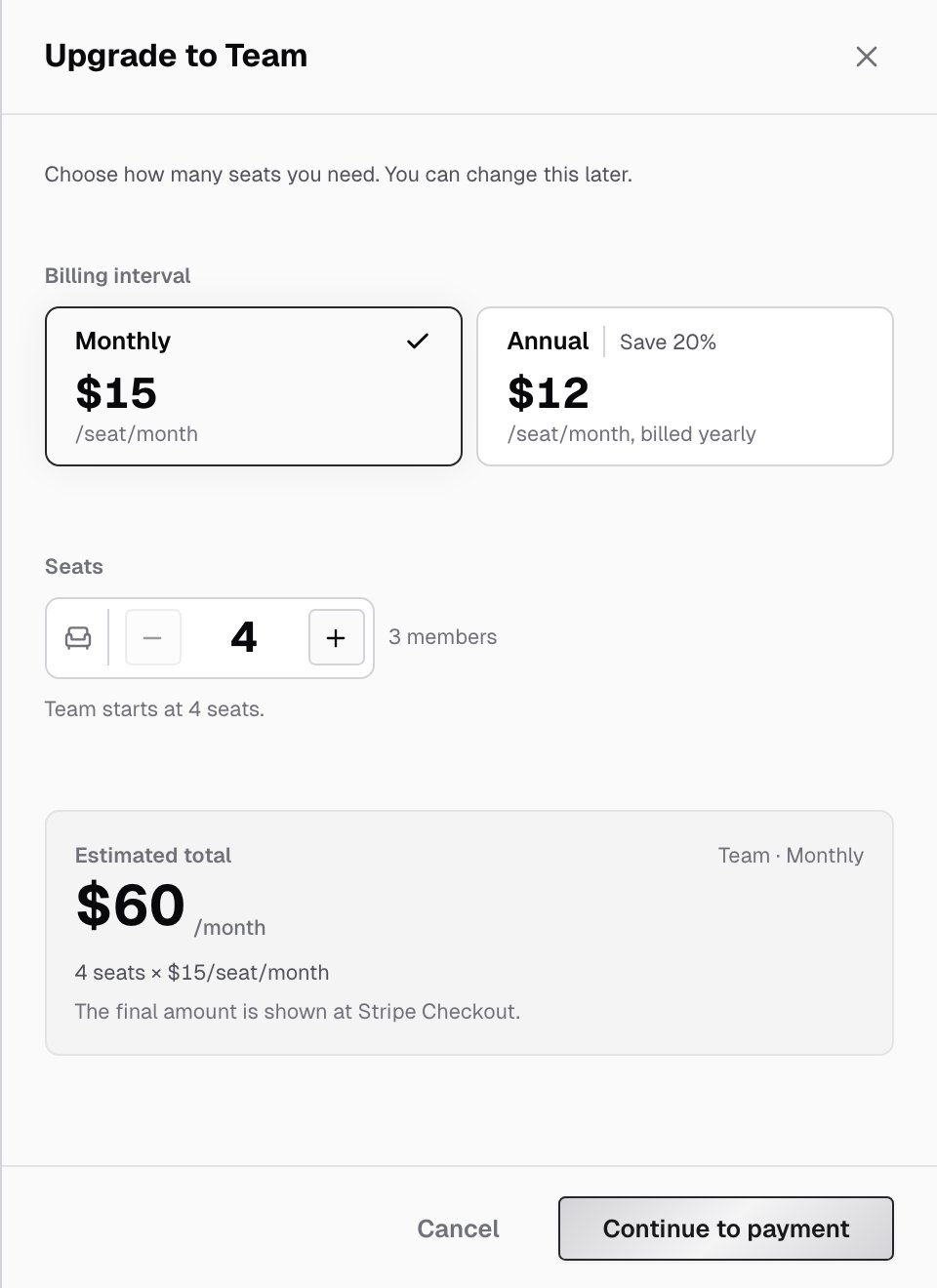
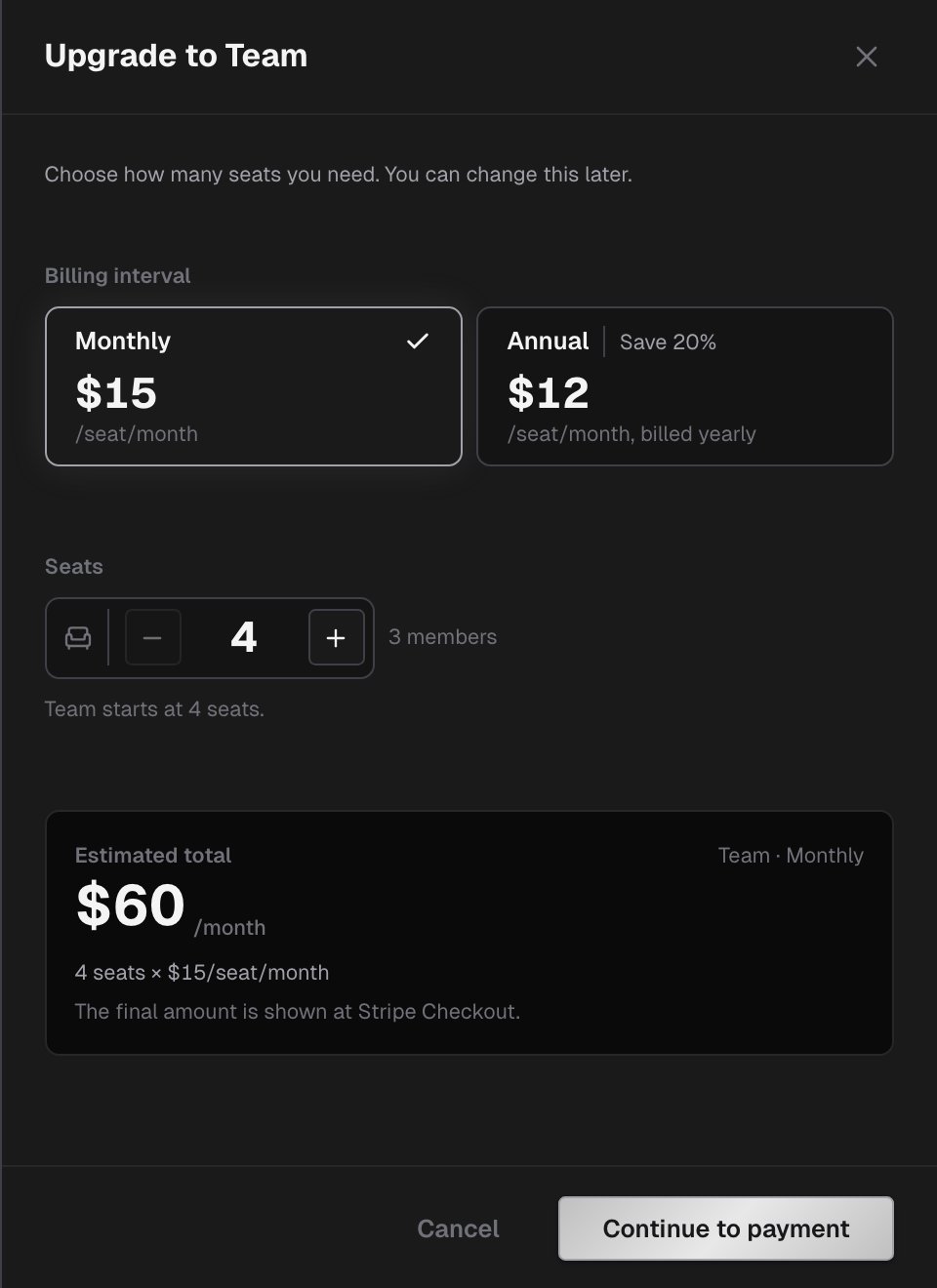
### Upgrade to Team
1. Pick **Monthly** or **Annual** above the cards, and click **Upgrade to Team**.
2. In the **Upgrade to Team** panel, check the **Billing interval**.
3. Under **Seats**, set the number of seats with the - and + buttons. The minimum shows below them, and it's never lower than the number of people in the account: members plus pending invitations. Owners also see those counts next to the seats.
4. Check the **Estimated total**. For **Annual**, it also shows the yearly amount.
5. Click **Continue to payment**, and pay on Stripe Checkout, which shows the final amount.
 After you pay, you return to **Pricing Plans**:
* **Activating your Team plan** shows while the plan switches over. This usually takes a few seconds, and **Team plan is active** confirms it.
* If it takes longer, **Payment received** asks you to refresh shortly to see your Team plan.
If you leave the checkout without paying, your plan doesn't change.
### Change seats
Members and pending invitations each take a seat. When every seat is in use, **Invite team member** on the [Team](/console/team) page says so, and shows the owner a **View pricing** link.
To change the number of seats on Team:
1. Click **Change seats**.
2. In the **Change seats** dialog, set the new number. Prorated charges or credits appear on your next invoice.
3. Click **Update seats**.
You can't go below the number of people who use the account. For an owner, the dialog then lists who to remove first: pending invitations, then the newest members. Remove them on the [Team](/console/team) page and try again.
### Billing details and payments
**Manage billing** opens the Stripe billing portal.
If a payment fails, the Team card shows **Payment past due**, and its main button becomes **Update payment method**, which opens the same portal.
### Cancel or resume Team
1. Click **Cancel plan** on the Team card, or **Downgrade to Free** on the Free card.
2. **Cancel Team plan?** tells you:
* the date the Team plan stays active until. After that, the account moves to Free, with the Free plan's limits
* that unused time is not refunded
* how many people will lose access, when the account has more people than Free's seats
3. Click **Cancel plan** to confirm, or **Keep plan** to close the dialog.
Until that date, the Team card shows **Cancels on** with the date, and the Free card shows **Downgrade scheduled**. To stay on Team, click **Resume subscription**.
### Session usage
**Sessions this period**, at the top of **Pricing Plans**, shows:
* the sessions used and your plan's limit, with how many remain. On Team, it shows the count and **Unlimited**
* the dates of the current period
* when the numbers were last updated
When you've used 80% of the limit, the meter turns to a warning. On Free, the warning suggests upgrading to Team. At the limit, it shows **Session limit reached**: new telemetry is paused until the period resets or you upgrade.
Until the first usage snapshot, the meter shows **Usage data is being collected**. The first snapshot appears within an hour.
### Banners across the console
A plan problem also shows as a banner at the top of every console page, one at a time:
| Banner | When | Button |
| - | - | - |
| **Session limit reached** | The account used its sessions for the period. New telemetry is rejected until the period resets | **Upgrade**, for owners and billing admins |
| **Payment past due** | IronBee couldn't charge your card | **Update payment method**, for owners and billing admins |
| **More people than seats** | More people use the account than its plan has seats | **Manage team** for owners and admins, **View pricing** for billing admins |
You can close the **More people than seats** banner. It comes back later while the account still has more people than seats.
***
## History
The **History** tab lists the account's invoices, one year at a time. Pick the year in the top-right corner.
After you pay, you return to **Pricing Plans**:
* **Activating your Team plan** shows while the plan switches over. This usually takes a few seconds, and **Team plan is active** confirms it.
* If it takes longer, **Payment received** asks you to refresh shortly to see your Team plan.
If you leave the checkout without paying, your plan doesn't change.
### Change seats
Members and pending invitations each take a seat. When every seat is in use, **Invite team member** on the [Team](/console/team) page says so, and shows the owner a **View pricing** link.
To change the number of seats on Team:
1. Click **Change seats**.
2. In the **Change seats** dialog, set the new number. Prorated charges or credits appear on your next invoice.
3. Click **Update seats**.
You can't go below the number of people who use the account. For an owner, the dialog then lists who to remove first: pending invitations, then the newest members. Remove them on the [Team](/console/team) page and try again.
### Billing details and payments
**Manage billing** opens the Stripe billing portal.
If a payment fails, the Team card shows **Payment past due**, and its main button becomes **Update payment method**, which opens the same portal.
### Cancel or resume Team
1. Click **Cancel plan** on the Team card, or **Downgrade to Free** on the Free card.
2. **Cancel Team plan?** tells you:
* the date the Team plan stays active until. After that, the account moves to Free, with the Free plan's limits
* that unused time is not refunded
* how many people will lose access, when the account has more people than Free's seats
3. Click **Cancel plan** to confirm, or **Keep plan** to close the dialog.
Until that date, the Team card shows **Cancels on** with the date, and the Free card shows **Downgrade scheduled**. To stay on Team, click **Resume subscription**.
### Session usage
**Sessions this period**, at the top of **Pricing Plans**, shows:
* the sessions used and your plan's limit, with how many remain. On Team, it shows the count and **Unlimited**
* the dates of the current period
* when the numbers were last updated
When you've used 80% of the limit, the meter turns to a warning. On Free, the warning suggests upgrading to Team. At the limit, it shows **Session limit reached**: new telemetry is paused until the period resets or you upgrade.
Until the first usage snapshot, the meter shows **Usage data is being collected**. The first snapshot appears within an hour.
### Banners across the console
A plan problem also shows as a banner at the top of every console page, one at a time:
| Banner | When | Button |
| - | - | - |
| **Session limit reached** | The account used its sessions for the period. New telemetry is rejected until the period resets | **Upgrade**, for owners and billing admins |
| **Payment past due** | IronBee couldn't charge your card | **Update payment method**, for owners and billing admins |
| **More people than seats** | More people use the account than its plan has seats | **Manage team** for owners and admins, **View pricing** for billing admins |
You can close the **More people than seats** banner. It comes back later while the account still has more people than seats.
***
## History
The **History** tab lists the account's invoices, one year at a time. Pick the year in the top-right corner.
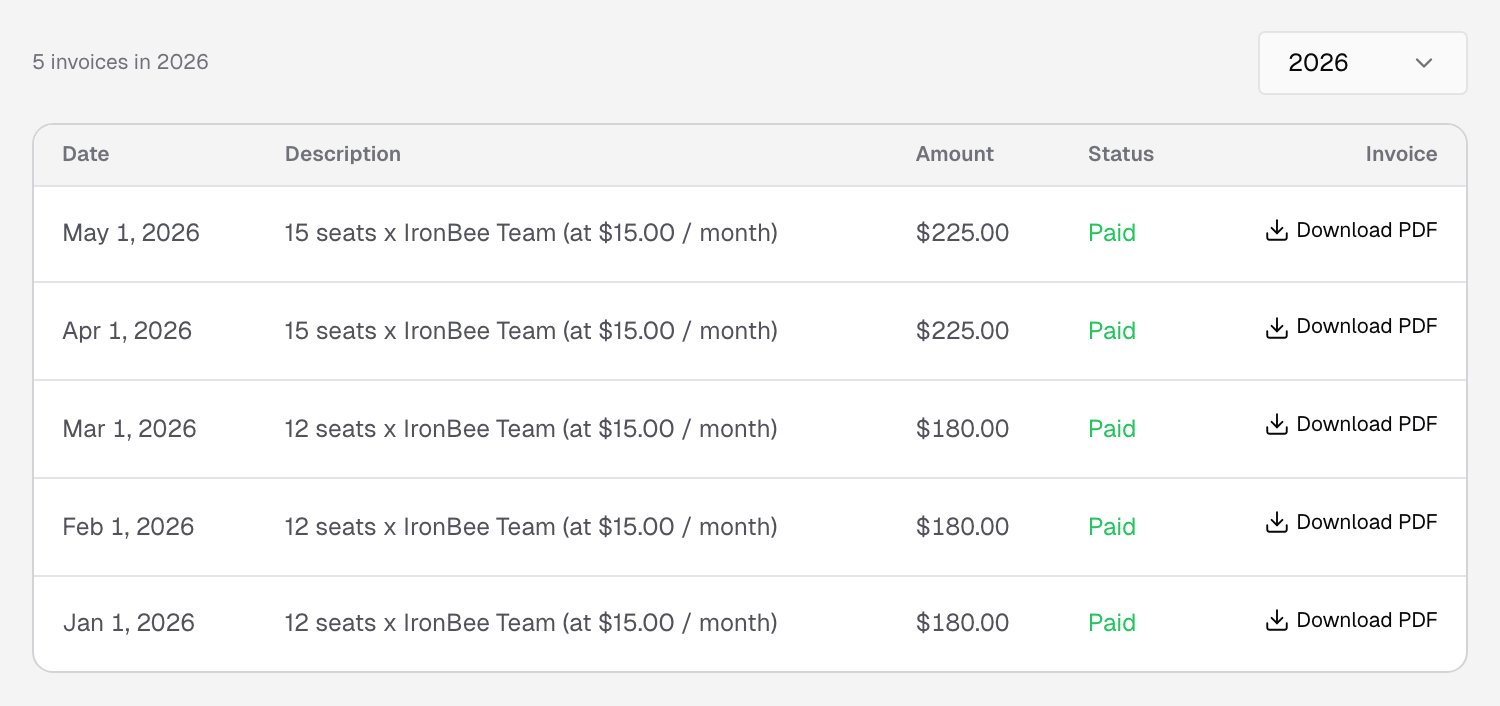
 Each invoice has:
* **Date**, **Description** and **Amount**
* **Status**: **Paid**, **Open**, **Failed** or **Void**
* **Invoice**: **Download PDF**, when a PDF is available
Click **Load more** for older invoices. Before your first payment, the tab shows **No payments yet**.
***
## Related pages
Invite teammates and manage their roles.
What owners, admins, members and billing admins can do.
Each invoice has:
* **Date**, **Description** and **Amount**
* **Status**: **Paid**, **Open**, **Failed** or **Void**
* **Invoice**: **Download PDF**, when a PDF is available
Click **Load more** for older invoices. Before your first payment, the tab shows **No payments yet**.
***
## Related pages
Invite teammates and manage their roles.
What owners, admins, members and billing admins can do.