> ## Documentation Index
> Fetch the complete documentation index at: https://docs.ironbee.ai/llms.txt
> Use this file to discover all available pages before exploring further.
# Analysis
> AI-powered analysis of your sessions which are quality, cost, and behavioral patterns.
After sessions complete, IronBee automatically runs **analysis** an LLM-powered pass over session data that turns raw telemetry into actionable insights.
## Analysis types
IronBee produces five analysis types across two scopes:
| Type | Scope | What it covers |
| ---------------------------------------------------------------------- | ------- | ------------------------------------------------------------------------------ |
| [Project Quality Analysis](/console/analysis-quality) | Project | Verification thoroughness, fix effectiveness, retry patterns, hot files |
| [Project Cost Analysis](/console/analysis-project-cost) | Project | Token spend, cache efficiency, cost per session, top billed sessions |
| [Project Session Insights](/console/analysis-project-session-insights) | Project | Session patterns, tool usage, context pressure, languages, activity categories |
| [Account Cost Analysis](/console/analysis-account-cost) | Account | Account-wide spend across all projects and users |
| [Account Session Insights](/console/analysis-account-session-insights) | Account | Account-wide behavioral patterns across all projects |
## The analyses list
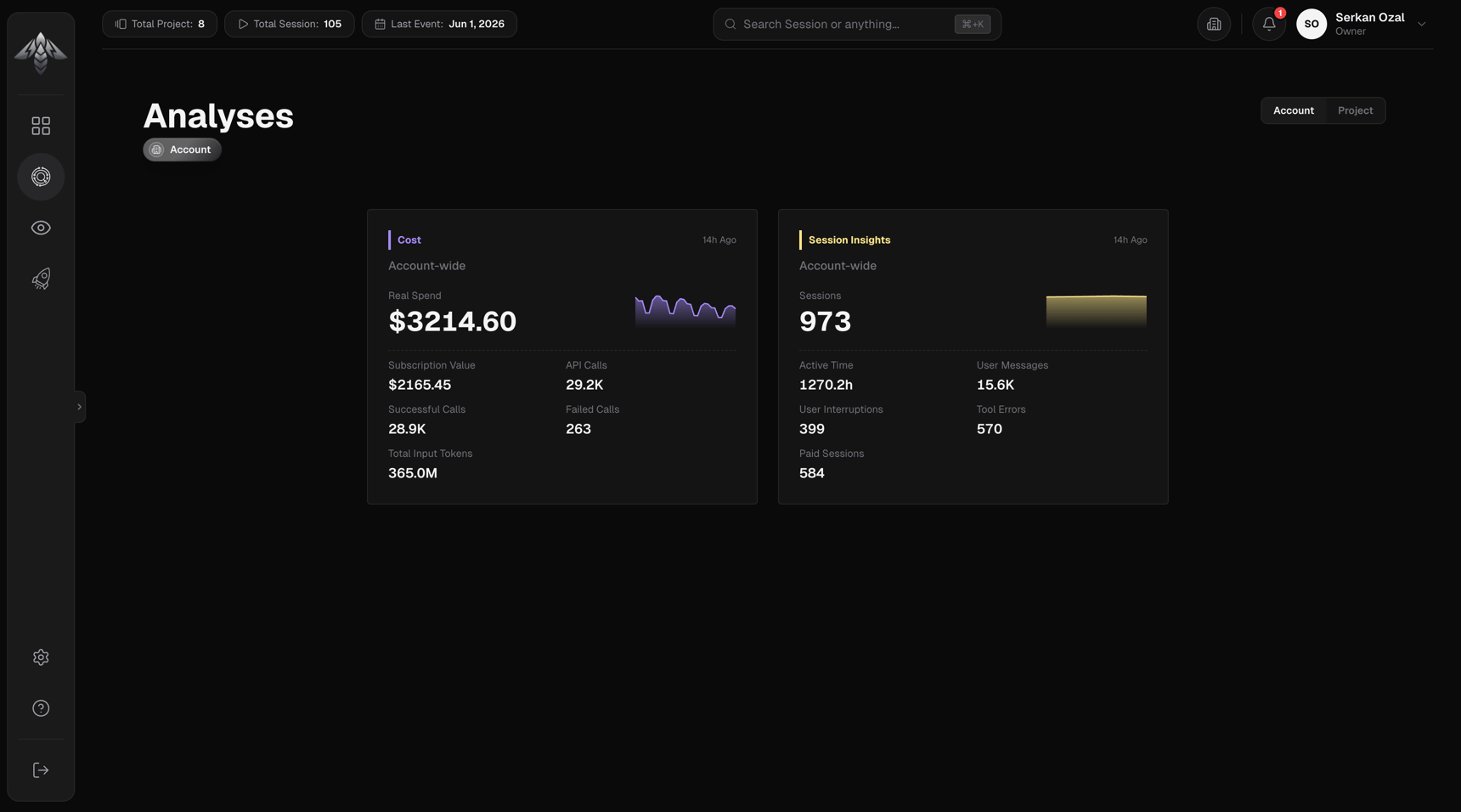
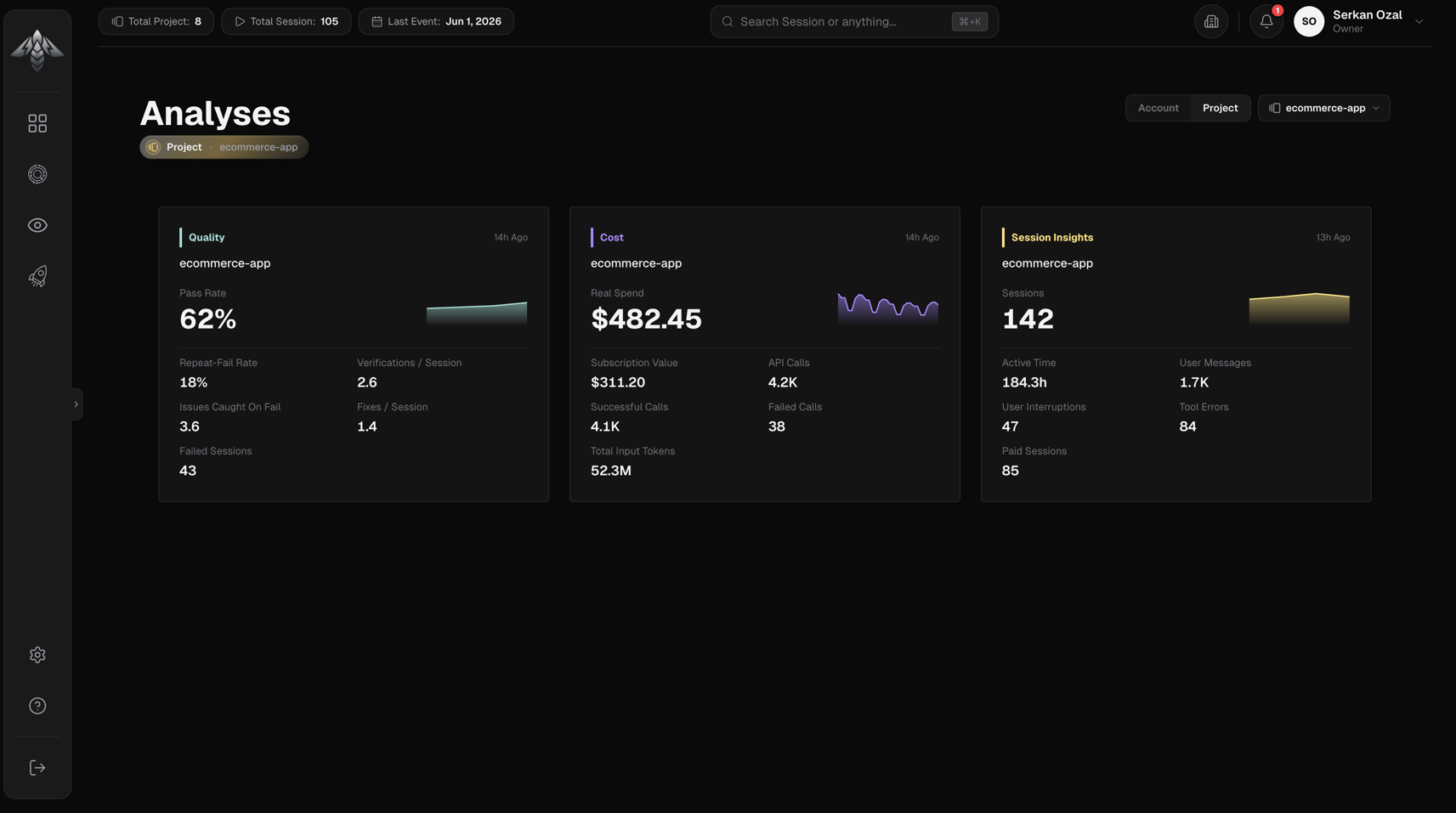
The Analyses page shows a card grid of recent analysis runs. Use the **Account / Project** scope tabs to switch between account-wide and project-scoped analyses. When viewing Project scope, use the project picker to select a project.
Each card shows:
* Analysis type and timestamp
* A hero metric with a mini trend chart
* Five secondary metrics at a glance
Click a card to open the full analysis detail view.
Account Analysis:
 Project Analysis:
 ## How analysis works
1. A session completes (verdict submitted or retry limit reached)
2. IronBee aggregates session metrics into a structured data packet
3. An LLM analyst processes the packet and produces findings and recommendations
4. The analysis appears in the Analyses page and the Findings and Recommendations pages update
Analysis typically completes within a minute of session end.
## Related pages
Specific observations surfaced by the analyzer.
Directives injected into the agent's context on future sessions.
## How analysis works
1. A session completes (verdict submitted or retry limit reached)
2. IronBee aggregates session metrics into a structured data packet
3. An LLM analyst processes the packet and produces findings and recommendations
4. The analysis appears in the Analyses page and the Findings and Recommendations pages update
Analysis typically completes within a minute of session end.
## Related pages
Specific observations surfaced by the analyzer.
Directives injected into the agent's context on future sessions.