> ## Documentation Index
> Fetch the complete documentation index at: https://docs.ironbee.ai/llms.txt
> Use this file to discover all available pages before exploring further.
# Managing Projects
> Install, remove, track, and update IronBee across your projects.
Once the CLI is installed and you're signed in (see [Getting Started](/cli/get-started/getting-started)), these commands set IronBee up in a project, remove it, keep track of where it's installed, and keep the CLI itself current.
***
## Install IronBee in a project
Run the installer from your project root:
```bash theme={null}
ironbee install
```
IronBee detects your AI client (Claude Code, Cursor, or Codex) and wires up everything it needs: the completion hook, the verification skill and rule, the devtools MCP server, and the matching permissions. If it can't detect a client, it asks which one you use.
To target a specific client explicitly:
```bash theme={null}
ironbee install --client claude # Claude Code
ironbee install --client cursor # Cursor
ironbee install --client codex # Codex CLI
ironbee install --client all # every detected client
```
When you don't pass `--client` (and IronBee can't uniquely detect one), install shows a **checkbox multi-select** so you can set up **any combination** of clients in one pass — **space** toggles a client, **`a`** selects all, **Enter** confirms. The first client is pre-checked, and confirming with nothing selected aborts.
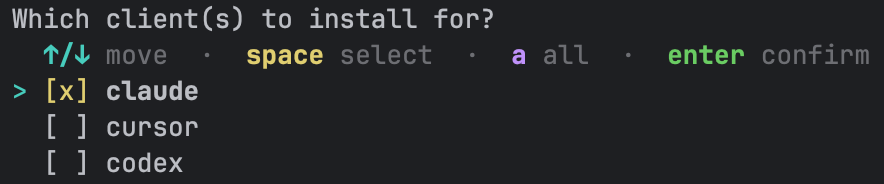 (`--client all` does the same non-interactively — it installs for every detected client.)
The interactive flow then asks three more questions in order — **mode**, **platforms**, then **checks** — because choosing `monitor` makes the platform picker (and the checks step) moot and skips them.
### Choosing the verification mode
After resolving the client, install asks **which verification mode** to run. In an interactive terminal it shows an arrow-key single-select, pre-selecting the project's current mode (so re-installing keeps your choice; a fresh project defaults to `assist`):
```
Which verification mode?
↑/↓ move · enter confirm
auto verify (enforce) block task completion until changes are verified — full enforcement
> assist tools installed but not enforced — the agent verifies manually via /ironbee-verify (default)
monitor only no enforcement — only track sessions / activity / tools for analytics
```
Skip the prompt with `--mode`:
```bash theme={null}
ironbee install --mode assist # tools installed, manual /ironbee-verify only (default)
ironbee install --mode enforce # full enforcement — block completion until verified
ironbee install --mode monitor # monitoring-only — no enforcement, no platform picker
```
The choice is written explicitly to the committed project config (`verification.enable` / `verification.auto`), so it's equivalent to the [`ironbee verification` toggles](/cli/guides/verification#verification-modes). For `assist` and `enforce`, install also records [`verification.strict`](/cli/guides/verification#strict-mode) at its default `false` (a strict choice you already made is kept). Any existing [`verification.model`](/cli/guides/verification#picking-the-verifier-model) is preserved. The picker default reads the project's **own** committed/local config (the machine-global config is ignored), so a fresh project defaults to `assist` even on a machine running monitoring-only globally. In a non-interactive shell with no `--mode` flag, the verification config is left untouched.
### Choosing which platforms to verify
Unless you picked `monitor`, install then asks **which verification platforms** (cycles) to enable. In an interactive terminal it shows an arrow-key multi-select, pre-checked from the project's current config (so re-installing keeps your choices; a fresh project defaults to browser-only):
```
Which platforms should require verification?
↑/↓ move · space toggle · a all · s suggest · enter confirm
[x] browser web UI · DOM · console · a11y · screenshots · recording
[ ] node Node.js runtime · tracepoints · logpoints · exceptions · variables · logs · HTTP capture
[ ] python Python runtime (debugpy) · tracepoints · logpoints · exceptions · thread dumps · logs · HTTP capture
[ ] backend HTTP · gRPC · GraphQL · WebSocket · DB · logs
[ ] android device/emulator · taps · swipes · screenshots · UI snapshots · Logcat · HTTP
[ ] terminal CLI / REPL / TUI driving over a PTY · send keys · capture output · exit codes
```
The picker also offers an **`s` "suggest"** key. Press it to have IronBee analyze your project with a headless prompt and **replace** the current selection with a recommended set of cycles; you can still adjust it before pressing Enter. All three clients can run the analysis — Claude Code, Codex, and Cursor — and when several are selected it uses the highest-priority one (`claude > codex > cursor`). It's opt-in (nothing runs until you press `s`), and if the analysis is cancelled (Esc), times out, or fails, your current selection is kept.
(`--client all` does the same non-interactively — it installs for every detected client.)
The interactive flow then asks three more questions in order — **mode**, **platforms**, then **checks** — because choosing `monitor` makes the platform picker (and the checks step) moot and skips them.
### Choosing the verification mode
After resolving the client, install asks **which verification mode** to run. In an interactive terminal it shows an arrow-key single-select, pre-selecting the project's current mode (so re-installing keeps your choice; a fresh project defaults to `assist`):
```
Which verification mode?
↑/↓ move · enter confirm
auto verify (enforce) block task completion until changes are verified — full enforcement
> assist tools installed but not enforced — the agent verifies manually via /ironbee-verify (default)
monitor only no enforcement — only track sessions / activity / tools for analytics
```
Skip the prompt with `--mode`:
```bash theme={null}
ironbee install --mode assist # tools installed, manual /ironbee-verify only (default)
ironbee install --mode enforce # full enforcement — block completion until verified
ironbee install --mode monitor # monitoring-only — no enforcement, no platform picker
```
The choice is written explicitly to the committed project config (`verification.enable` / `verification.auto`), so it's equivalent to the [`ironbee verification` toggles](/cli/guides/verification#verification-modes). For `assist` and `enforce`, install also records [`verification.strict`](/cli/guides/verification#strict-mode) at its default `false` (a strict choice you already made is kept). Any existing [`verification.model`](/cli/guides/verification#picking-the-verifier-model) is preserved. The picker default reads the project's **own** committed/local config (the machine-global config is ignored), so a fresh project defaults to `assist` even on a machine running monitoring-only globally. In a non-interactive shell with no `--mode` flag, the verification config is left untouched.
### Choosing which platforms to verify
Unless you picked `monitor`, install then asks **which verification platforms** (cycles) to enable. In an interactive terminal it shows an arrow-key multi-select, pre-checked from the project's current config (so re-installing keeps your choices; a fresh project defaults to browser-only):
```
Which platforms should require verification?
↑/↓ move · space toggle · a all · s suggest · enter confirm
[x] browser web UI · DOM · console · a11y · screenshots · recording
[ ] node Node.js runtime · tracepoints · logpoints · exceptions · variables · logs · HTTP capture
[ ] python Python runtime (debugpy) · tracepoints · logpoints · exceptions · thread dumps · logs · HTTP capture
[ ] backend HTTP · gRPC · GraphQL · WebSocket · DB · logs
[ ] android device/emulator · taps · swipes · screenshots · UI snapshots · Logcat · HTTP
[ ] terminal CLI / REPL / TUI driving over a PTY · send keys · capture output · exit codes
```
The picker also offers an **`s` "suggest"** key. Press it to have IronBee analyze your project with a headless prompt and **replace** the current selection with a recommended set of cycles; you can still adjust it before pressing Enter. All three clients can run the analysis — Claude Code, Codex, and Cursor — and when several are selected it uses the highest-priority one (`claude > codex > cursor`). It's opt-in (nothing runs until you press `s`), and if the analysis is cancelled (Esc), times out, or fails, your current selection is kept.
 When the analysis finishes, IronBee **replaces** your checkboxes with its recommendation (here browser, node, and backend) — still editable before you press Enter:
 Skip the prompt with `--platforms` (a comma-separated subset of `browser,node,python,backend,android,terminal`):
```bash theme={null}
ironbee install --platforms browser,node # enable just these two
ironbee install --platforms "" # disable all cycles (incl. the default-on browser)
```
The selection is written to the committed project config before the artifacts render, so it's equivalent to running the [`ironbee browser` / `node` / `python` / `backend` / `android` / `terminal`](/cli/guides/verification#enable-or-disable-a-platform) toggles. Install records the **full** platform state explicitly — an `enable` flag for every cycle (`browser`, `node`, `python`, `backend`, `android`, `terminal`) — so the committed `config.json` plainly shows what's on and what's off. In a non-interactive shell with no `--platforms` flag (or in monitoring-only mode, including a just-chosen `--mode monitor`), the platform config is left untouched.
### Choosing your project checks
Beta — the suggested commands are a starting point to review, not a finished config.
The last step (skipped in monitoring-only mode, or when no headless-capable client is available) offers to set up [project checks](/cli/guides/verification#project-checks-run-first-lint-tests-types) — deterministic lint / typecheck / test / build / format commands IronBee runs as the first step of every verification cycle. In an interactive terminal it asks a yes/no first (default **No**); if you accept, it analyzes your project with your AI client and proposes concrete commands for you to approve.
Control it non-interactively with a tri-state flag:
```bash theme={null}
ironbee install --checks # run the analysis and accept the suggested set (skip the yes/no gate)
ironbee install --no-checks # skip the checks step entirely
```
With no flag, checks are offered only on an interactive terminal and skipped otherwise. This is the same flow as the standalone [`ironbee checks suggest`](/cli/guides/verification#let-ironbee-suggest-your-checks) command, which you can re-run anytime; re-suggesting is additive, so it never clobbers checks you've hand-tuned.
### Unattended installs
For scripts and CI, `install` can run with zero prompts:
```bash theme={null}
ironbee install --client claude --mode enforce --platforms browser,node \
--no-checks --yes --json
```
| Flag | Description |
| ---------------------------------- | -------------------------------------------------------------------------------------------------------------------------------------- |
| `-y`, `--yes`, `--non-interactive` | Force zero prompts even under a TTY. Any choice you didn't pass a flag for falls back to the flag / existing config / defaults. |
| `--json` | Emit a machine-readable summary to stdout (`{ ok, project, clients, mode, strict, platforms, checks }`); decorative logs go to stderr. |
Restart your AI coding client after installing so it picks up the new hooks and tools.
### Install everywhere at once
IronBee keeps an inventory of every project you've installed it into (see [The project inventory](#the-project-inventory) below). To re-run install across all of them (handy after changing a global setting):
```bash theme={null}
ironbee install --all
```
***
## Remove IronBee from a project
```bash theme={null}
ironbee uninstall
```
This removes the hooks, skill, rule, MCP server entry, and permissions IronBee added, deletes the project's `.ironbee/` directory, and drops the project from the inventory.
| Option | Description |
| ----------------- | --------------------------------------------------------------------------------- |
| `--client ` | Only remove a specific client's setup (`claude`, `cursor`, `codex`, or `all`). |
| `--all` | Remove IronBee from **every** registered project. Prompts for confirmation first. |
| `-y`, `--yes` | Skip the confirmation prompt (required with `--all` in scripts/CI). |
```bash theme={null}
ironbee uninstall --all # asks before wiping every project
ironbee uninstall --all --yes # no prompt — for scripts
```
***
## The project inventory
IronBee tracks the projects it's installed in at `~/.ironbee/projects.json`. This inventory is what `install --all` and global config changes use to know which projects to update.
You normally don't manage it by hand; `ironbee install` adds a project automatically, and `ironbee uninstall` removes it. Two commands let you adjust the inventory **without touching any installed files**:
```bash theme={null}
ironbee register # add the current project to the inventory
ironbee unregister # remove the current project from the inventory
```
* **`register`** - retrofit a project that was set up manually (or before the inventory existed) so it shows up for `install --all` and global-config notices. No artifacts are written.
* **`unregister`** - drop an entry without uninstalling anything. Works even if the project directory has already been deleted.
Both accept `-p, --project ` to target a directory other than the current one.
***
## Update the CLI
Check for a newer release and update in place:
```bash theme={null}
ironbee update
```
The command compares your installed version against the npm registry, updates to the latest if one exists, and warns you if your shell would otherwise keep resolving an older copy on your `PATH`. You can always update manually instead:
```bash theme={null}
npm install -g @ironbee-ai/cli@latest
```
Restart your AI coding client after updating to use the new version.
### Auto re-rendering after an upgrade
Occasionally a new release changes the **structure** of the files install writes into a project — hook configs, the skill/rule/agent files, MCP entries, the verifier sub-agent. When that happens, IronBee re-renders every [registered project](#the-project-inventory) so they all pick up the new structure, without you running `install --all` by hand.
* It triggers right after the upgrade (the npm `postinstall`, including via `ironbee update`) and, as a fallback, on your next interactive `ironbee` command.
* It's **non-destructive**: re-rendering preserves your config — mode, platforms, the verifier model, and any custom verify patterns are kept.
* In an interactive terminal you get a one-key **"Press Enter to update them now…"** acknowledgement before it runs. In any non-interactive context (pipes, CI, agent-fired hooks) it **defers** rather than re-rendering silently, so the next interactive run picks it up.
* Routine patches that don't change the file structure re-render nothing.
To suppress the auto re-render entirely (CI, locked-down machines), set [`IRONBEE_NO_AUTO_RERENDER`](/cli/configuration/environment-variables#advanced) — or rely on `CI` being set, which also short-circuits it.
***
## What's next?
Choose which platforms get verified and switch between enforcement and monitoring-only.
Manage projects, platforms, and sessions from a full-screen terminal UI.
Skip the prompt with `--platforms` (a comma-separated subset of `browser,node,python,backend,android,terminal`):
```bash theme={null}
ironbee install --platforms browser,node # enable just these two
ironbee install --platforms "" # disable all cycles (incl. the default-on browser)
```
The selection is written to the committed project config before the artifacts render, so it's equivalent to running the [`ironbee browser` / `node` / `python` / `backend` / `android` / `terminal`](/cli/guides/verification#enable-or-disable-a-platform) toggles. Install records the **full** platform state explicitly — an `enable` flag for every cycle (`browser`, `node`, `python`, `backend`, `android`, `terminal`) — so the committed `config.json` plainly shows what's on and what's off. In a non-interactive shell with no `--platforms` flag (or in monitoring-only mode, including a just-chosen `--mode monitor`), the platform config is left untouched.
### Choosing your project checks
Beta — the suggested commands are a starting point to review, not a finished config.
The last step (skipped in monitoring-only mode, or when no headless-capable client is available) offers to set up [project checks](/cli/guides/verification#project-checks-run-first-lint-tests-types) — deterministic lint / typecheck / test / build / format commands IronBee runs as the first step of every verification cycle. In an interactive terminal it asks a yes/no first (default **No**); if you accept, it analyzes your project with your AI client and proposes concrete commands for you to approve.
Control it non-interactively with a tri-state flag:
```bash theme={null}
ironbee install --checks # run the analysis and accept the suggested set (skip the yes/no gate)
ironbee install --no-checks # skip the checks step entirely
```
With no flag, checks are offered only on an interactive terminal and skipped otherwise. This is the same flow as the standalone [`ironbee checks suggest`](/cli/guides/verification#let-ironbee-suggest-your-checks) command, which you can re-run anytime; re-suggesting is additive, so it never clobbers checks you've hand-tuned.
### Unattended installs
For scripts and CI, `install` can run with zero prompts:
```bash theme={null}
ironbee install --client claude --mode enforce --platforms browser,node \
--no-checks --yes --json
```
| Flag | Description |
| ---------------------------------- | -------------------------------------------------------------------------------------------------------------------------------------- |
| `-y`, `--yes`, `--non-interactive` | Force zero prompts even under a TTY. Any choice you didn't pass a flag for falls back to the flag / existing config / defaults. |
| `--json` | Emit a machine-readable summary to stdout (`{ ok, project, clients, mode, strict, platforms, checks }`); decorative logs go to stderr. |
Restart your AI coding client after installing so it picks up the new hooks and tools.
### Install everywhere at once
IronBee keeps an inventory of every project you've installed it into (see [The project inventory](#the-project-inventory) below). To re-run install across all of them (handy after changing a global setting):
```bash theme={null}
ironbee install --all
```
***
## Remove IronBee from a project
```bash theme={null}
ironbee uninstall
```
This removes the hooks, skill, rule, MCP server entry, and permissions IronBee added, deletes the project's `.ironbee/` directory, and drops the project from the inventory.
| Option | Description |
| ----------------- | --------------------------------------------------------------------------------- |
| `--client ` | Only remove a specific client's setup (`claude`, `cursor`, `codex`, or `all`). |
| `--all` | Remove IronBee from **every** registered project. Prompts for confirmation first. |
| `-y`, `--yes` | Skip the confirmation prompt (required with `--all` in scripts/CI). |
```bash theme={null}
ironbee uninstall --all # asks before wiping every project
ironbee uninstall --all --yes # no prompt — for scripts
```
***
## The project inventory
IronBee tracks the projects it's installed in at `~/.ironbee/projects.json`. This inventory is what `install --all` and global config changes use to know which projects to update.
You normally don't manage it by hand; `ironbee install` adds a project automatically, and `ironbee uninstall` removes it. Two commands let you adjust the inventory **without touching any installed files**:
```bash theme={null}
ironbee register # add the current project to the inventory
ironbee unregister # remove the current project from the inventory
```
* **`register`** - retrofit a project that was set up manually (or before the inventory existed) so it shows up for `install --all` and global-config notices. No artifacts are written.
* **`unregister`** - drop an entry without uninstalling anything. Works even if the project directory has already been deleted.
Both accept `-p, --project ` to target a directory other than the current one.
***
## Update the CLI
Check for a newer release and update in place:
```bash theme={null}
ironbee update
```
The command compares your installed version against the npm registry, updates to the latest if one exists, and warns you if your shell would otherwise keep resolving an older copy on your `PATH`. You can always update manually instead:
```bash theme={null}
npm install -g @ironbee-ai/cli@latest
```
Restart your AI coding client after updating to use the new version.
### Auto re-rendering after an upgrade
Occasionally a new release changes the **structure** of the files install writes into a project — hook configs, the skill/rule/agent files, MCP entries, the verifier sub-agent. When that happens, IronBee re-renders every [registered project](#the-project-inventory) so they all pick up the new structure, without you running `install --all` by hand.
* It triggers right after the upgrade (the npm `postinstall`, including via `ironbee update`) and, as a fallback, on your next interactive `ironbee` command.
* It's **non-destructive**: re-rendering preserves your config — mode, platforms, the verifier model, and any custom verify patterns are kept.
* In an interactive terminal you get a one-key **"Press Enter to update them now…"** acknowledgement before it runs. In any non-interactive context (pipes, CI, agent-fired hooks) it **defers** rather than re-rendering silently, so the next interactive run picks it up.
* Routine patches that don't change the file structure re-render nothing.
To suppress the auto re-render entirely (CI, locked-down machines), set [`IRONBEE_NO_AUTO_RERENDER`](/cli/configuration/environment-variables#advanced) — or rely on `CI` being set, which also short-circuits it.
***
## What's next?
Choose which platforms get verified and switch between enforcement and monitoring-only.
Manage projects, platforms, and sessions from a full-screen terminal UI.